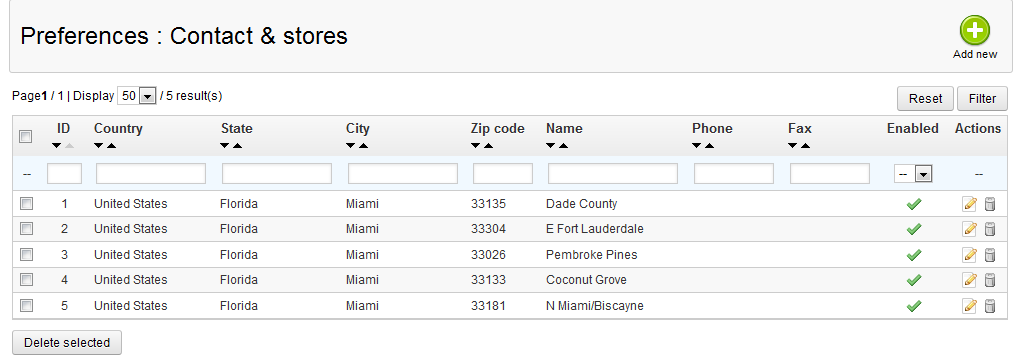
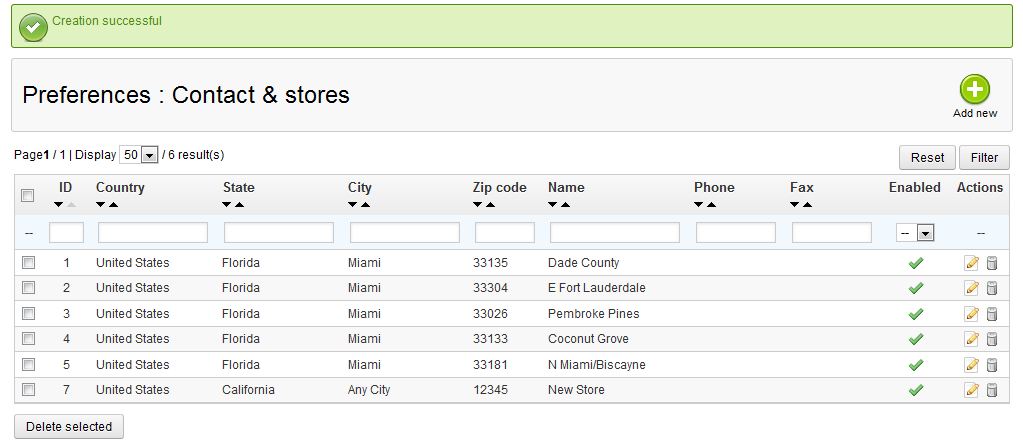
As you open new physical locations, you will want to have your new locations listed in your PrestaShop 1.5 store. There is a user-friendly interface so you can add your new store to the location list. PrestaShop 1.5 makes it easy to add your new store location!
To add your new store location in PrestaShop 1.5:
- Log into your PrestaShop 1.5 Admin dashboard
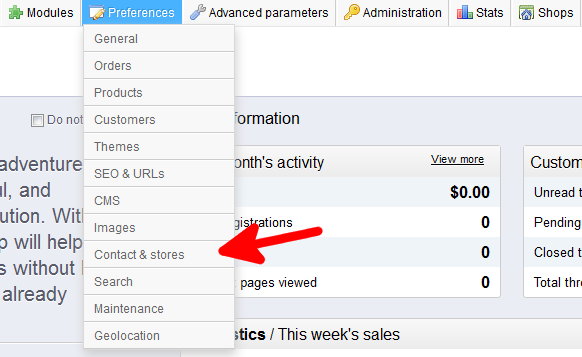
- Using the top menju bar, hover over the Preferences tab and then select the Contact & Stores preference.
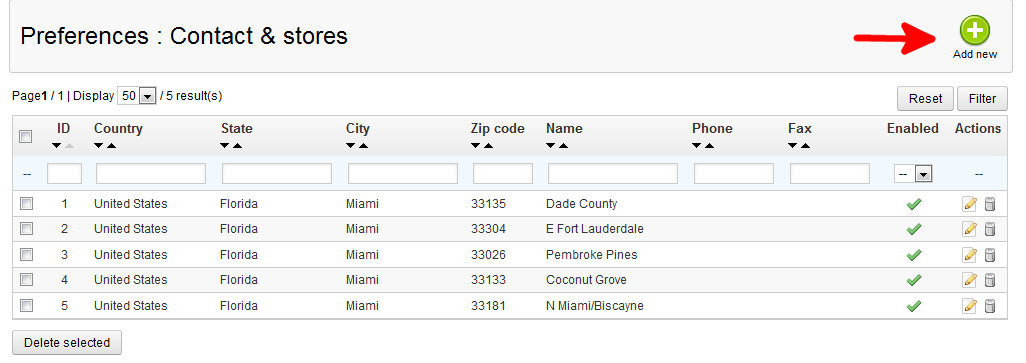
- While on the Prefences : Contact & Stores page, locate the store location list at the top of the screen. Click on the green Add New button to go to the next screen.
- You are now on the Preferences : Add Contact and Store screen. Fill out all apporpriate fields for your store. Address, City, Zip, State, and Country are required fields.
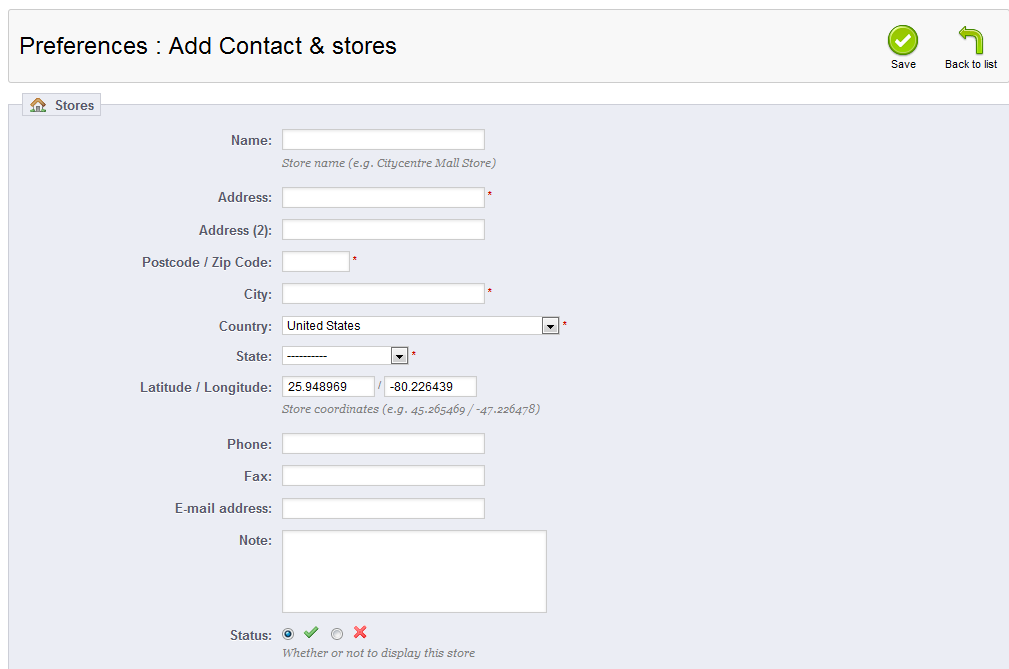
- Once finished, click the Save button in the upper right hand corner.
- Your new location will now appear in the store locations list.
Before After