So far we have learned how to edit Contact information on the sidebar and footer as well as editing the basic information pages. As we continue with our PrestaShop 1.5 tutorials, we are now going to learn how to edit the social network information in the Follow Us section of the PrestaShop 1.5 footer. This includes Facebook, Twitter, and RSS information.
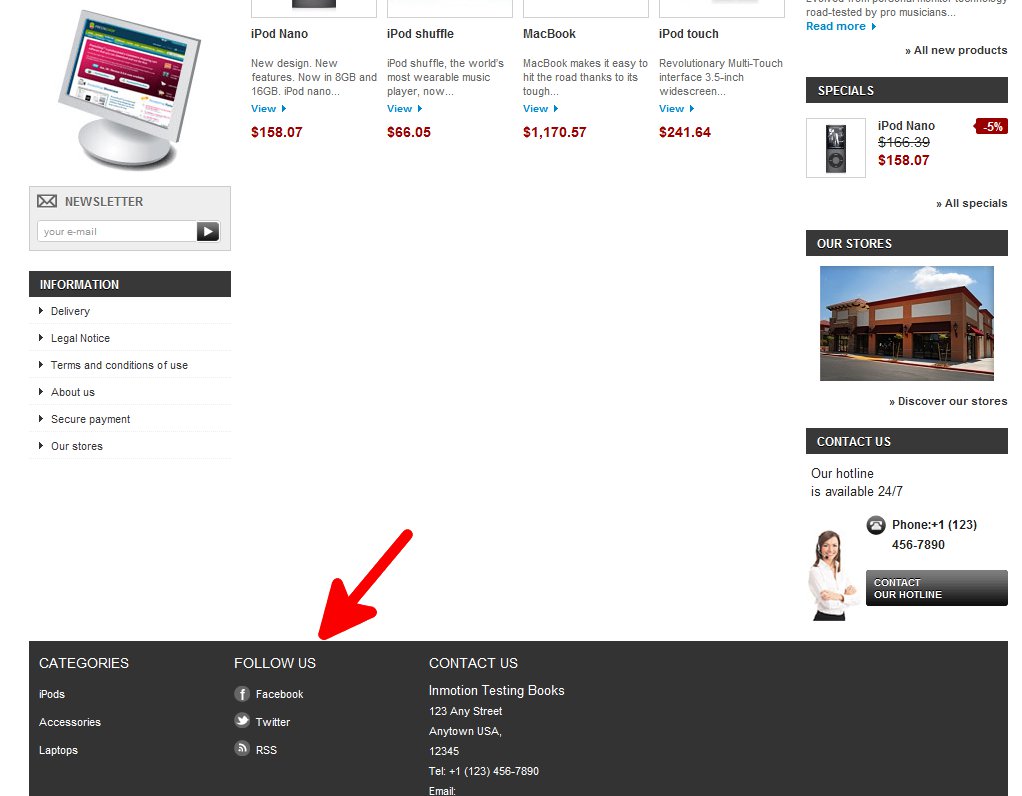
Editing the social netowrk information in the Follow Us section
- Log into your Prestashop 1.5 dashboard.
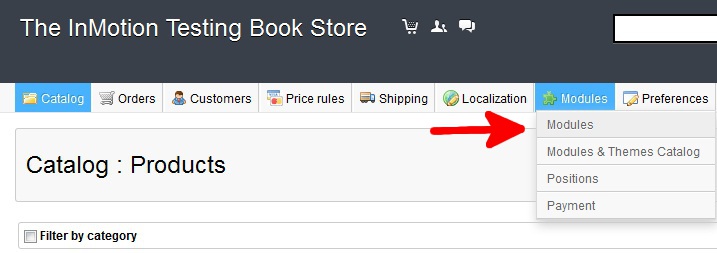
- Using the top menu bar, hover over the Modules tab and select Modules from the dropdown menu.
- From the Categories menu on the left hand side, select Front Office Features.
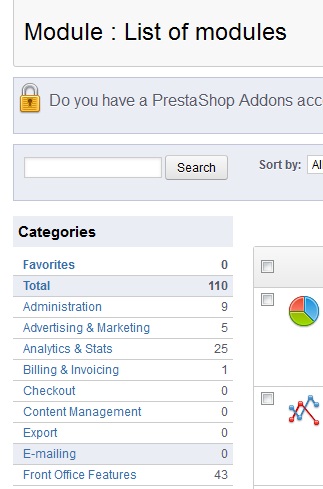
- Find the Social networking block Module from the list on the right hand side and select Configure. This is the module that governs the social networking links found in the footer for Facebook, Twitter, and RSS feeds.

- Here you will enter the proper information for Facebook URL, Twitter URL, and RSS URL for your company. If you do not have all of them simply remove the default URL from the social network you do not have as the blank field will cause that item not to show in the footer. Once done, click the Update Settings button. Hovering over the Facebook, Twitter, and RSS links will now reveal your correct company information.



You have now completed updating your Follow Us social network information in Prestashop 1.5!