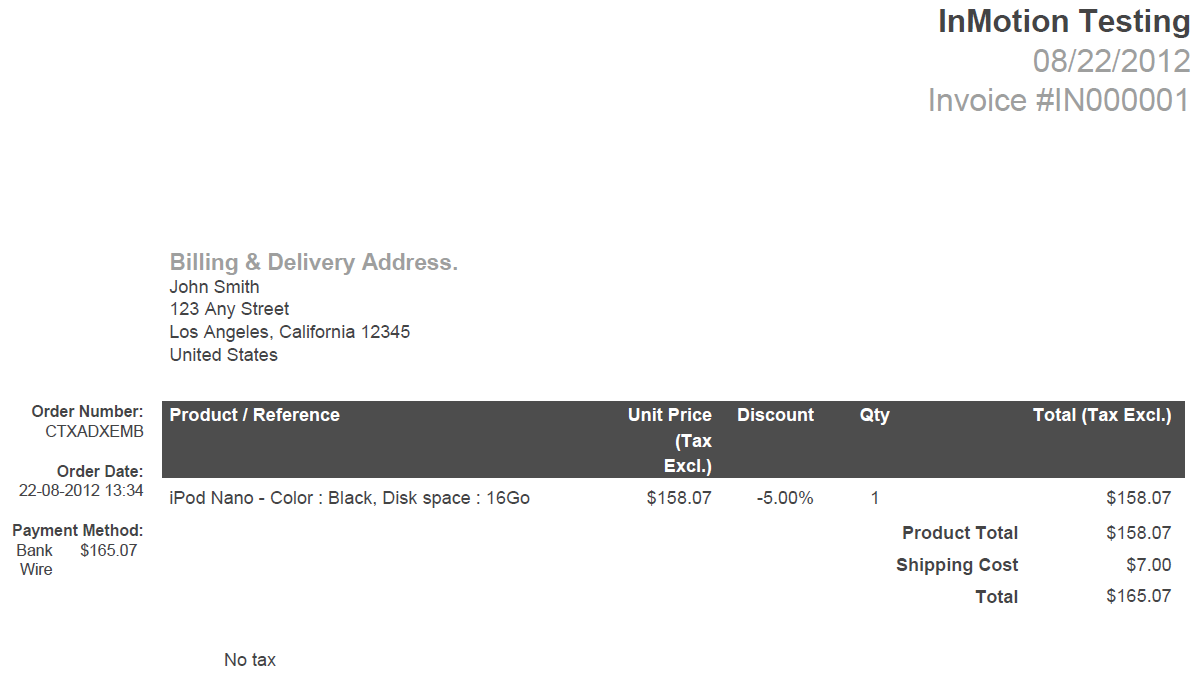
This tutorial will guide you in creating a pdf invoice report in PrestaShop 1.5. Once you have created an order for your customer, they will receive an invoice. You are able to obtain that order’s invoice from the order edit page. However, you may want to create a report of invoices that fit within certain criteria. Perhaps you want an invoice for all orders within a specific date range, or one for all orders that are in a particular status (all orders that have been shipped, for example). Below is a set of instructions that will guide you on creating your custom invoice.
Creating a PrestaShop 1.5 invoice in the back office
- Log into your PrestaShop 1.5 admin dashboard.
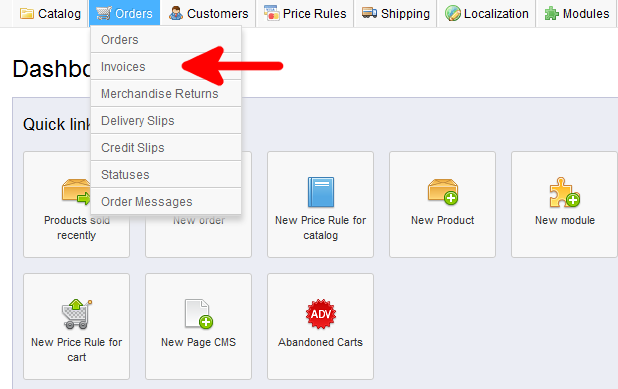
- Using the top menu bar, hover over the Orders tab and click on the Invoices option.
- This takes you to the invoice generation screen. The first two sections allow you to narrow your invoice by either date or status. Note that although you can set settings in both areas, the buttons in the upper right are specifically geared to either date or status, not both.
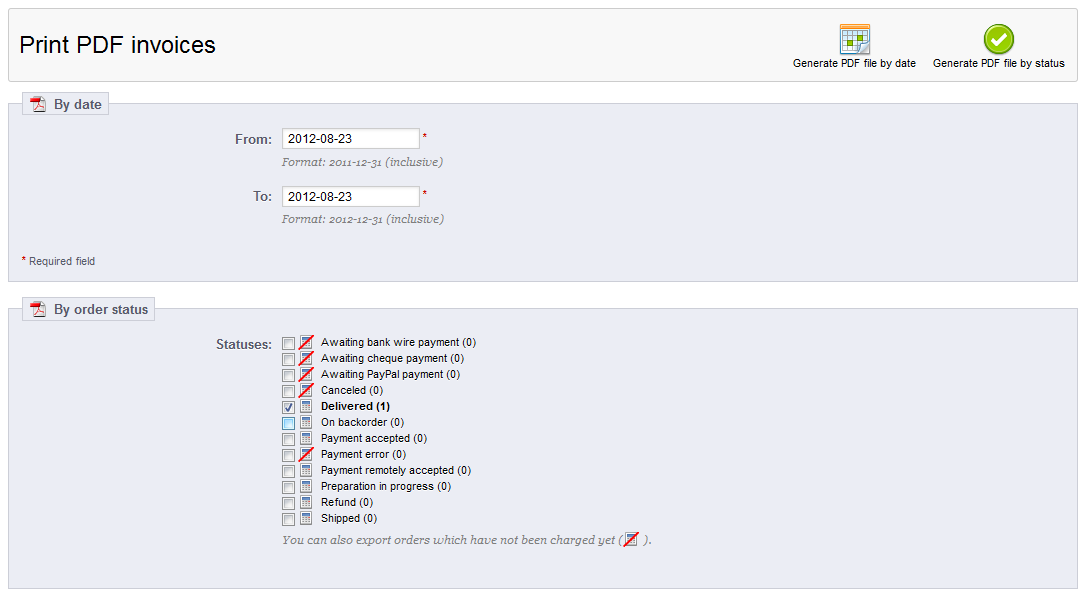
- Once your invoice settings are set, choose either the Generate PDF File By Date or Generate PDF File By Status button to create your invoice. The PrestaShop invoice will then open for display. Below is a sample invoice generated by this method.