After creating your new customer group, you may want to add discouts for different groups. For example, you may want to give new group for Students a 10% discount. This can be doneby editing the group from the back office interface. Create a group discount in PrestaAhop 1.5 by following these steps.
To add a group discount in PrestaShop 1.5:
- Log into your PrestaShop 1.5 admin dashboard.
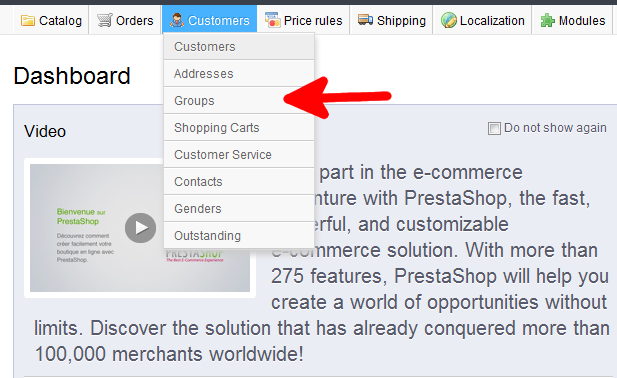
- Use the top menu bar and hover over the Customers tab, then click on the Groups option from the popup menu.
- You are now on the Customers : Groups screen. Locate the row for the group you want to edit and click on the Edit icon (the one that looks like a paper and pencil) on the
right side of that row.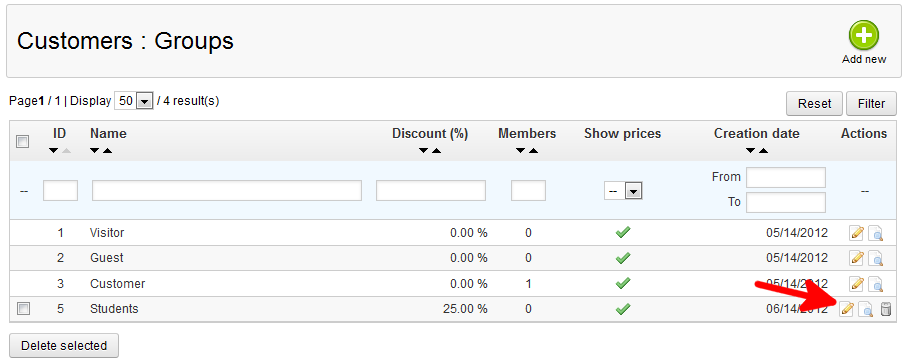
- On the Customers : Edit roup page, find the Discount field. Enter the percentage amount of the discount you wish to give the group.
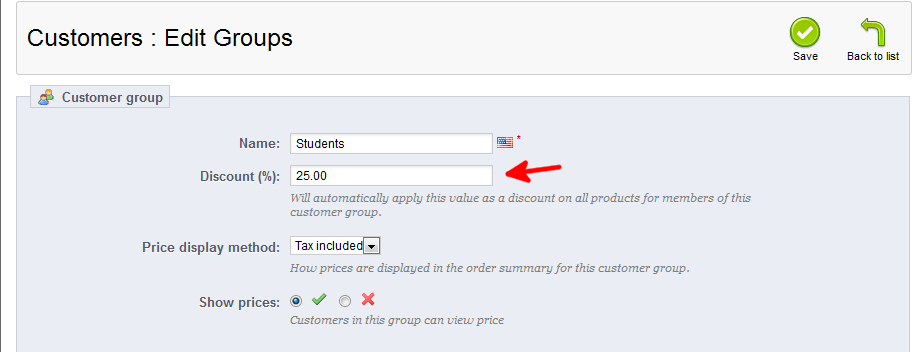
- Once completed, click on the Save button to save the new address.



That is how you add a group discount in your PrestaShop 1.5 back office.