One of the settings available for your cart rules in PrestaShop 1.5 you can control is the Total Available setting. This allows you to create a cart rule in limited quantities. For example, maybe you set up a voucher that allows the first 100 people who purchase a specirfic product a 25% discount. This can be great for getting people to buy quickly. This setting is easily set up in PrestaShop 1.5 and you can learn to do so by following the instructions below.
Setting a coupon limit for cart rules in PrestaShop 1.5
- Log into your PrestaShop 1.5 admin dashboard.
- Using the top menu bar, hover over the Price Rules tab and click on the Cart Rules option.
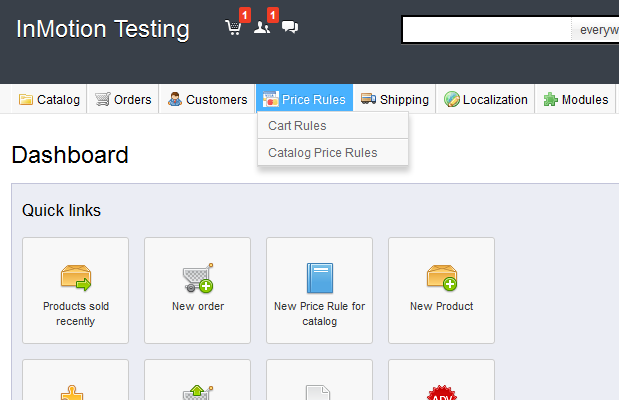
- You are now on the Cart Rules screen. Find the rule you want to work with and click on the Edit icon (the one that looks like a pencil and paper) on the right side of that specific row.

- From within the Cart Rules click the Conditions tab on the left sidebar tab and find the field labeled Total Available. This allows you to set the maximum amount of cart rules you want to allow. The default setting is 1, meaning that the cart is created for a single customer. Set the number to the maximum number of customers you want to use the cart rule.

- Once your setting is selected, click on the green Save button in the upper right corner. You have now set the total number or coupons for that rule that can be used.


