In your default version of Prestashop, you may notice it is set up with a specific set of measurements, such as the American standard of measure. Here you will learn how to alter any or all of these units. You may want to use kilometers instead of miles, liters instead of gallons, or kilograms instead of pounds. Follow along below as we demonstrate how to set your units of measure in PrestaShop 1.5. Editing units of mesure in PrestaShop 1.5
- Log into your PrestaShop 1.5 admin dashboard.
- Using the top menu bar, hover over the Localizations tab and click on the Localization option.
- From the Localization page, you will want to scroll down until you find the Localization category. You will be able to alter any of the standard units of measure listed here.
Weight Unit The default weight unit for your shop (e.g. kg or lbs) Distance Unit The default distance unit for your shop (e.g. km or mi) Volume Unit The default volume unit for your shop Dimension Unit The default dimension unit for your shop (e.g. cm or in) 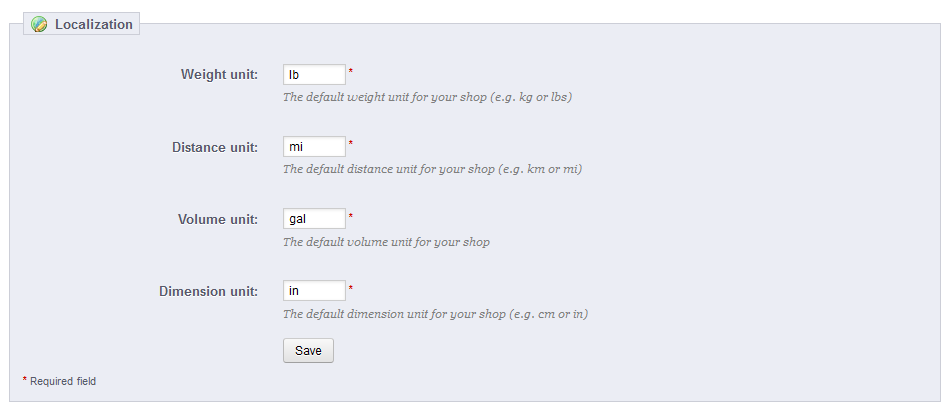
- Once you have established your new settings, click the Save button at the bottom of the category to finalize the changes.
