In our last article, we went over the Visits and Visitors stats report. Next up in our Working with People Stats course is, the third report in the left hand Navigation sidebar, the Customer Accounts report. This report gives you a bit of information regarding customer behavior for the time frame selected at the top of the screen. You will find how to get to this report as well as an explanation of the data below.
Accessing the Customer Accounts Stat Report
- Log into your PrestaShop 1.5 admin dashboard.
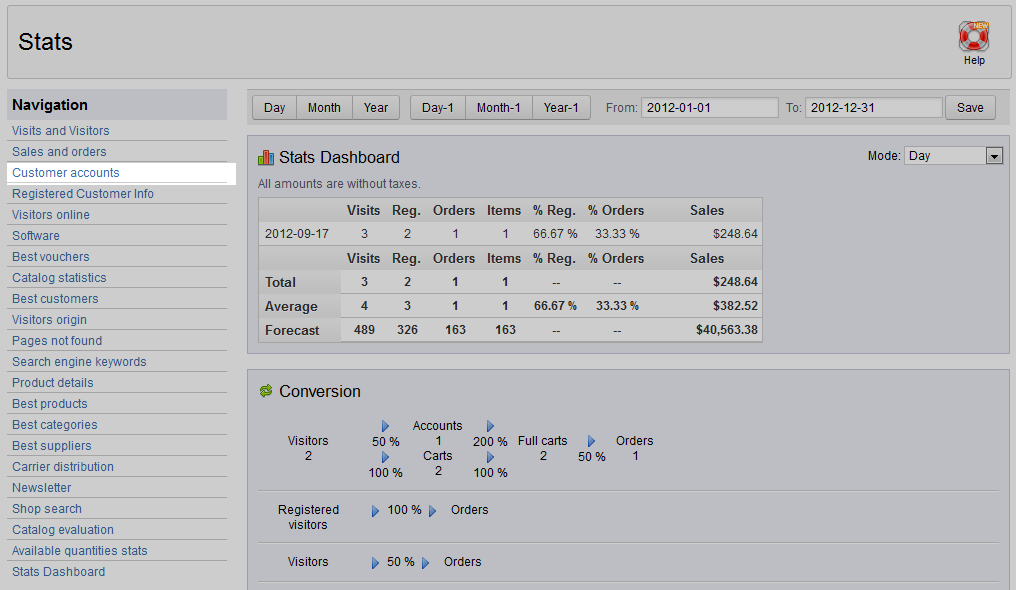
- Using the top menu bar, hover over the Stats tab and click on the Stats option.
- This will bring you to the Stats page. On the left hand sidebar are the many stats reports. Click on the Customer Accounts link.
-
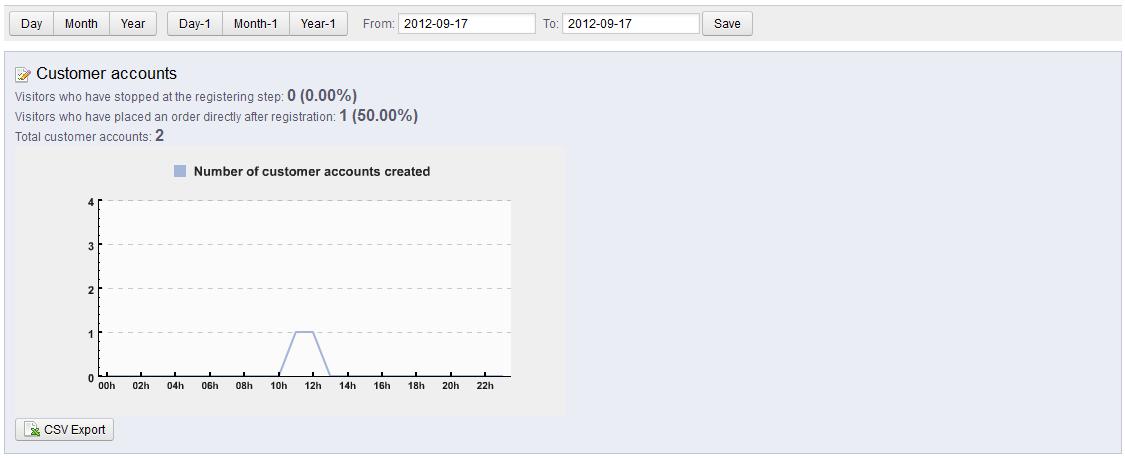
The Customer Accounts stat report is fairly straightforward. It simply tells you the number of customers that have set up an account, and then divides them among two categories, those who have made an order after registering, and those that simply registered.
The chart below gives a graphical representation based on the timeframe selected at the top of the Stats page. You may also save this report as a CSV by clicking the CSV Export button at the bottom.
You may continue the Working with People Stats course by learning about the next report in line, the Registered Customer Info report.

