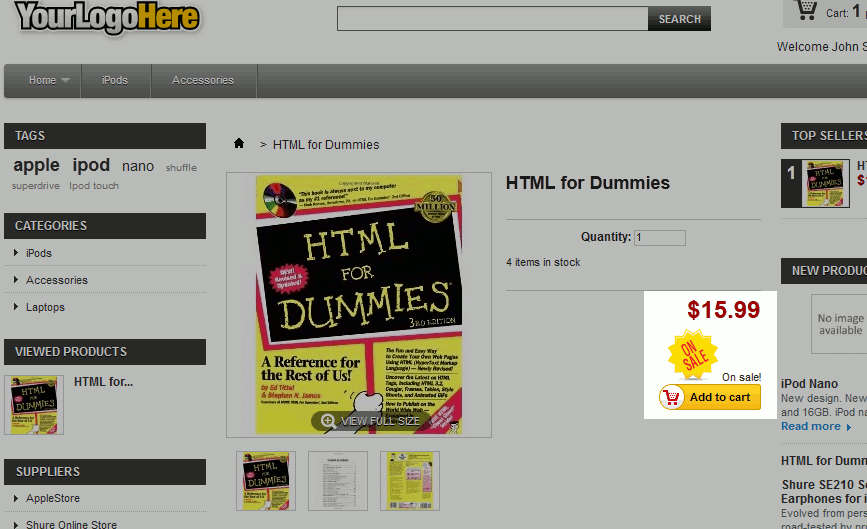
PrestaShop 1.5 gives you the ability to easily add an On Sale icon next to your products. In the screenshot to the right, we’ve highlighted how the on sale icon will be displayed on your product’s page.
To show an On Sale icon for a product in PrestaShop 1.5:
- Log into your PrestaShop 1.5 admin dashboard
- In the top menu, hover over Catalog and click Products
- In the list of products, find the product that is on sale. Then, click the edit icon (pencil icon) to the far right of the product.
- In the left menu, click Prices
- Under the Product Price heading, you’ll find a setting labeled:
Display “on sale” icon on product page and text on product listing
Put a check in the box to the left of this setting, and then click the Save button in the top right menu. You can see in the screenshot at the beginning of this article how the On Sale icon will look on your product’s page.