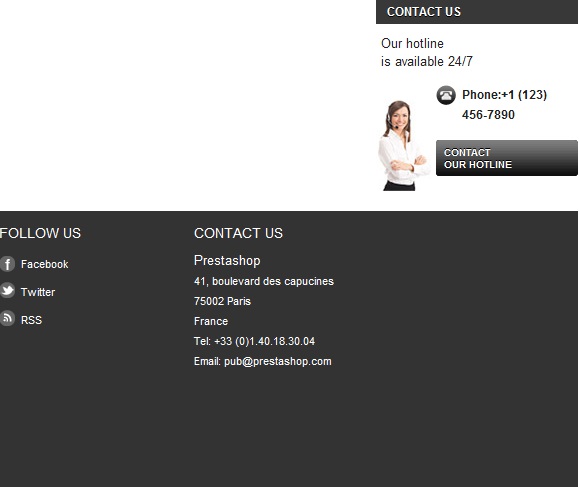
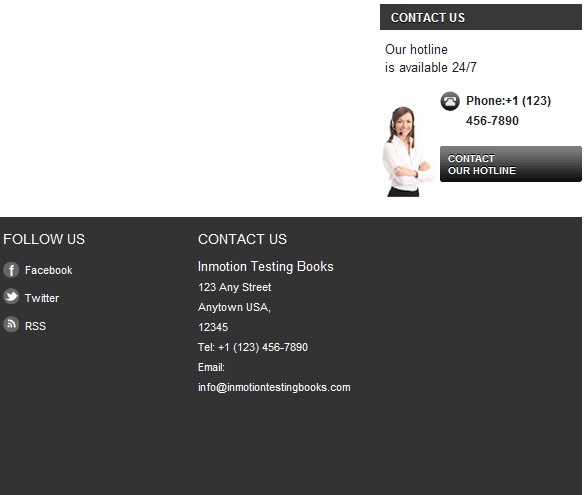
In our last article, we discussed how to change the Contact Us information in the PrestaShop 1.5 sidebar. In this article, you will learn how to change the Contact Us information in the PrestaShop 1.5 footer. The default Prestashop 1.5 theme contains a Contact Us section in the footer with PrestaShop’s information as a placeholder. The contact information in the footer includes the company name, business address, phone number and email address. You will want to alter this to display your own company contact information.
To change the Contact Us information in the PrestaShop 1.5 footer:
- Log into your PrestaShop 1.5 dashboard.
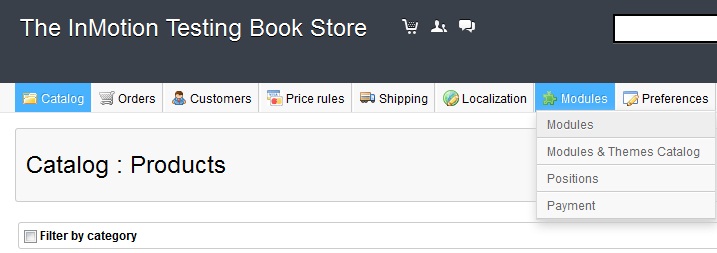
- Using the top menu bar, hover over the Modules tab and then click on the Modules selection from the popup menu.This leads to the module list page.
- Select Front Office Features from the Categories menu on the left hand side.
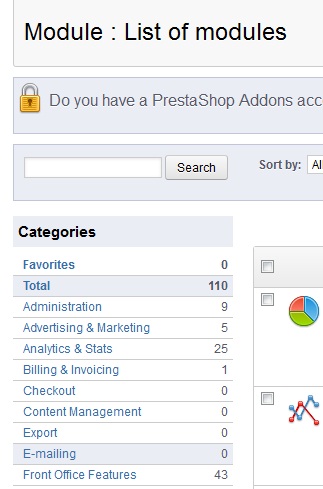
- Find the Block Contact Infos module from the list on the right hand side and select Configure. This block module directly governs the Contact Us portion of the footer.

- From here you simply change your company’s contact information such as:
* The business address in the PrestaShop 1.5 footer.* The phone number in the PrestaShop 1.5 footer.* The email address in the PrestaShop 1.5 footer.
From there select the Update Settings button. After saving the changes, you will be able to view the new contact details on your PrestaShop 1.5 footer.
Before After