To further improve your shop performance, you may want to change the way the images are stored on your server. The default image location is a single folder. As you grow and add more images, this large pile of files can take a while to search through. Having the images stored in subfolders will increase the speed at which they are retrieved and increase the overall performance of your site. Below are the instructions for setting up your images for improved performance in PrestaShop 1.5
Improving performance by moving images in PrestaShop 1.5
- Log into your PrestaShop 1.5 dashboard.
- Using the top menu bar, hover over the Preferences tab and select the Images option.
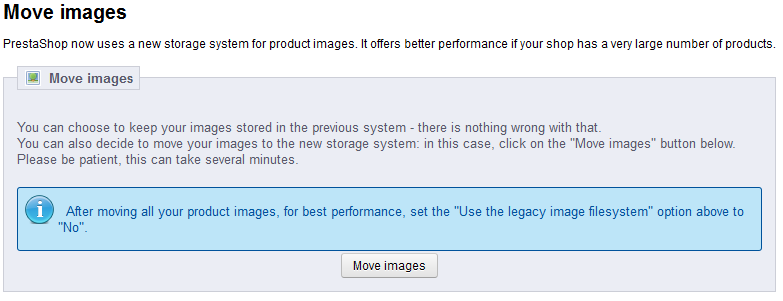
- From the Images Preferences screen, scroll to the bottom and locate the Move Images section. Click on the Move Images button to reconfigure the way images are stored.
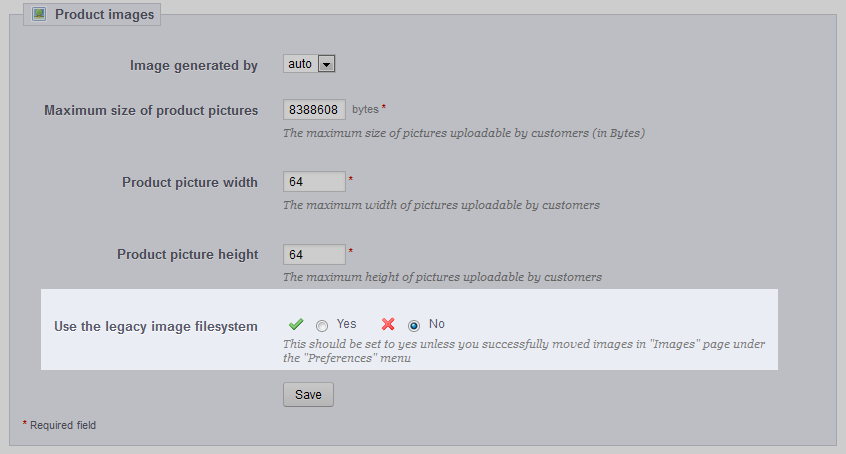
- To further improve the performance, scroll up to the Product Images section, located two sections up from the Move Images section. Find the Use the Legacy Image Filesystem field and select No.
These settings should increase your performance by reducing the total number of images the store must sort through to find the ones to display on youe page. If you have relatively few images, the performance increase will not be as noticeable. However, if you have thousands or even hundreds of thousands of images, the increase should be apparent right away.
If you missed our previous article, please click here. For more information on this course please visit Increasing Store Performance in PrestaShop 1.5.