In our last article, we described how to manually set inventory quantity for your product in PrestaShop 1.5. This article shows you how to allow a product to be ordered when it is out of stock, known as a back order.
To allow back order for a product in PrestaShop 1.5:
- Log into your PrestaShop 1.5 dashboard
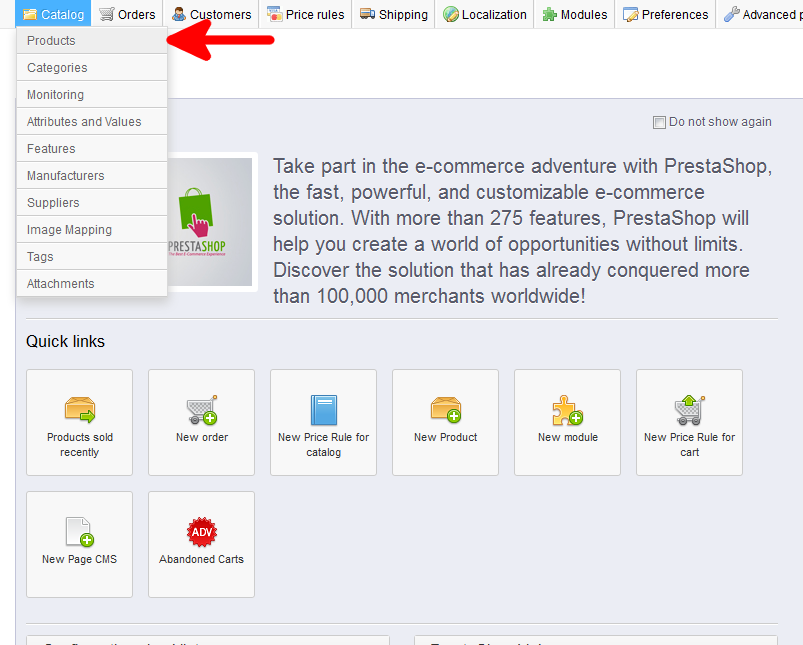
- Using the top menu bar, hover over the Catalog tab and click on the Product selection.
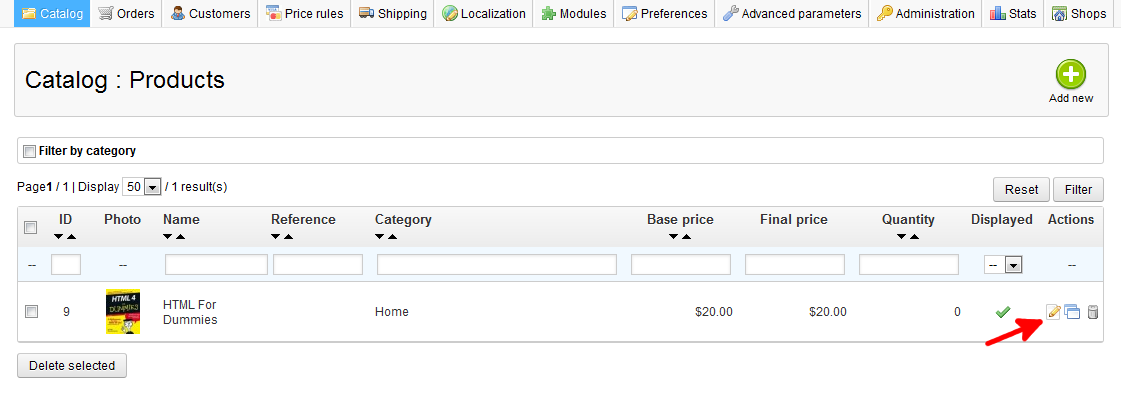
- You are now on the Catalog: Products list page. From here, select the Edit icon (it looks like paper and pencil) on the right for the product you want to edit.
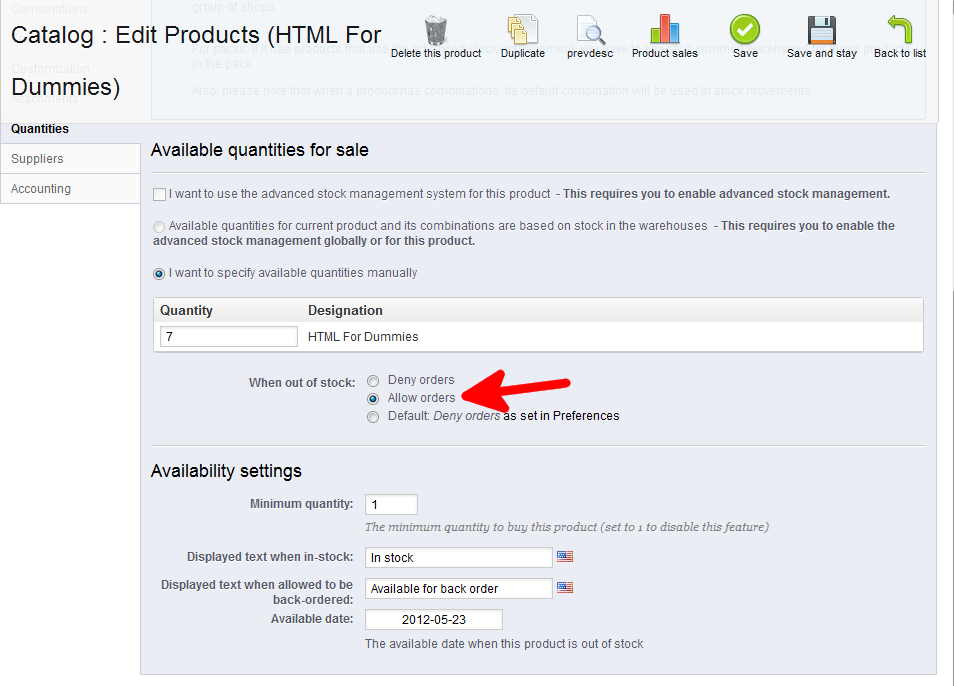
- You are now on the Catalog : Edit Products page. From here click on the Quantities tab on the left sidebar.
- To set your product to allow back orders, simply find the field named When out of stock and select the radio button named Allow.
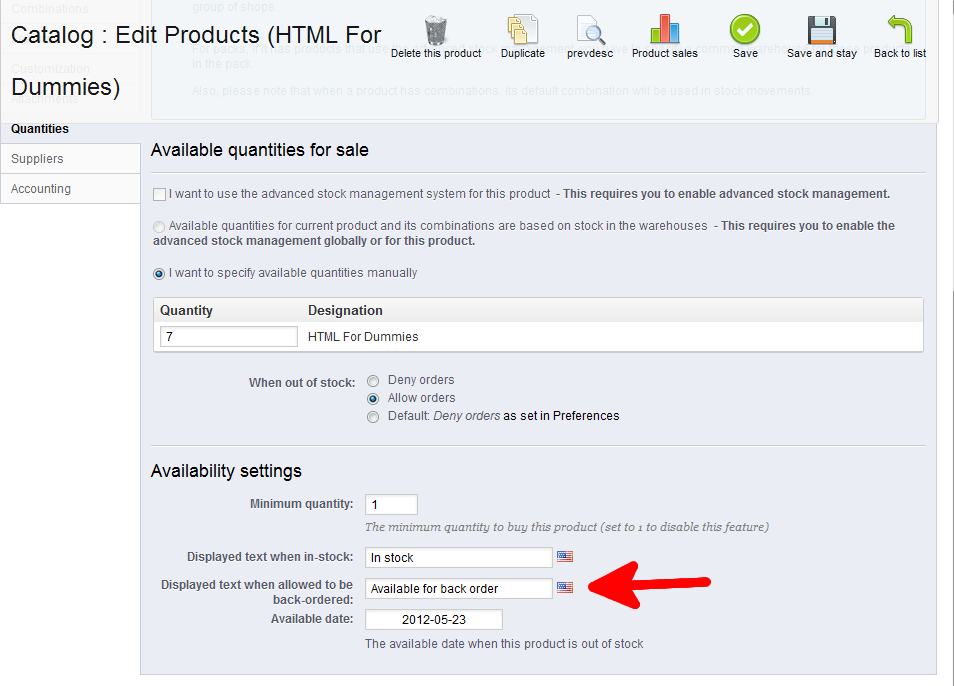
- Next, you want to set the display text to let visitors know you can order this product even though it is our of stock. Add the text you want to display in the Displayed text when allowed to be back-ordered field.
Now you have successfully set your product to allow back orders in PrestaShop 1.5
