In this tutorial:
If you are unable to login to your OpenCart Dashboard, there is a Forgot Password link that can help you. In this tutorial we will show you how to Reset your OpenCart Password, so you can login to the Admin Dashboard.
How to Reset your Admin Password
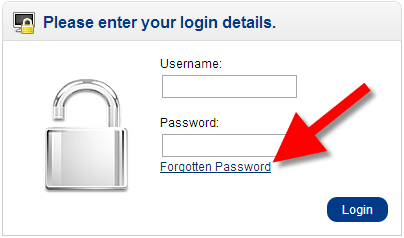
- Go to your OpenCart Login page, and click the Forgotten Password link.
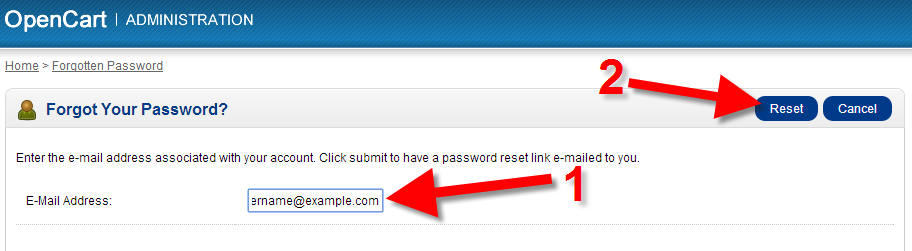
- Type your OpenCart Admin E-mail Address in the blank box, then click the Reset button. Getting a warning about the email address you’re entering? click here
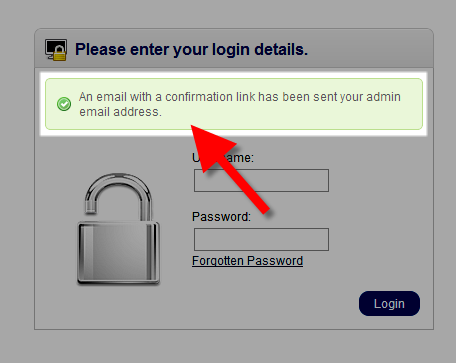
You will then see a message stating “An email with a confirmation link has been sent your admin email address.”
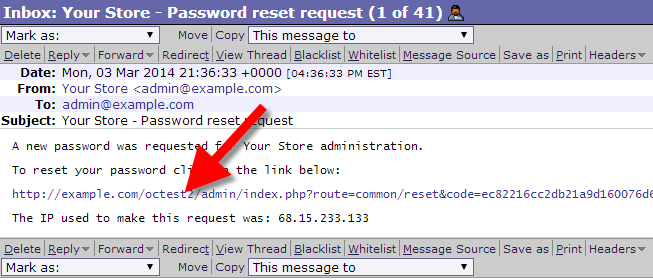
- Check your email account and open the message with the subject “Your Store – Password reset request.”
- The email message will state “A new password was requested for Your Store administration.To reset your password click on the link below.” Click the provided link
You will then be on the Reset your password page.
- Enter a new password, in the blank fields, then click the Save button.
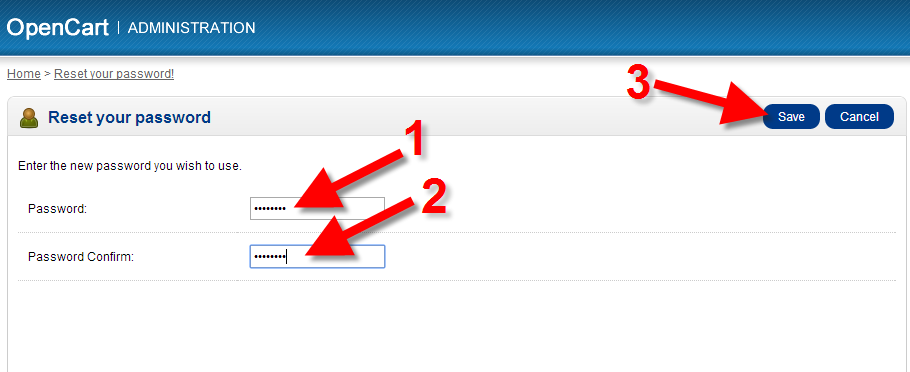
You are finished when you see the “Success: Your password has been successfully updated.” Now you can login to the OpenCart Dashboard.





Warning: The E-Mail Address was not found in our records, please try again!
On Step 2 above, when you entered your email address, you may have received the following message – “Warning: The E-Mail Address was not found in our records, please try again!” This message means the email address you entered was not correct. The following is a list of possible solutions.
- Check the spelling of your email address for typos
- Try a different email address, in case you are using the wrong one
- Change the password in the database (for Advanced users)