
By now your OpenCart website should have your own products installed and your store’s information pages customized. Your next step would be to set up your payment modules so your customers have options when ordering from you. This is easily achieved in your OpenCart Dashboard. There are multiple payment options available to use so for this tutorial we’re going to show you how to configure PayPal. If you are looking at using another payment processing method, you’ll want to contact them directly to learn more on how to set up OpenCart to process payments through their services.
- Log into your OpenCart Dashboard
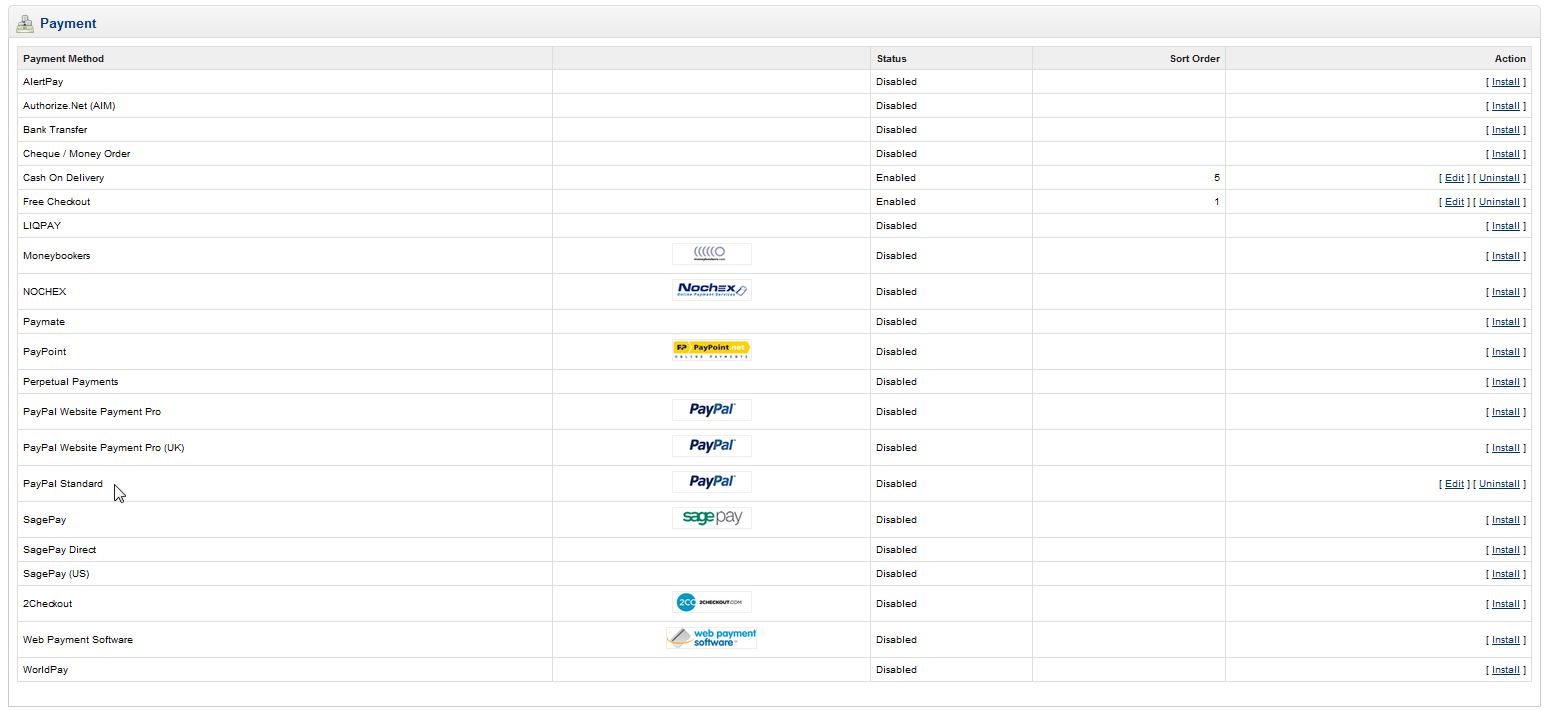
- Go to Extensions > Payments
- Select the payment method you want by clicking the desired action on the right side. Since we’re using PayPal, select the “PayPal Standard” and click “Install”
- Once the module has installed click on “Edit” in the right column
- Fill in the fields on the screen. The only required field is “E-mail”. This is the email address you use for your PayPal account
- When finished click “Save”
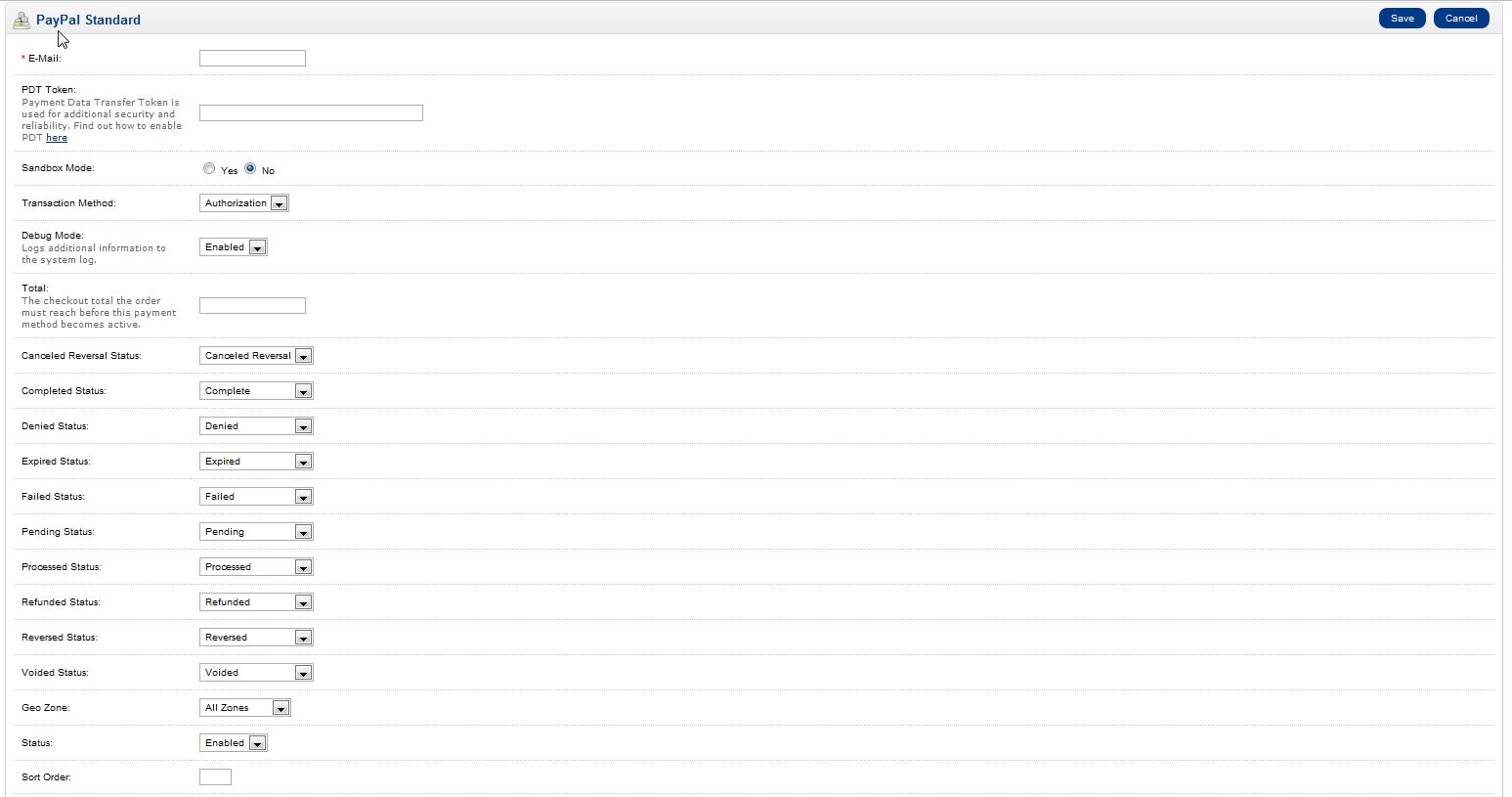
You’ll notice a large list of options on the payment screen
Congratulations! You’ve now configured your OpenCart shopping cart to receive payments. If you need further assistance please feel free to ask a question on our support center.
Need a hosting solution for OpenCart? Go to OpenCart Hosting Accounts with InMotion Hosting!