
Before you can add a new tax rate in OpenCart make sure you understand how taxes work in OpenCart. Also, you will need to set up a Geo Zone to apply that tax rate to. Once you have done both of these steps you’re now ready to add a new tax rate to your shopping cart.
How to Add a Tax Rate
- Log into OpenCart Dashboard
- Go to System > Localisation > Taxes > Tax Rates
- Click “Insert” to create a new tax rate and fill in the applicable fields
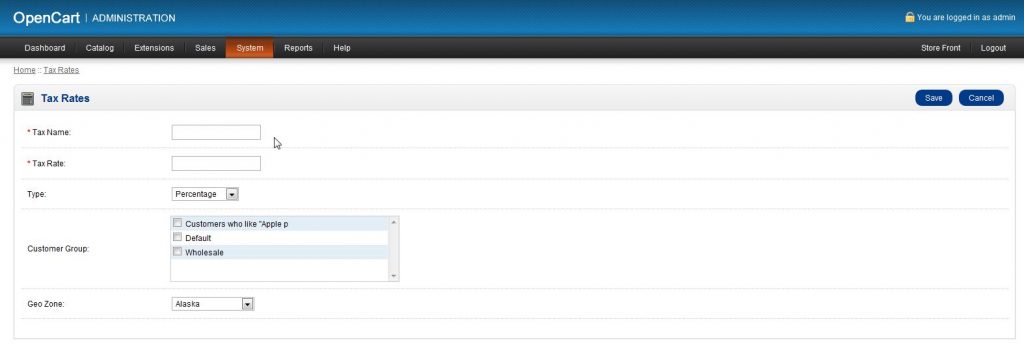
–Tax Name: Give your new tax rate a name
–Tax Rate: This is the amount of tax to apply
–Type: Choose the type of tax to apply (percentage or fixed amount)
–Customer Group: Decide who this tax applies to based on the Customer Group
–Geo Zone: decide what Geo Zone the tax rate applies to - Click “Save” once you are satisfied with your selections
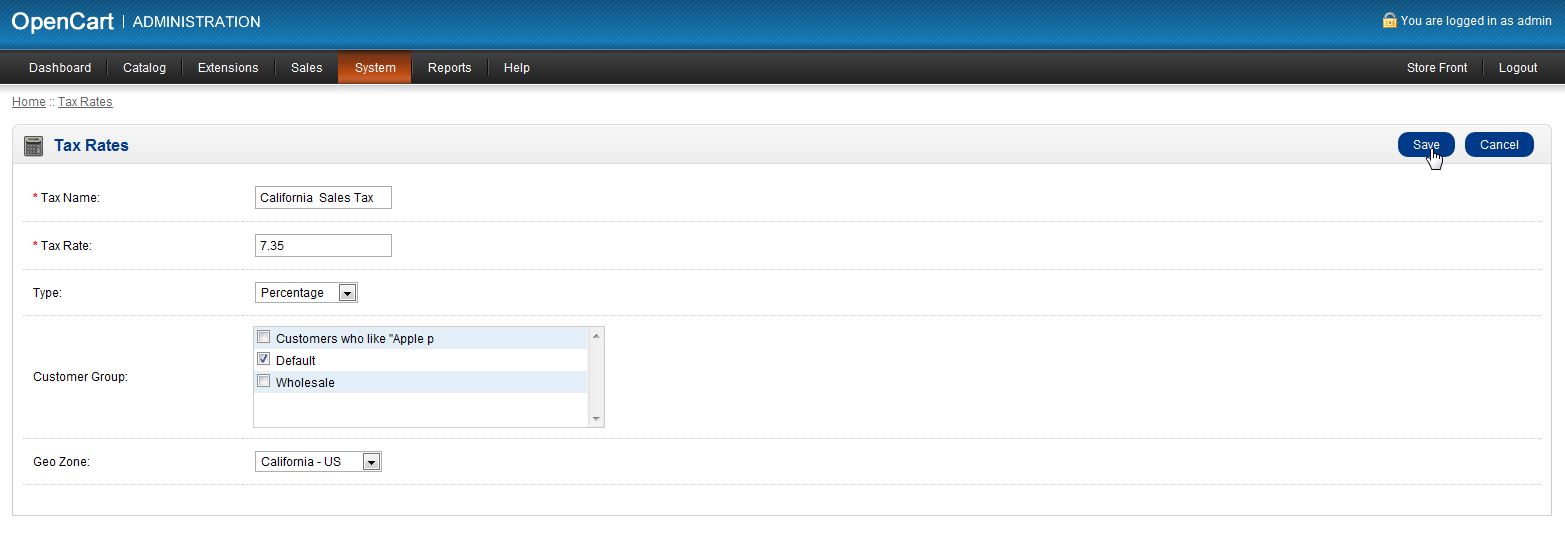
You have now added a new tax rate to OpenCart. Now you can add the tax rate to a tax class so it will be applied to any product that belongs to that specific tax class.
If you need further assistance please feel free to ask a question in our support center website.