
After installing OpenCart, the next step is to login to the OpenCart Admin Dashboard. The OpenCart Dashboard is where you can customize the look of your eCommerce website, as well as add and edit products. In this tutorial we will show you how to log into the OpenCart Dashboard.
- In a browser, pull up your OpenCart website.
- Add “/admin” to the end of the address. If your domain is example.com, then you would navigate to https://example.com/admin
- You will see the Dashboard login page. Enter your Username and Password, then click the Login button.
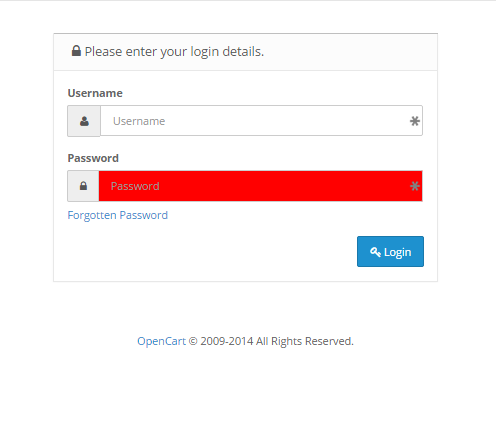
If you have any problems with your password, click on the link for Forgotten Password.
- After you have successfully logged into the OpenCart Administrator, you will then see the summary screen for the Administrator Dashboard.
The screen shot below illustrates the screen that you will see when you successfully login to the Administrator Dashboard. The text descriptions for the menu on the left side of the screen is controlled by the button in the top left hand corner next to the label OpenCart.

Congratulations, now you know how to successfully login to the OpenCart Admin Dashboard!