Once you have your Attributes added to your Attribute Group in OpenCart, you can add the attributes to your products. This tutorial will teach you how to add attributes to your OpenCart Products.
Adding Attributes to a Product
- Log into your OpenCart Dashboard.
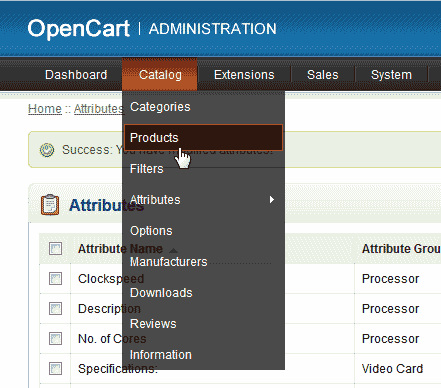
Go to Catalog > Products.
Edit the Article you created the Attributes for.
Select the Attribute tab.
Click Add Attribute.
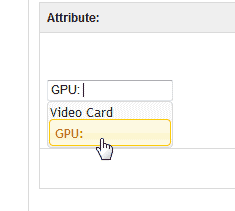
Type in the Attribute. You will see the auto fill find the Attribute in the Attribute category.
Select the category.
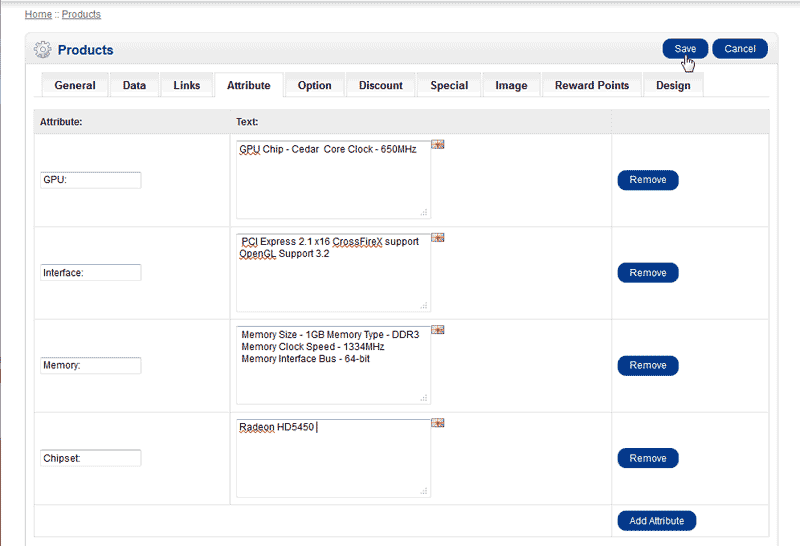
You can add multiple Attributes to your product as you need. The image to the right shows multiple Attributes.
Save the changes.
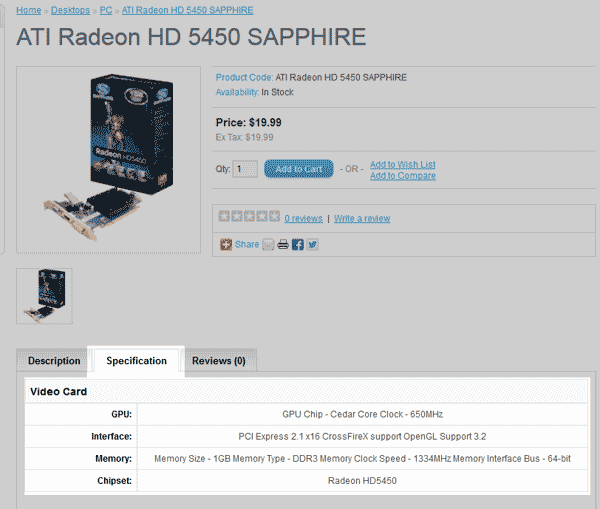
Visit your product and view the bottom section. You will see the Specification with your attributes listed within it at the bottom. See image to the right.
