At times, you may find it best practice to password protect a folder on your account. This can add an extra layer of protection to files you do not want the general public to have access to. Password protecting a directory can be easily accomplished using the option within cPanel. In this guide, you can learn how to add and remove password protection on a directory, using cPanel.
How Does Password Protection Work?
It is important to understand how password protection on a folder works. When you choose to password protect a directory in cPanel, cPanel creates a rule in your .htaccess file. This rule specifies that the folder is protected and the visitor will need to provide the proper username and password to log in and view the files within it.
IMPORTANT: When a user attempts to access the protected directory through a browser, the site will prompt them to enter a username and password. The name that you choose for the protected directory will also display. Additionally, all the sub-directories that exist within the protected directory will be accessible, once authenticated.
Add Password Protection
- Log into cPanel.
- Go to the Files section and click on the Directory Privacy icon.

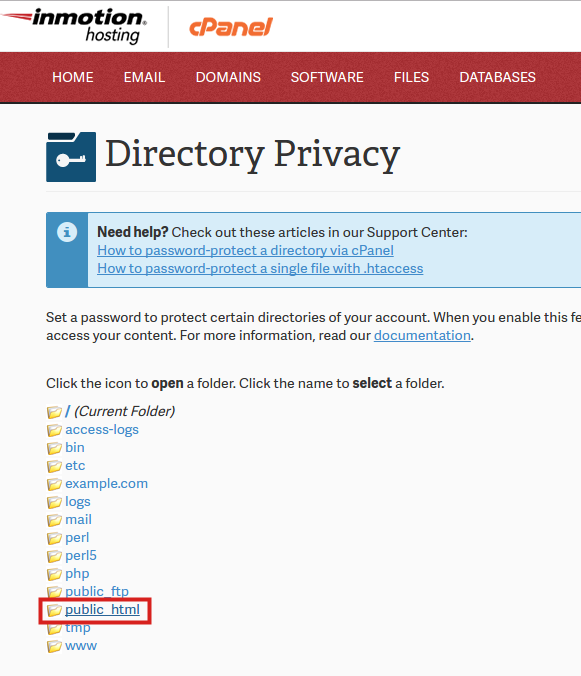
- Select the directory you want to password protect and then you will see the Set permissions for “/home/exampl3/directory/” screen appear.
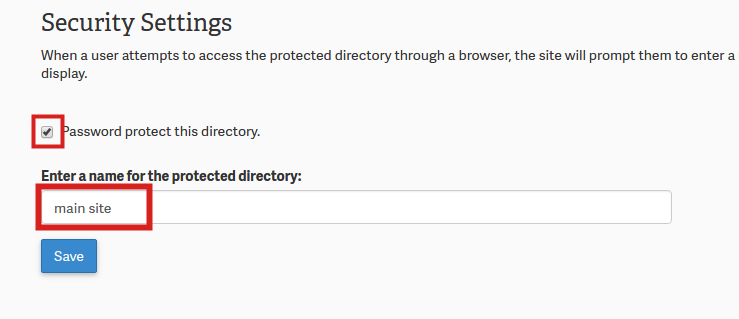
- Click on the checkbox labeled “Password protect this directory:“.
- Type a name for the folder you are trying to protect in the field labeled “Enter a name for the protected directory:“.
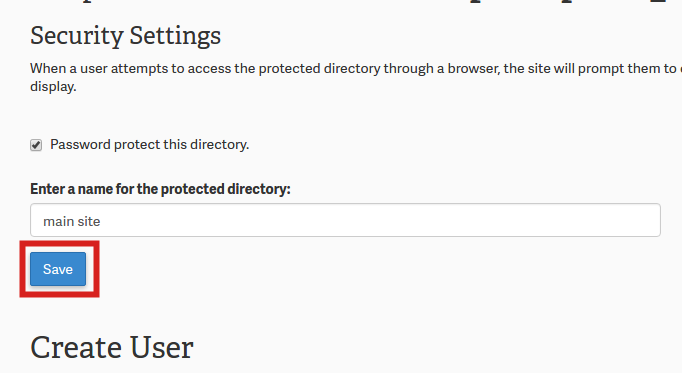
- Click the Save button to save the name you have entered for the directory and option to password protect the directory.
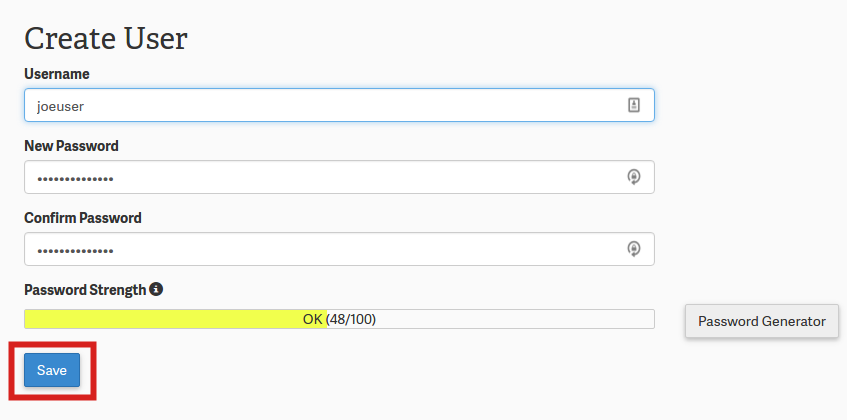
- Create a user to grant access to the protected directory by typing the credentials into the Username, New Password and Confirm Password fields.
- Click Save in order to save the credentials that you have entered.
Remove Password Protection
The steps to remove password protection on a directory are fairly quick and simple. One reason you might want to password protect a directory and then remove the protection is for testing purposes. Or, if you are finally ready to make the folder open to the public, then you can remove the password protection so that everyone can access the files in the directory. The instructions below are the steps for removing the password protection.
- Log into your cPanel.
- Scroll down to the Files section in your cPanel and then click the Directory Privacy icon.
- Select the directory from the list of folders that you want to remove password protection for. The directory should appear with a lock in front of it if it is currently password protected.
- Uncheck the box that says “Password protect this directory“.
- Finally, click the Save button.
If you have further questions or need further assistance please feel free to contact our Live Technical Support.