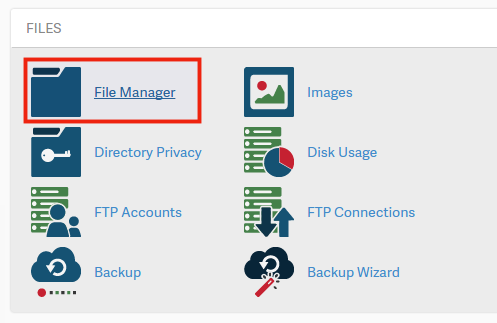
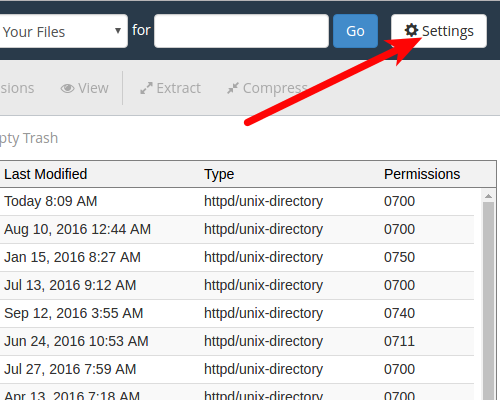
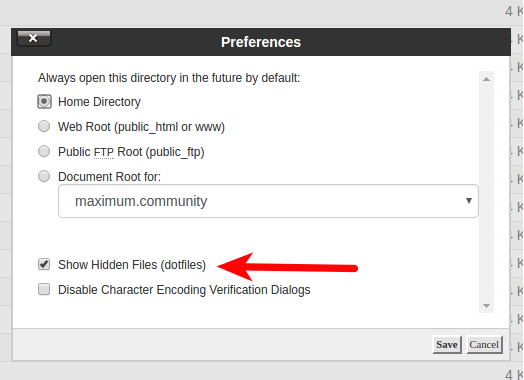
Viewing Hidden Files (htaccess) in cPanel’s File Manager InMotion Hosting ContributorUpdated on June 7, 2023 1 Minute Read By default, when you use the File Manager in cPanel, it doesn’t show hidden files. Hidden files are any file that begins with a dot, such as .htaccess. .htaccess is a common file to edit, so to edit the file using your File Manager, you’ll need to have the option selected to show hidden files. Keep reading to learn how. Showing hidden files in File Manager Log in to your cPanel Under Files click File Manager Slick Settings in the upper right corner Select your Document Root and check the box for Show hidden files and click Save Do you need a little more guidance? When you are an InMotion cPanel Hosting customer, you have access to world-class, 24/7 support. Simply select one of the contact options at the bottom of your screen.Share this Article IC InMotion Hosting Contributor Content Writer InMotion Hosting contributors are highly knowledgeable individuals who create relevant content on new trends and troubleshooting techniques to help you achieve your online goals! More Articles by InMotion Hosting Related Articles How to Manage AutoSSL Certificates in cPanel How to Migrate Your Website Using cPanel How to Setup an Email Forwarder in cPanel & Webmail How to Create an Email Account in cPanel An Introduction to Branding cPanel for Your Users How to Modify MX Records Using cPanel Setting Domain MX Records to Remote Settings in cPanel Engrampa Archive Manager for Linux How to Create a New cPanel in your Reseller WHM How to Upload a File With cPanel File Manager