Joomla 2.5 has reached its end of life as for 12/31/2014. Please be advised this may be a security risk to your website. You can view more information about the end of life here.
When registering for a new account in Joomla 2.5, the new user will be emailed a confirmation email, which will include their password:
https://example.com/index.php?option=com_users&task=registration.activate&token=12312312312313123123
After activation you may login to https://example.com/ using the following username and password:
Username: test-user-1
Password: password1234
As emailing passwords can be a security concern, you may want to adjust the emails Joomla 2.5 sends so that they do not contain any passwords.
The email message that you see above is declared in a language file, language/en-GB/en-GB.com_users.ini. In a previous article, we showed you how to use the Joomla 2.5 language override feature to change language specific text within Joomla. We will use that same feature to disable passwords being sent through email.
To disable passwords being sent through email in Joomla 2.5 new account activation emails:
- Log into your Joomla Dashboard
- In the to menu, hover over Extensions and click Language Manager
- Click the Overrides tab, and then click New
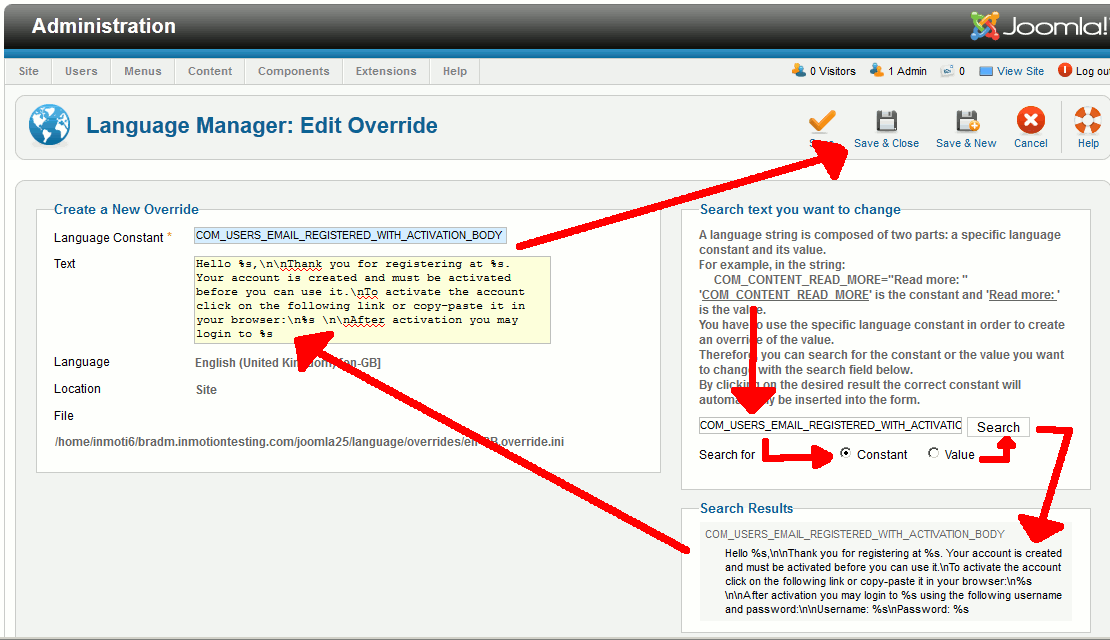
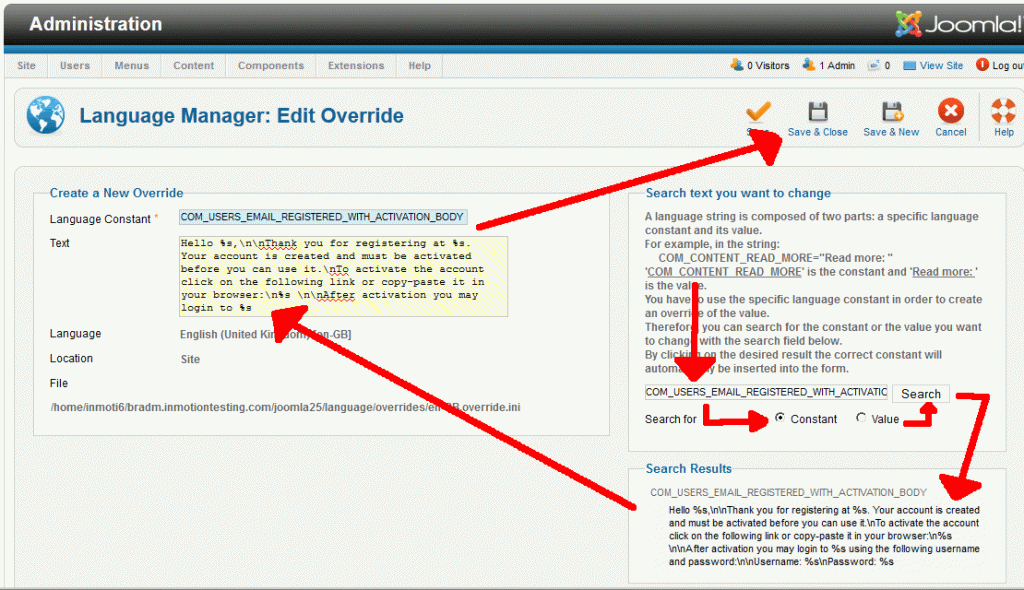
- Under Search text you want to change, enter COM_USERS_EMAIL_REGISTERED_WITH_ACTIVATION_BODY, select Constant, and then click Search
- In the search results, click the result labeled COM_USERS_EMAIL_REGISTERED_WITH_ACTIVATION_BODY. This will load the text for the email next to the Text field.
- Remove the following text:
using the following username and password:nnUsername: %snPassword: %s
… and then click Save & Close
- The changes you make, you must make for BOTH of the following constants:
* COM_USERS_EMAIL_REGISTERED_WITH_ACTIVATION_BODY
* COM_USERS_EMAIL_REGISTERED_WITH_ADMIN_ACTIVATION_BODYIf there are any other emails that Joomla sends out which includes the password, you can use the same process as above to adjust those emails.
After making the change, your new account activiation emails will look similar to:
Hello brad,Thank you for registering at Joomla 2.5 Testing Site. Your account is created and must be activated before you can use it. To activate the account click on the following link or copy-paste it in your browser: https://example.com/index.php?option=com_users&task=registration.activate&token=456456456456456456
After activation you may login to https://example.com/