


A 404 error occurs when a requested page is not found on your website. Instead of displaying a generic error message, you can create a custom 404 page to improve user experience and reduce bounce rates.
What is a 404 Error?
The 404 error (HTTP status code “404 Not Found”) occurs when a server cannot locate the requested web page. This can happen due to:
- A broken link or incorrect URL
- A deleted or moved page
- A typo in the address bar
By default, web servers show a plain error page, which can frustrate users. Creating a custom 404 page helps retain visitors and guides them to useful content.
How to Set a Custom 404 Page in .htaccess

1. Create a Custom 404 Page
Before updating the .htaccess, you need a 404 error page (e.g., 404.html). This page should:
- Inform users that the page was not found.
- Provide helpful links to navigate back to important pages.
- Match your website’s design
For detailed instructions on how to create a custom 404 page, see Creating a Custom 404 Error Page.
2. Edit the .htaccess File
- Login to your cPanel.
- Under the Files section click on File Manager.

- Navigate to the document root folder for the site.
- Click on Settings.
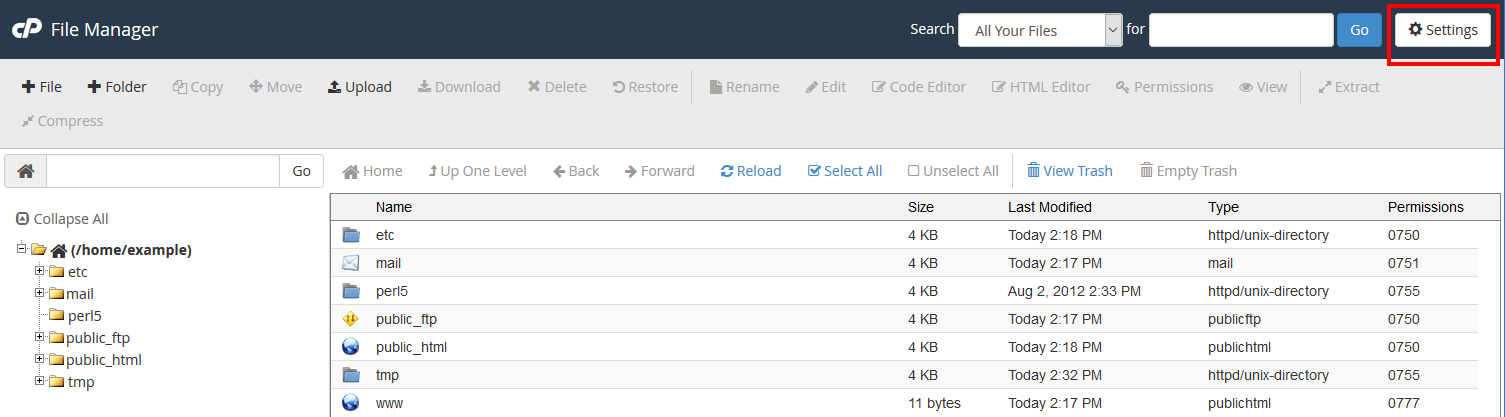
- Ensure Show Hidden Files is selected.
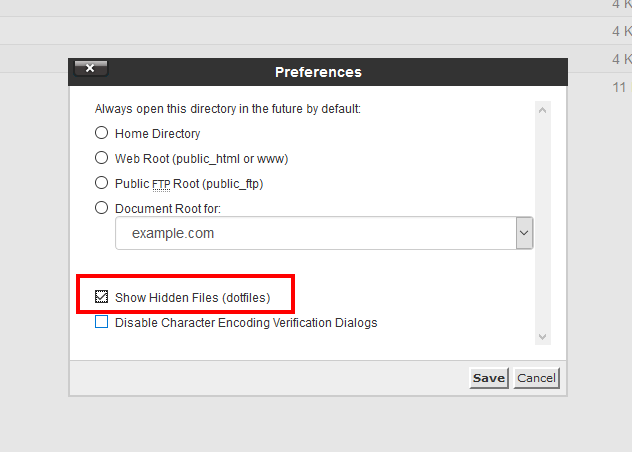
- Then click Save.
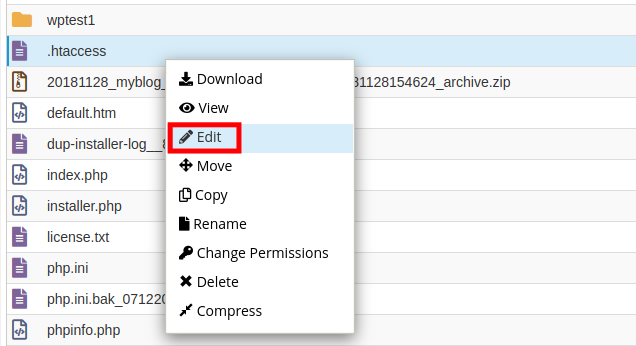
- Right-click on the .htaccess file and select Edit.
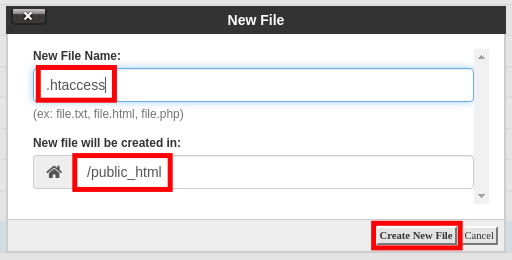
- If the .htaccess file didn’t exist in the previous step, click on the +File link on the top left, name the file .htaccess, and set the directory for creation to /public_html/ or the document root of your site.
- You might have a text editor encoding dialog box pop-up, go ahead and just click Edit.
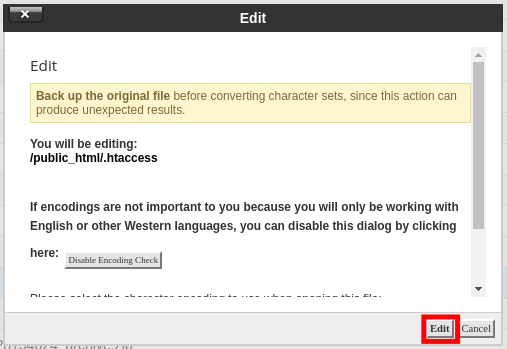
- Now that you are ready to edit the .htaccess file, the simplest way to set a 404 error page is by directly setting a 404 error message in the .htaccess file itself:
ErrorDocument 404 "<H1>Page not found</H1>"
If you already have a static HTML page that you’d like to use for 404 errors you can also directly point to that file with the .htaccess file as well. In this example, we have a 404.html page we want to serve up. Be sure to replace “404.html” with your actual page name:
ErrorDocument 404 /404.html
- After you’ve made your edits to the .htaccess file, click on Save Changes.

You should see a green Success pop-up
- Now if you try to pull up a page that won’t exist on the server such as /ThisPageWon’tExist you should see the custom 404 error message that we’ve configured. This first image below is the default 404 error page when a custom one is not set:
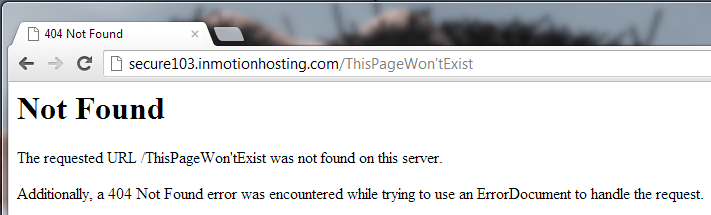
The second one is the custom 404 page that we just created: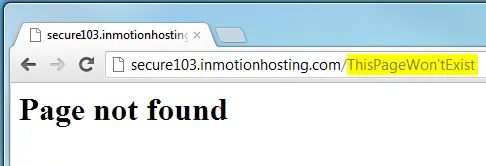
Redirect 404 to homepage using .htaccess
If you prefer to redirect users to your homepage instead of displaying an error page, add this line to your .htaccess file:
ErrorDocument 404 /This simple line of code instructs the web server that whenever it encounters a 404 error (i.e., a missing page or resource), it should redirect the visitor to the homepage of your website. Let’s break down how this works:
- ErrorDocument: This is the directive that tells the server you’re defining a custom error page.
- 404: Specifies the HTTP status code for which you’re customizing the error page (in this case, a 404 error).
- /: The forward slash represents the homepage of your website. When a 404 error occurs, the server redirects the user to this URL.
SEO Best Practices for Custom 404 Pages
A well-designed 404 page can improve user experience and SEO. Here’s how to optimize it:
1. Maintain Proper HTTP Status Codes
Ensure your custom 404 page returns a 404 status code, not a 200 (OK) status. Search engines need to recognize that the page is missing to avoid indexing errors.
2. Avoid Duplicate Content
Make your 404 page unique. Avoid copying content from other pages to prevent duplicate content issues.
3. Provide Helpful Links
Your 404 page should include:
- A search bar for easy navigation
- Links to the homepage, popular articles, or a sitemap
4. Monitor 404 Errors in Google Search Console
Regularly check Google Search Console for crawl errors and fix broken links. This helps maintain your site’s SEO health.
Final Thoughts
Now you know how to:
✔ Create a custom 404 page
✔ Modify .htaccess to display your error page
✔ Redirect 404 errors to the homepage (if preferred)
✔ Follow SEO best practices
A well-handled 404 error improves user experience and keeps visitors engaged with your website. For more guidance, check out our tutorial on creating a custom 404 page.
Need more website tips? Visit our Website Tutorials section for additional resources.
Scalable VPS Infrastructure, Fully Managed
When shared hosting can't handle your traffic, VPS delivers dedicated resources that scale with demand. Our team manages the technical complexity while you manage your business.
 NVMe Storage High-Availability Ironclad Security Premium Support