A 500 Internal Server Error means something went wrong on your server, but the server cannot explain what. Unlike a 404 error that tells you a page is missing, a 500 error gives no specific details. That vagueness makes it one of the most frustrating errors to troubleshoot.
The good news: most 500 errors trace back to a handful of common causes. This guide walks through each one with specific steps to identify the problem and get your site back online.
What Causes a 500 Internal Server Error?
The server generates a 500 error when it encounters an unexpected condition that prevents it from completing a request. According to Mozilla Developer Network documentation, this status code indicates a server-side problem rather than an issue with the client’s request.
The most common causes include:
- Corrupted or misconfigured .htaccess file: A single syntax error in this file can bring down your entire site.
- PHP errors: Syntax mistakes, deprecated functions, or uncaught exceptions in PHP code.
- PHP version incompatibility: Scripts or plugins built for older PHP versions may fail on newer releases (or vice versa).
- Exhausted PHP memory limit: Scripts that exceed the allocated memory are terminated.
- Incorrect file permissions: Files set to 777 (world-writable) trigger security restrictions.
- Plugin or theme conflicts: WordPress plugins can clash with each other or with the core.
- Database connection failures: Incorrect credentials or an unreachable database server.
- Corrupted WordPress core files: Missing or damaged files from failed updates.
Step 1: Check the Error Logs
Error logs are your first source of information. They often reveal the exact file, line number, and type of error causing the 500 response.
In cPanel
- Log in to cPanel.
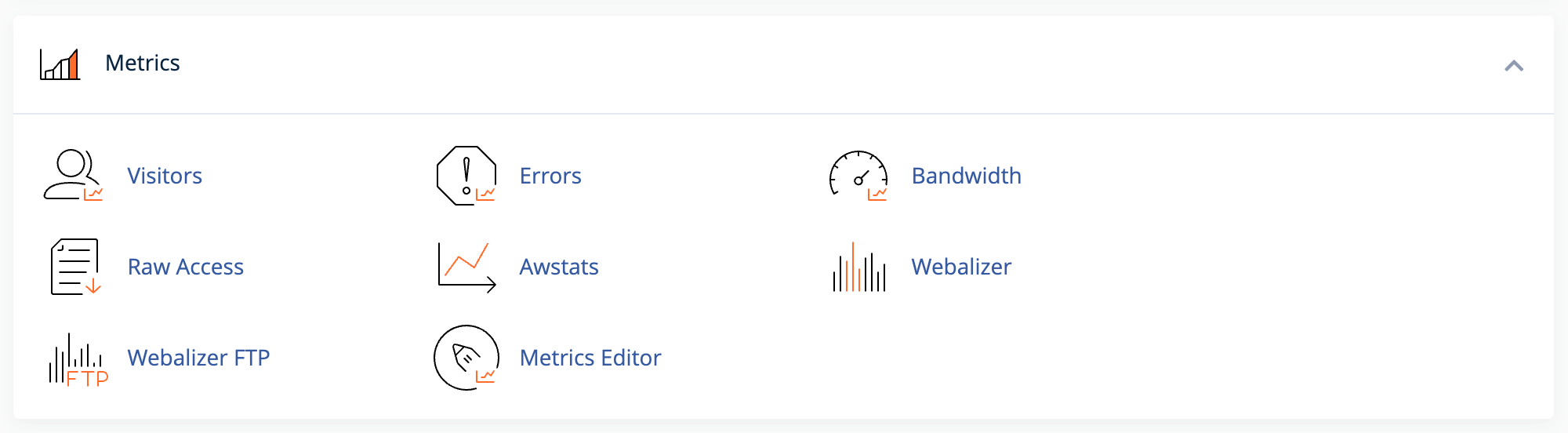
- Navigate to Metrics > Errors to view recent Apache errors.
- Look for entries timestamped around the time the error occurred.
Error messages may include:
.htaccess: Invalid command(htaccess syntax error)SoftException in Application.cpp:264: File is writeable by others(permissions issue)Parse error: syntax error, unexpected...(PHP syntax error)Fatal error: Allowed memory size exhausted(memory limit)
Enable WordPress Debug Mode
If cPanel logs do not show PHP errors, enable WordPress debugging to create a dedicated log file.
- Access your site via SFTP or File Manager.
- Open
wp-config.phpin your WordPress root directory. - Find the line that says
define('WP_DEBUG', false);and replace it with:
define('WP_DEBUG', true);
define('WP_DEBUG_LOG', true);
define('WP_DEBUG_DISPLAY', false);- Save the file and reload your site.
- Check
wp-content/debug.logfor error details.
Disable debug mode after troubleshooting by setting WP_DEBUG back to false.
Step 2: Test the .htaccess File
The .htaccess file is a powerful configuration file that sits in your website’s root directory. It controls important functions like:
- URL redirects (sending visitors from old pages to new ones)
- Rewrite rules (making URLs cleaner and more SEO-friendly)
- Security settings (blocking malicious traffic or protecting directories)
- Custom error pages
Because .htaccess directly instructs your webserver how to behave, even a small syntax error (like a missing space, extra character, or incorrect directive) can cause the entire site to fail with a 500 error.
Rename and Test
- Access your site’s root directory via File Manager or SFTP.
- Locate the
.htaccessfile. If you cannot see it, enable “Show Hidden Files” in File Manager settings. - Rename
.htaccessto.htaccess_backup. - Reload your website.
If the site loads after renaming the file, the .htaccess file was the problem.
Regenerate a Clean .htaccess (WordPress)
- Log in to your WordPress dashboard.
- Go to Settings > Permalinks.
- Click Save Changes without modifying any settings.
WordPress generates a fresh .htaccess file with default rewrite rules.
Default WordPress .htaccess Content
If you cannot access the dashboard, create a new .htaccess file with this content:
# BEGIN WordPress
<IfModule mod_rewrite.c>
RewriteEngine On
RewriteBase /
RewriteRule ^index\.php$ - [L]
RewriteCond %{REQUEST_FILENAME} !-f
RewriteCond %{REQUEST_FILENAME} !-d
RewriteRule . /index.php [L]
</IfModule>
# END WordPressUpload the file to your site’s root directory and test again.
Common .htaccess Errors
- Missing closing tags (e.g.,
</IfModule>without the forward slash) - Invalid RewriteRule syntax
- Directives not supported by your server
- Malware-injected code (look for unfamiliar PHP or base64-encoded strings)
Step 3: Check File Permissions
Incorrect file permissions are a frequent cause of 500 errors, particularly after migrating a site or manually uploading files.
Recommended Permissions
- Files and .htaccess should be 644: You can read and write the file, while everyone else can only read it. The server can execute it safely.
- Files set to 777 (world-writable) are blocked by Apache’s suEXEC security feature.
- Directories should be 755: You have full control, while others can view and navigate the directory but cannot modify its contents.
- Parent directories matter too. If your main directories (like
public_htmlorwp-content) have incorrect permissions, files inside them may inherit those issues.
- Parent directories matter too. If your main directories (like
How to Fix Permissions
In cPanel File Manager:
- Navigate to your site’s root directory.
- Right-click a file or folder and select Change Permissions.
- Set files to 644 and directories to 755.
Via SSH (for VPS or Dedicated Servers):
# Set all directories to 755
find /home/username/public_html -type d -exec chmod 755 {} \;

# Set all files to 644
find /home/username/public_html -type f -exec chmod 644 {} \;Replace /home/username/public_html with your actual path.
Step 4: Verify PHP Version Compatibility
PHP version mismatches are a growing cause of 500 errors. Older scripts may use deprecated functions removed in PHP 8.x, while newer applications may require features unavailable in PHP 7.x.
Check Current PHP Version
In cPanel, look for one of these options under the Software section to see which version your site uses:
- Select PHP Version – simpler interface for single-site management
- MultiPHP Manager – recommended for managing multiple domains
Test a Different PHP Version
- Note your current PHP version.
- Switch to a different version (try PHP 8.1 or 8.2 for modern sites; PHP 7.4 for legacy applications).
- Reload your site and check if the error clears.
If the error disappears on a different PHP version, you have a compatibility issue. Options include:
- Updating plugins, themes, or custom code to support the newer PHP version
- Keeping the older PHP version until you can update your code
- Reviewing the error log to identify which specific function or file is incompatible
WordPress 6.x requires PHP 7.4 or higher, with PHP 8.1 or 8.2 recommended for performance and security.
If your hosting account is still running PHP 5.6 or 7.0, upgrading can resolve compatibility errors and improve performance.
What If the Error Persists After Upgrading PHP?
Clear your browser cache: Your browser might be showing a cached version of the error page.
Recheck file permissions: Sometimes PHP upgrades require permission adjustments.
Review error logs: Check cPanel → Metrics → Errors to see if a specific file or plugin is incompatible with the new PHP version.
Contact support: InMotion’s 24/7 support team can verify your PHP configuration and identify compatibility issues with specific plugins or scripts.
Step 5: Increase PHP Memory Limit
Resource-intensive scripts, large image processing, or complex database queries can exceed the default PHP memory limit, triggering a 500 error.
Method 1: Edit wp-config.php (WordPress)
Add this line before the “That’s all, stop editing!” comment:
define('WP_MEMORY_LIMIT', '256M');Method 2: Edit .htaccess
Add these lines to your .htaccess file:
php_value memory_limit 256M
php_value upload_max_filesize 128M
php_value post_max_size 128M
php_value max_execution_time 300Method 3: Create or Edit php.ini
Create a file named php.ini in your WordPress root directory with:
memory_limit = 256M
upload_max_filesize = 128M
post_max_size = 128M
max_execution_time = 300Method 4: Use cPanel MultiPHP INI Editor
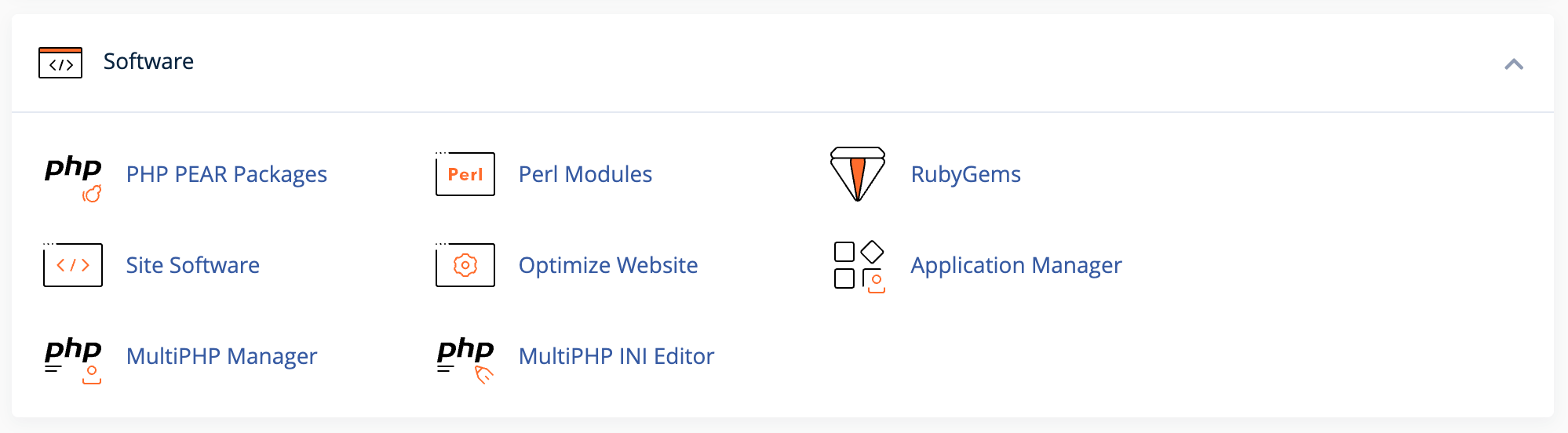
- In cPanel, go to Software > MultiPHP INI Editor.
- Select your domain.
- Adjust
memory_limit,max_execution_time, and other values. - Click Apply.
If you still see memory errors after increasing the limit, investigate which plugin or process is consuming excessive resources.
Step 6: Deactivate Plugins (WordPress)
Plugin conflicts are among the most common causes of WordPress 500 errors. A recent update, a poorly coded plugin, or two plugins competing for the same resources can all trigger failures.
If You Can Access the Dashboard
- Go to Plugins > Installed Plugins.
- Select all plugins and choose Deactivate from the Bulk Actions menu.
- Reload your site.
If the error clears, reactivate plugins one at a time to identify the culprit.
If You Cannot Access the Dashboard
- Connect to your site via SFTP or File Manager.
- Navigate to
wp-content/. - Rename the
pluginsfolder toplugins_disabled. - Reload your site.
If the site works, rename the folder back to plugins and then rename individual plugin folders one at a time to isolate the problem.
Step 7: Switch to a Default Theme (WordPress)
A corrupted or incompatible theme can cause 500 errors, especially after updates or PHP version changes.
If You Can Access the Dashboard
- Go to Appearance > Themes.
- Activate a default theme like Twenty Twenty-Four.
- Reload your site.
If You Cannot Access the Dashboard
- Connect via SFTP or File Manager.
- Navigate to
wp-content/themes/. - Rename your active theme’s folder (e.g.,
theme-nametotheme-name_disabled). - WordPress automatically activates a default theme if one is available.
If the site loads, the theme was the issue. Contact the theme developer or switch to a different theme.
Step 8: Re-upload WordPress Core Files
Corrupted core files from interrupted updates or file transfer errors can cause 500 errors.
Safe Re-upload Process
- Download a fresh copy of WordPress from wordpress.org.
- Extract the ZIP file on your computer.
- Delete the
wp-contentfolder from the extracted files (to preserve your content). - Upload the remaining files to your site via SFTP, overwriting existing files.
This replaces potentially corrupted core files without affecting your themes, plugins, or media.
Step 9: Verify Database Connection
WordPress stores a connection error page for database issues, but misconfigurations can sometimes trigger a generic 500 error instead.
Check wp-config.php Credentials
Open wp-config.php and verify these lines:
define('DB_NAME', 'your_database_name');
define('DB_USER', 'your_database_user');
define('DB_PASSWORD', 'your_password');
define('DB_HOST', 'localhost');Confirm these match the database credentials in cPanel > MySQL Databases.
Test Database Connectivity
In cPanel, go to phpMyAdmin and try logging in to your database. If the connection fails, the database server may be down or the credentials may be incorrect.

Step 10: Check for Malware
Malicious code injected into .htaccess, wp-config.php, or theme files can cause 500 errors while attempting to execute harmful scripts.
Signs of Malware
- Unfamiliar base64-encoded strings in .htaccess
- Unknown PHP files in your root directory
- Modified file timestamps you did not change
- Strange redirects or popups before the 500 error appeared
Steps to Address Malware
- Restore from a clean backup if available.
- Scan your site with a security plugin like Monarx or Wordfence.
- Manually review recently modified files.
- Change all passwords (cPanel, database, WordPress admin, SFTP).
Preventing Future 500 Errors
Once your site is working again, take steps to prevent recurrence.
Back up regularly. Automated daily backups let you restore quickly when problems occur.
Test updates on staging. Major WordPress, plugin, or theme updates can introduce conflicts. Test them in a staging environment before applying to production.
Monitor error logs. Set up automated monitoring to catch errors before they bring down your site.
Keep PHP current. Use PHP 8.1 or 8.2 for better performance and security. Check plugin and theme compatibility before upgrading.
Maintain proper permissions. Never set files or folders to 777. Use 644 for files and 755 for directories.
Limit active plugins. Fewer plugins mean fewer potential conflicts. Remove plugins you do not actively use.
Use quality themes and plugins. Choose well-maintained, frequently updated options from reputable developers.
When to Contact Support
Some 500 errors require server-level access to resolve. Contact InMotion Hosting support when:
- Error logs point to server configuration issues outside your control
- The error persists after exhausting all troubleshooting steps
- You suspect server-level resource limits need adjustment
- Apache, MySQL, or PHP-FPM services need to be restarted
- ModSecurity rules are blocking legitimate requests
InMotion Hosting provides 24/7 expert human support to help diagnose and resolve server-side issues. Have your error logs, recent changes, and troubleshooting steps ready when you contact support to speed up resolution.
Quick Reference: 500 Error Troubleshooting Checklist
- Check error logs in cPanel > Metrics > Errors
- Rename .htaccess and test the site
- Verify file permissions (644 for files, 755 for directories)
- Test a different PHP version
- Increase PHP memory limit
- Deactivate all plugins
- Switch to a default theme
- Re-upload WordPress core files
- Verify database credentials
- Scan for malware
Work through each step systematically. The error logs often point directly to the cause, so start there before making changes.