When working on your website, you may encounter an error stating: Fatal error: Call to undefined function mb_substr(). This is caused by a particular module not being included in your PHP configuration. In this article, we will teach you how to resolve the issue to get your site back up and running.
What causes this error?
This error is caused because you are missing the mbstring module within your PHP configuration. While not required by most software, some may use it for multibyte character encoding. If the code that you are using requires multibyte character encoding, you will receive this error when the mb_substr() function is called.
How do I fix this error?
To resolve this error, you would need to install the mbstring PHP module. If you are on a VPS or dedicated server, this can be done quite easily.
If you do not have root access
If you do not have root access on your server, you will need to either obtain root access, or submit a ticket with technical support so that they may compile PHP with suppport for mbstring. Once mbstring is enabled on the server, your errors should no longer persist.
If you have root access
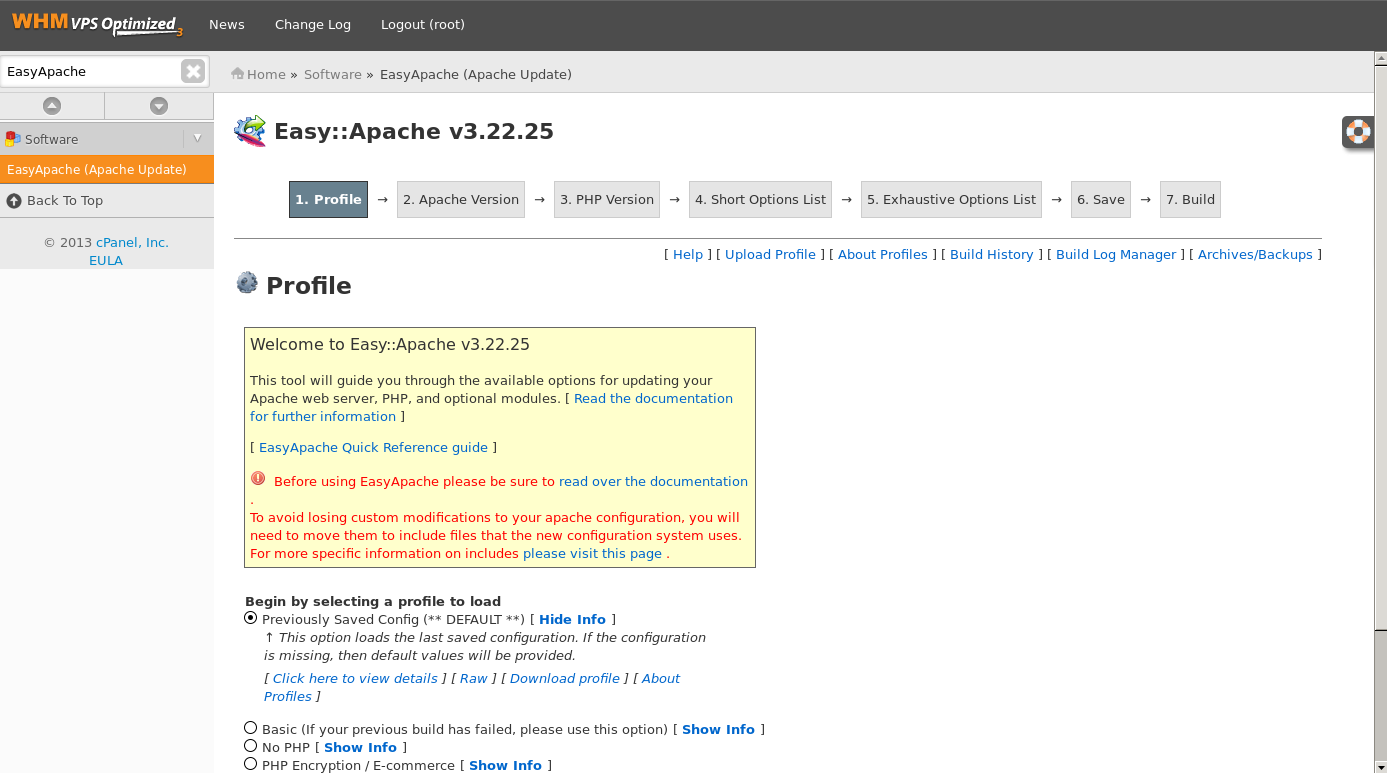
If you have root access to your VPS or dedicated server, you may simply use EasyApache to recompile PHP with mbstring support. To do so, you may follow these instructions:
- First, you will need to log into your WHM as root.
- Next, search for EasyApache in the top left search box, then click on EasyApache

Now that you are on this page, select the radio button next to Previously Saved Config, then click Start customizing based on profile.
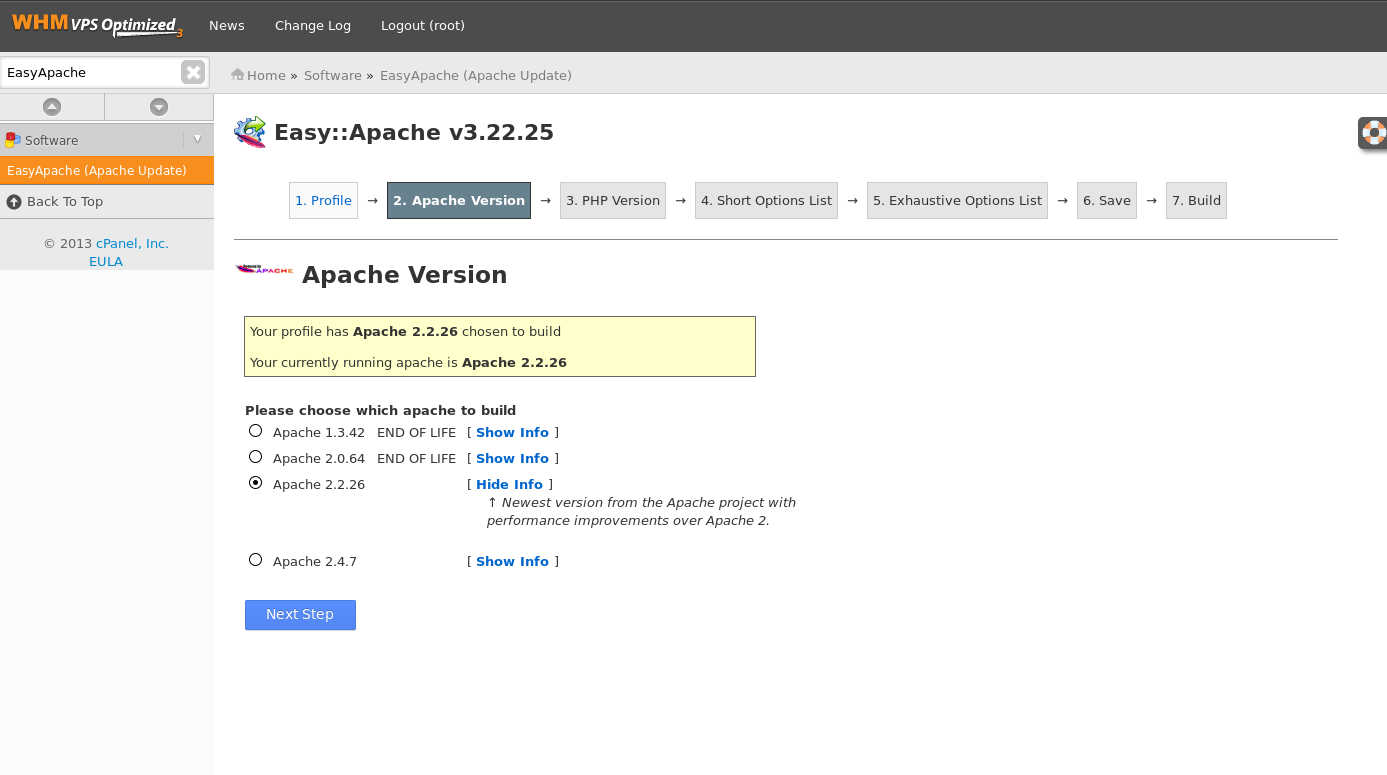
Next, you will be prompted to select your Apache version. Just select keep the already selected options. We will not need to make any changes to Apache.
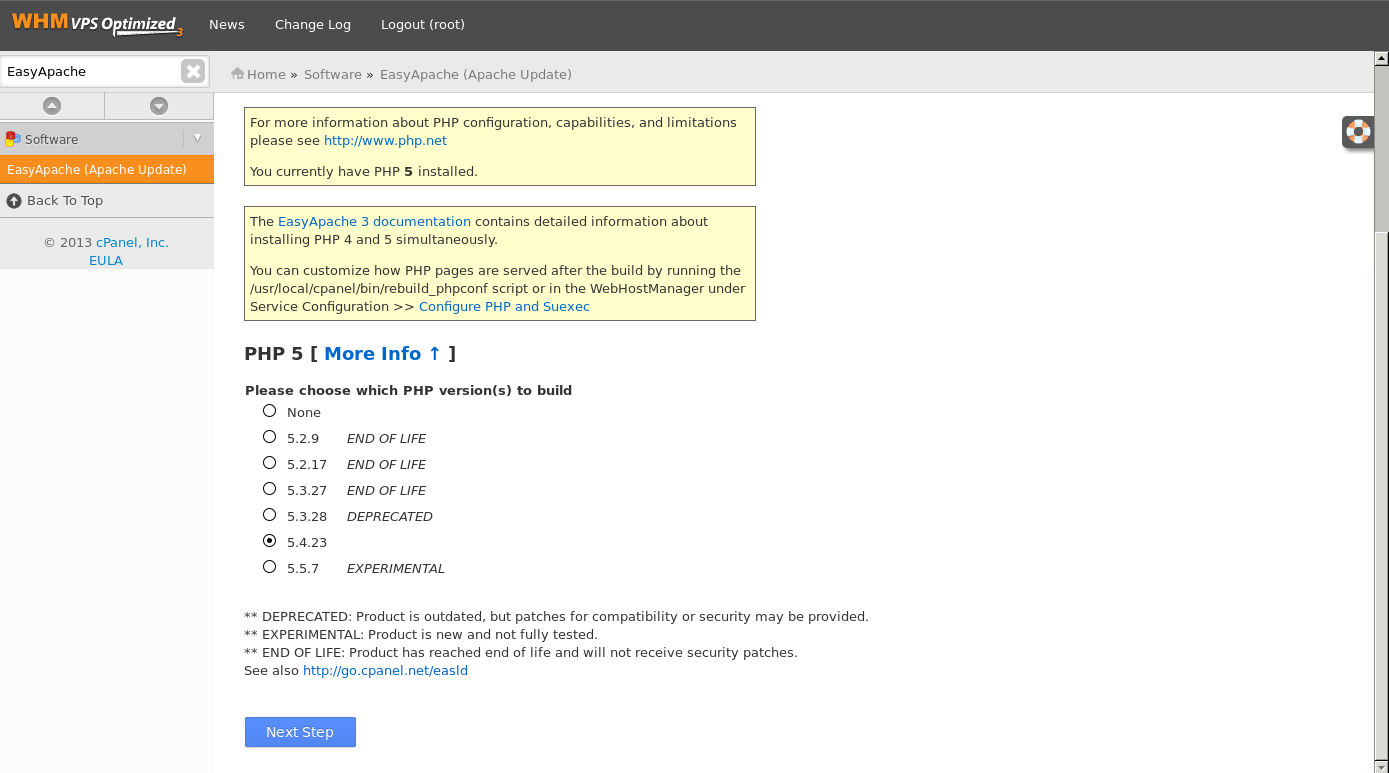
After the Apache screen, you will then select your PHP version. You will want to keep this the same as what is already selected as well, since changing your PHP version can potentially break your existing sites if they require a higher or lower version of PHP. Just click the Next Step to visit the next page.
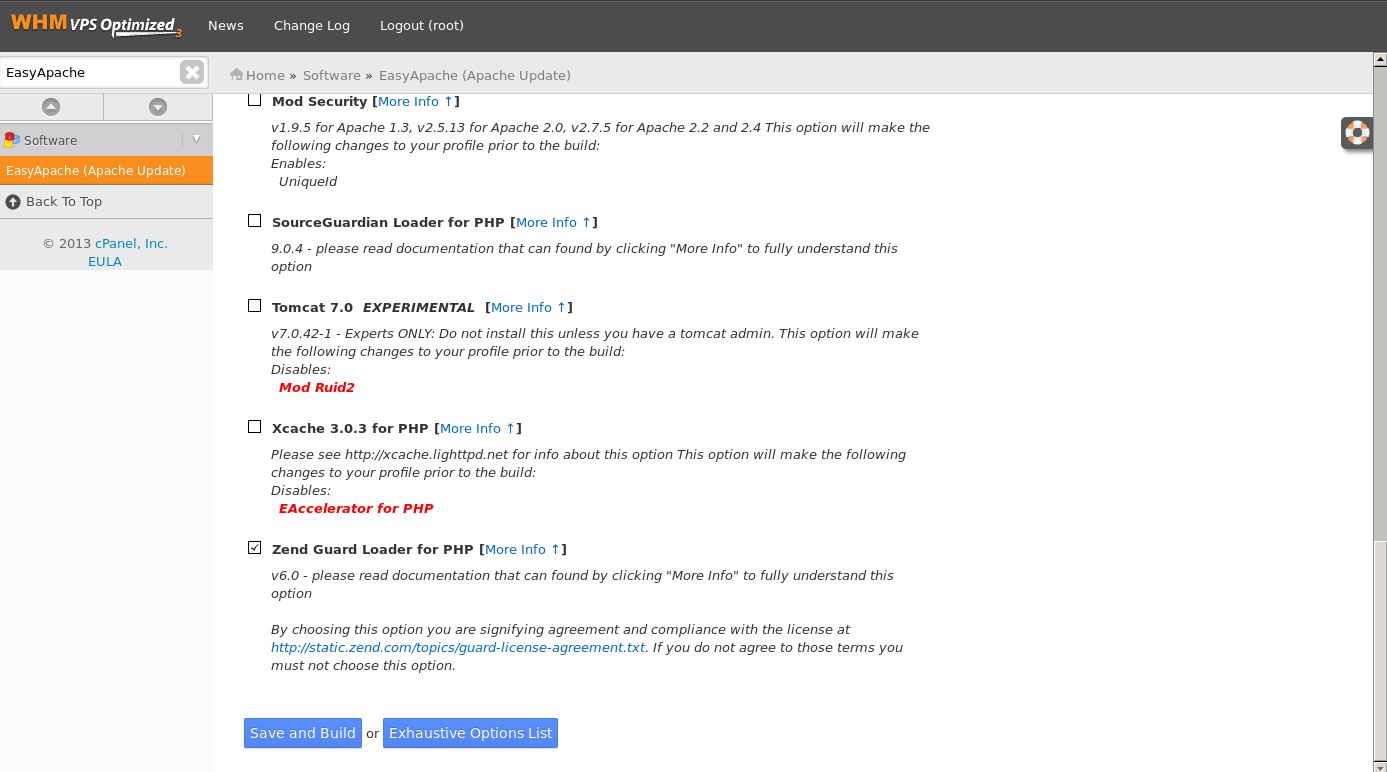
After selecting your PHP version, you will be sent to the Short Options List. Scroll to the bottom of the page and click on Exhaustive Options List.
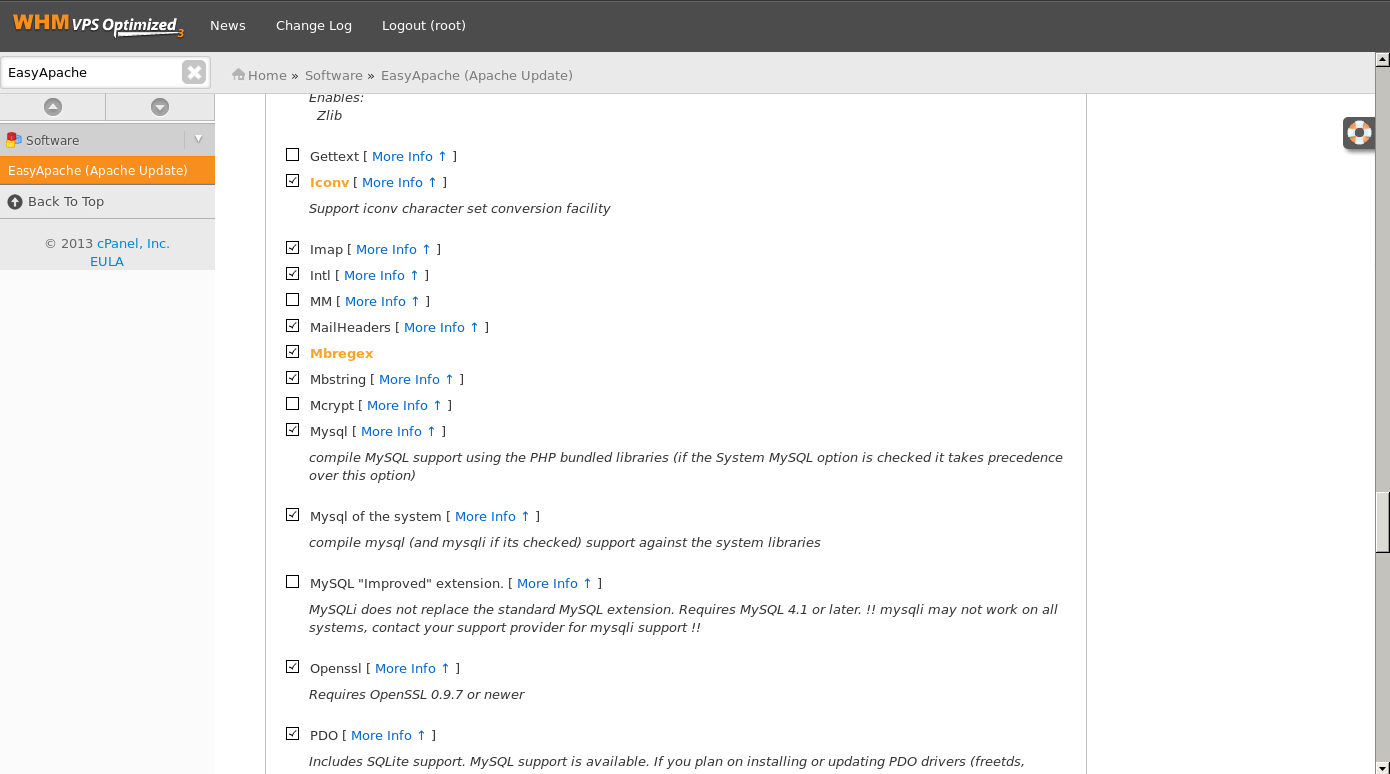
Now that you are on the Exhaustive Options List, you will see Mbstring under the PHP section. To enable mbstring, click the checkbox to the left of it. Once it is selected, scroll to the bottom and click on Save and Build.
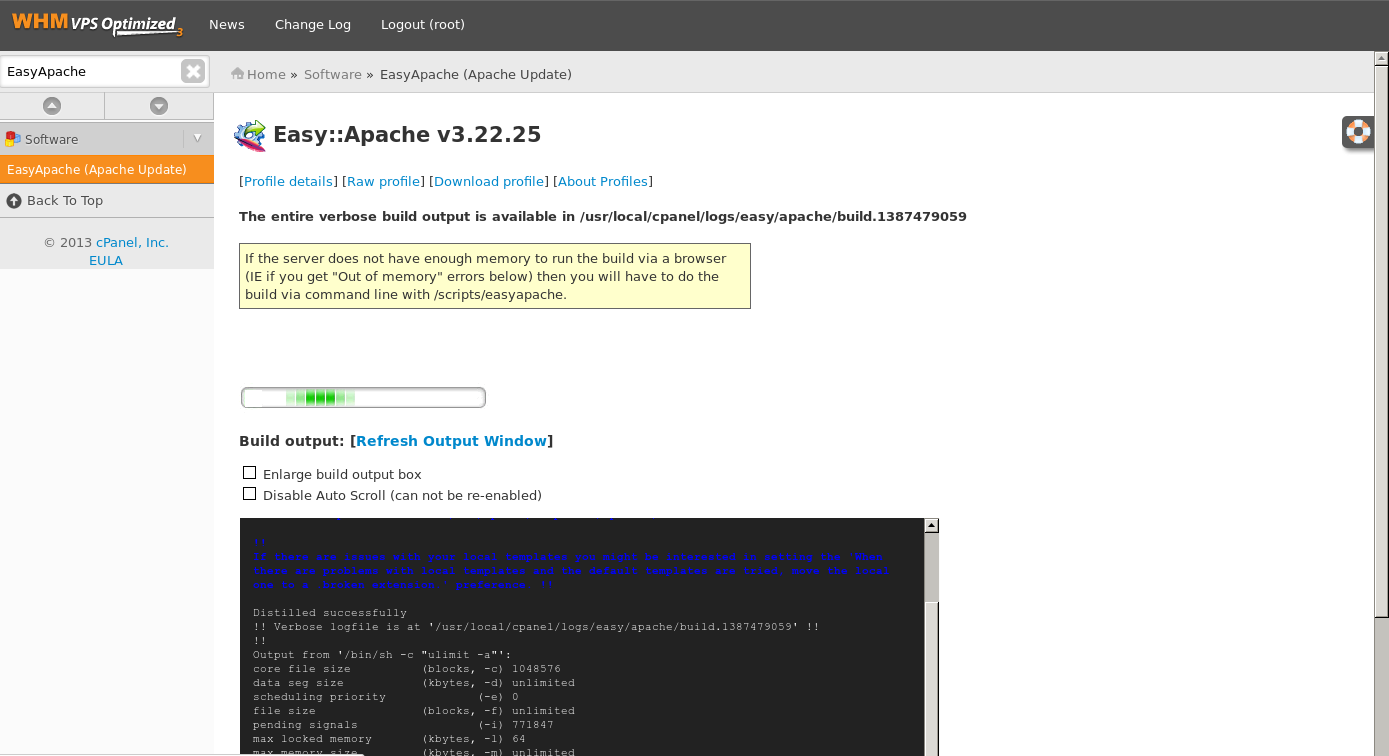
Once you click the Save and Build button in EasyApache, it will begin building. Be sure not to close the window or navigate away from the page. Doing so can cause issues to your Apache configuration. Once it has completed, your errors should no longer persist.