Joomla 2.5 has reached its end of life as for 12/31/2014. Please be advised this may be a security risk to your website. You can view more information about the end of life here.
You may have noticed that some articles in Joomla 2.5 show a Read More button, usually when the article shows on a featured articles page. The Read More option allows you to break up an article into smaller sections, which makes the articles much easier to display when you don’t have a lot of screen space to work with.
In this article, we’re going to show you how to add a Read More link when writing an article in Joomla 2.5, which is not the same thing as adding a link to another article.
To Use the Read More link in Joomla 2.5
- Log into your Joomla 2.5 admin
- Open for edit the article you want to work with.
To do this, in the top menu hover over Content and click Article Manager. Then, using the filter feature, find and click on your article.
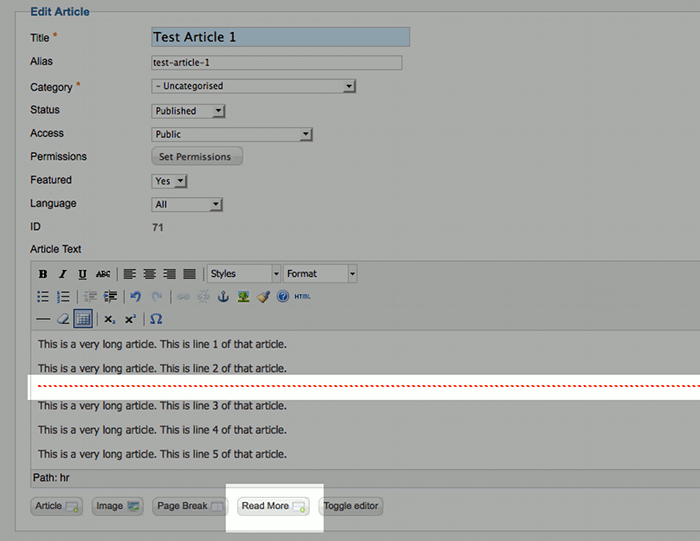
- Place your cursor in the article editor where you would like to separate it using a read more link
- Click the Read More button under the article editor. You will then see a red line added to your article. If you view the source code of the article, you will that red line is actually the following code:
<hr id=”system-readmore” />
- Click Save in the top right menu.
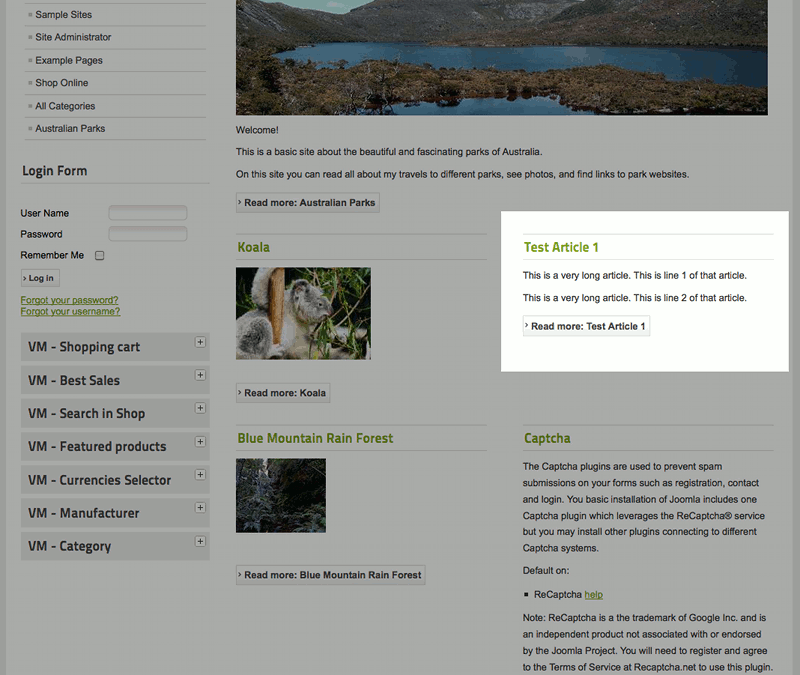
Visit the Joomla 2.5 page that lists the article, and you will now see a Read More button inserted automatically for you!
Before the Read More link: After the Read More link: 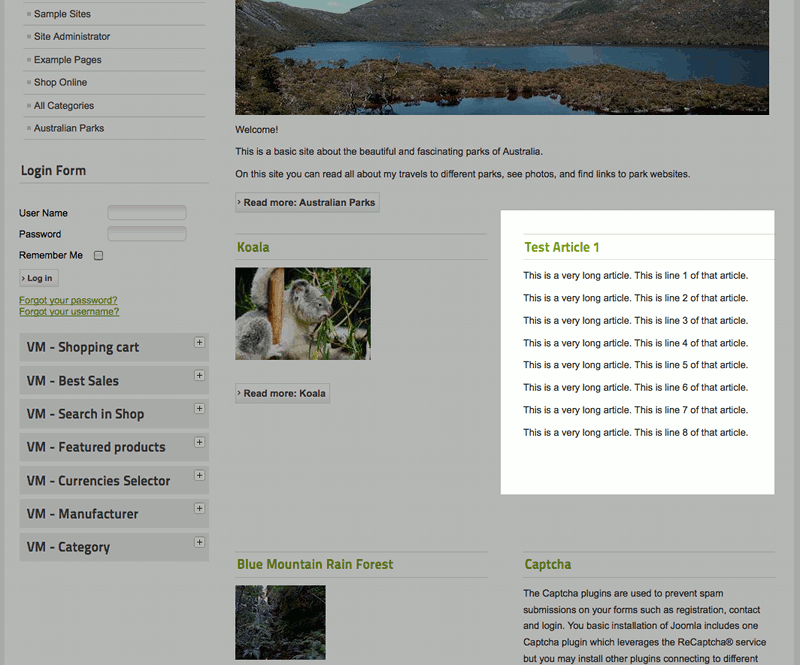



As we continue our tutorial series about writing articles in Joomla 2.5, we’ll next explain how to unlock an article.