With our VPS and Dedicated Hosting plans you can automatically perform cPanel backups. This allows you to schedule and save regular backups of your accounts to your server or an external destination such as Amazon, Google Drive, or FTP. In this tutorial, we will show you how to Configure cPanel Backups in WHM.
Keep in mind it uses disk space if you save backups to the server. Due to this, we recommend downloading and storing them in another location such as an external drive or local computer. This also protects the backups in case of server issues, since you have them saved to another location. Depending on how often you do backups and the cPanel users you host, it may be beneficial to also disable individual cPanel backups.
You can always purchase our auto Backup Manager for easier backup management.

Configuring cPanel Backups
- Log into WHM as the “root” user.
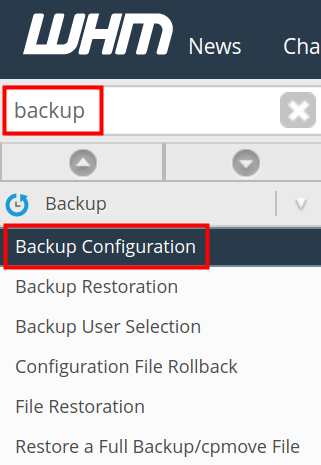
- Type ‘backup’ in the search field, then click on the Backup Configuration option the Backup.
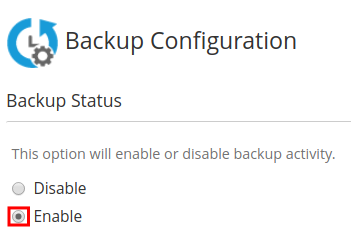
- In the Backup Status section click the Enable option. You will then have additional options available for configuring your backups.
- Set your Global Settings.
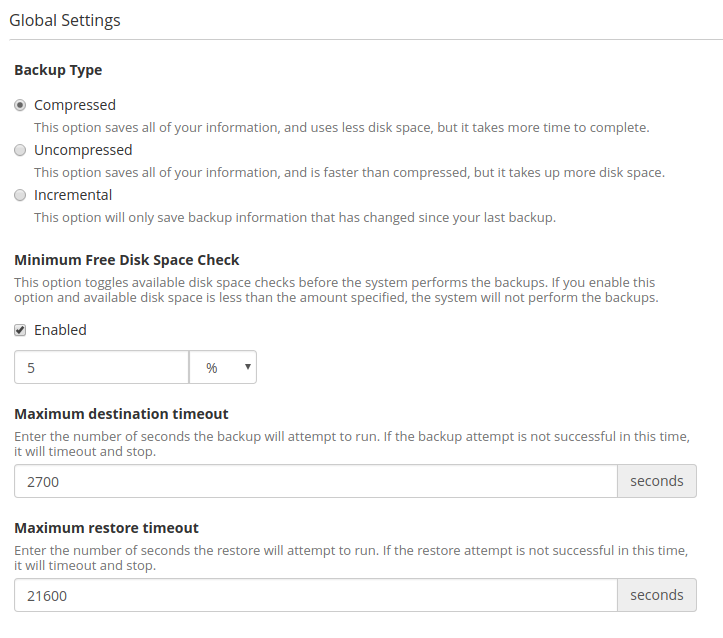
Backup Type Choose one of the options to define how the server will store the backup. Compresses Saves all information in compressed file. This takes more time but uses less disk space. Uncompressed Saves all information in an uncompressed format. This uses more disk space but is faster. Incremental Stores only one uncompressed file. It saves only updated information and replaces that. This limits the restoration settings but is faster and uses the least disk space. Minimum Free Disk Space Check You can set a disk space check here in Percentages (%) or Megabytes (MB). If you have less than the alloted space the backup will not run. Maximum destination timeout The amount of time a backup process allows to upload a single backup file. Maximum restore timeout The amount of time a backup process allows to upload a restore a backup file. - Set your Scheduling and Retention preferences.
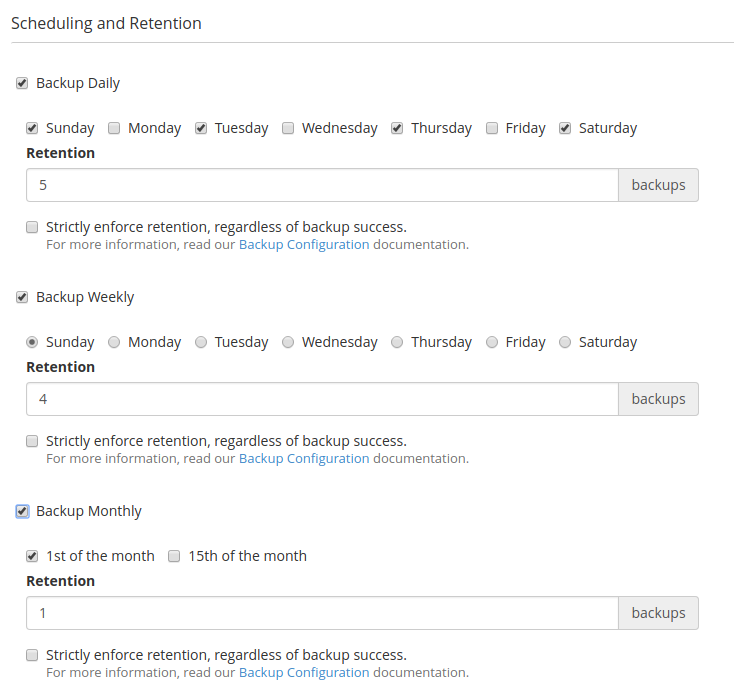
Backup Daily Creates a new backup on each selected day. You must configure the days and the number of retained backups (1-9999). Backup Weekly Creates a new weekly backup on the day selected. You must configure the days and the number of retained backups (1-9999). Backup Monthly Creates a new weekly backup on the day selected. You must configure the days and the number of retained backups (1-9999). - Set your Files preferences.
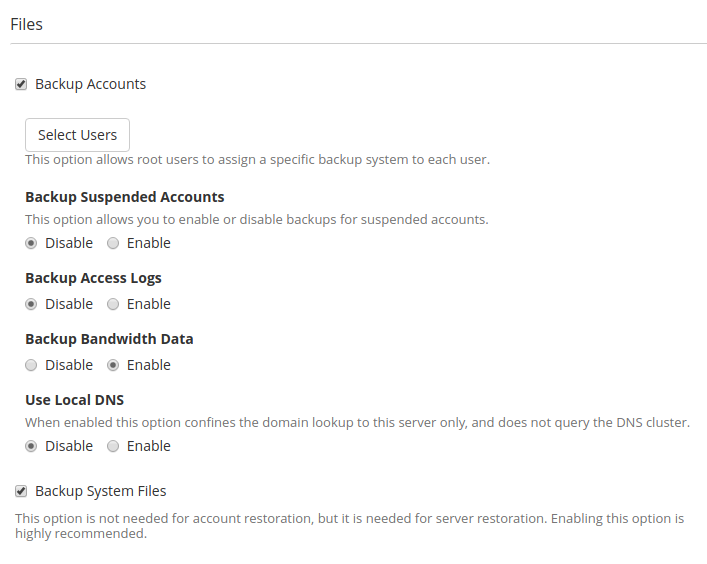
Backup Accounts Select this box to enable user accounts to be backed up. From there you can need to configure the following settings. Select Users Allows you to select specific users to back up. Backup Suspended Accounts Choose if you want to backup Suspended Accounts by enabling or disabling this option. Backup Access Logs Choose if you want to enable or disable backups for Access Logs. Backup Bandwidth Data Enabling this will backup the bandwidth data from your server. Use Local DNS According to cPanel “When enabled this option confines the domain lookup to this server only, and does not query the DNS cluster.“ Backup System Files Select this box if you wish to backup system files. This is for server restoration and not for account restoration. It is highly recommended to enable this setting. - Set your Database backup settings.
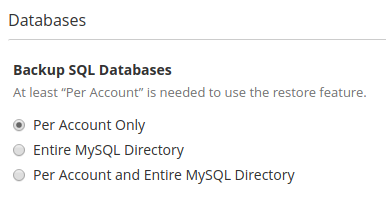
Per Account Only Back up the databases for each account using the mysqldump utility. Entire MySQL Directory Back up all of the databases on the server by backing up the /var/lib/mysql/ directory. Per Account and Entire MySQL Directory Performs backups of all databases in each account and all databases on your server. - Configure your Backup Directory.
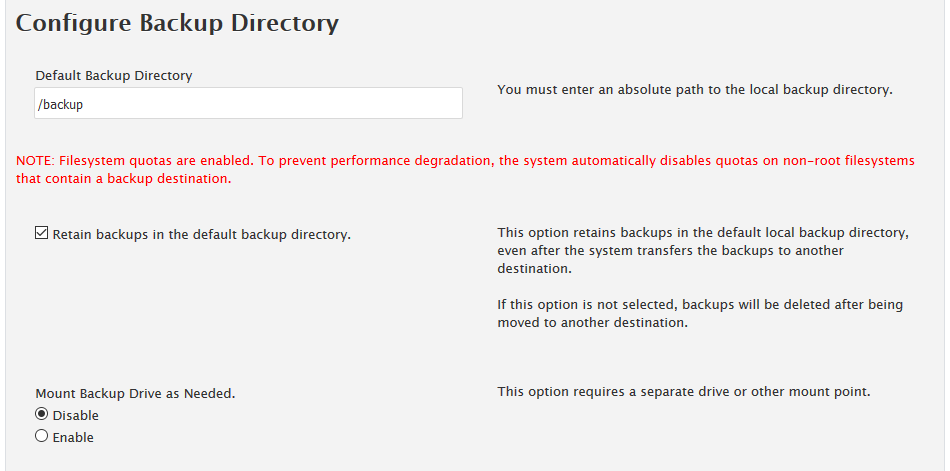
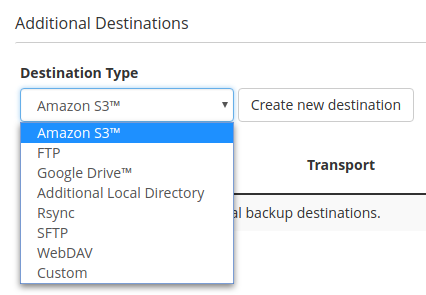
Default Backup Directory. Set to /backup/ by default, you can change it by entering the absolute path to your preferred directory location. Retain backups in the default backup directory. If selected, keeps a copy of the backup in the backup directory even after transferring the backup to another destination. If not selected, the copy will be deleted after the transfer. Mount Backup Drive as Needed. Select the Enable button to mount a backup drive. The server will check /etc/fstab/em> for another mount point. If disabled (default) the server will not check. - Set up your Additional Destinations if desired, each destination has its own setup configuration. Options are Amazon S3, FTP, Google Drive, Additional Local Directory, Rsync, SFTP, WebDAV, and Custom.
- Click the Save Configuration button.
How to Run Backup Via Command Line (SSH)
Experienced users will know that WHM allows you to schedule cPanel backups and set storage specifications. But if you wanted to run manual backup scripts from the command line? That’s what this section is about.
In order to run the cPanel backup script you will need to log in as the root user, and run this script:
/usr/local/cpanel/bin/backup
To see the background processes as they occur, run the command with the appended option:
/usr/local/cpanel/bin/backup --debug
Be sure to check out related resources from the support center:
Learn more about cPanel management from our Managed VPS Hosting Product Guide.
Scalable VPS Infrastructure, Fully Managed
When shared hosting can't handle your traffic, VPS delivers dedicated resources that scale with demand. Our team manages the technical complexity while you manage your business.
 NVMe Storage High-Availability Ironclad Security Premium Support
 - Set your Global Settings.