Did you accidentally delete a file in cPanel? Your file may be in the “Trash” folder instead of permanently deleted. In this tutorial, we will show you how to view your File Manager Trash so you can restore the file to it’s original location.
Keep in mind that this is separate from the Trash directory used with terminal commands.
Restore File Manager Trash
- Log into cPanel.
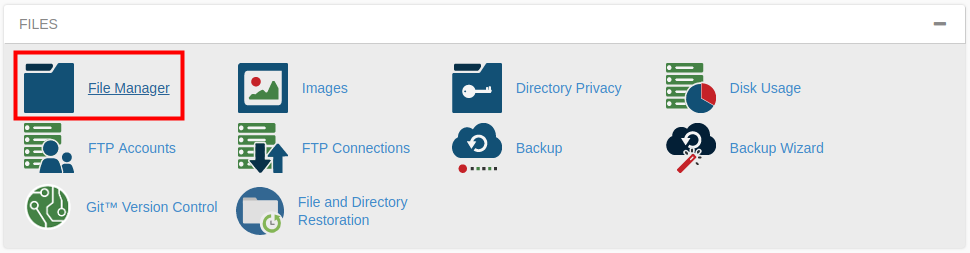
Click File Manager in the Files section of cPanel.
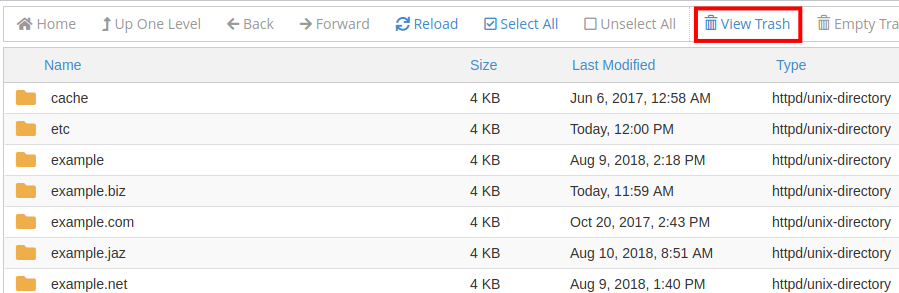
You will be in the File Manager, click the View Trash link.
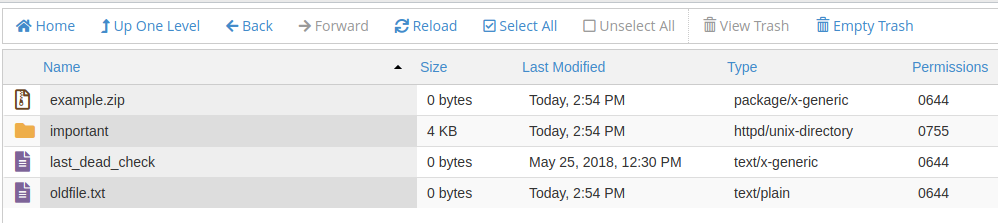
You will then see a list deleted files.
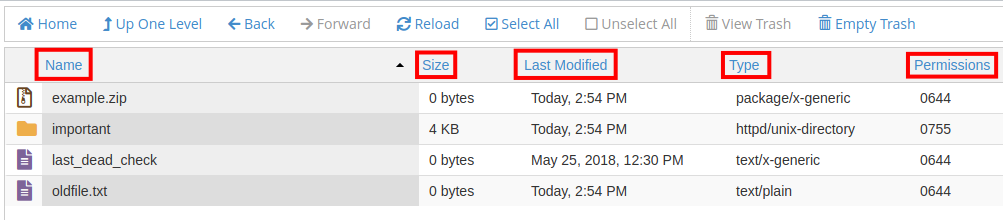
To sort the files click Name, Size, Last Modified, Type, or Permissions.
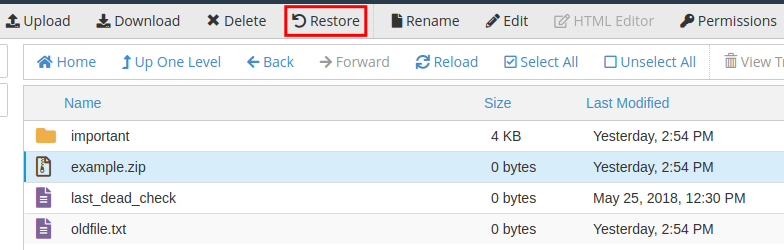
Select the file you want to bring back then click the Restore option. You can also right-click a file and choose Restore.
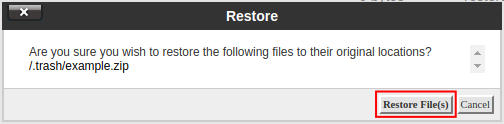
A message will ask “Are you sure you wish to restore the following files to their original locations?” Click the Restore File(s) button.






Congratulations, now you know how to Restore trash in the cPanel File Manager! In the next guide, we will show you how to permanantly delete a file from Trash in File Manager.