
Every InMotion Hosting plan that includes cPanel comes with access to a full email server. That means you can create professional email addresses tied to your domain name, like [email protected] or [email protected], and manage them entirely from within cPanel.
This guide walks you through creating a new email account in cPanel, setting a secure password, and configuring storage limits. Once your account exists, you can access it through webmail, connect it to a desktop client like Outlook or Thunderbird, or set it up on your phone.

How to Create an Email Account in cPanel
- Log into cPanel.
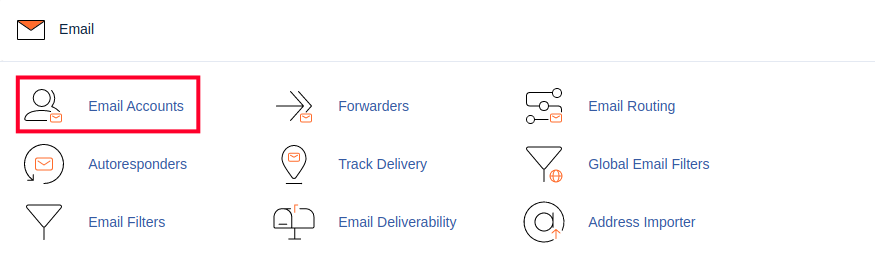
- Click the Email Accounts icon in the Email section.
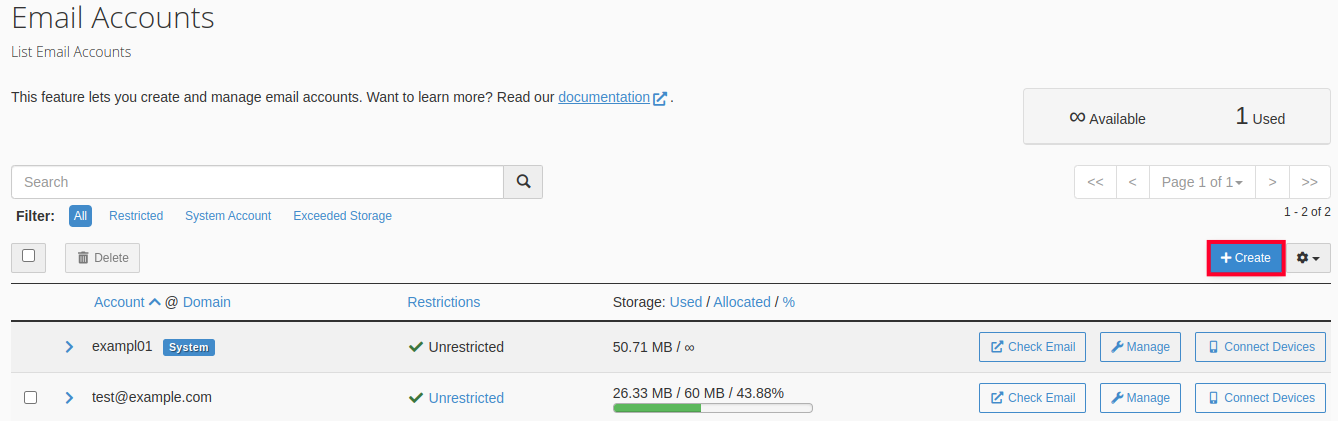
- You will then see the Email Accounts page. If any accounts already exist then they will be listed here. Click on the button labeled Create.
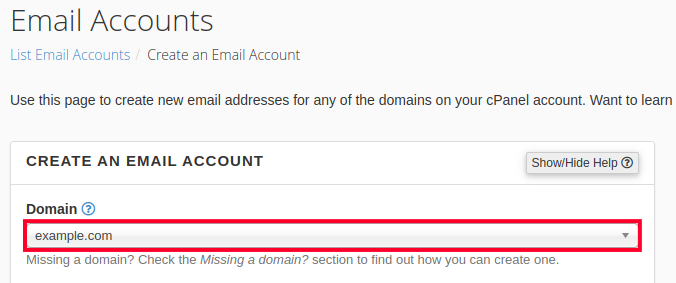
- The Create an Email Account section will be displayed. Select the Domain that you want to use for the email account. If you have multiple domains on this account, then you will be able to click on the drop-down menu to select a different domain. If you are using only one domain on the account, then only that domain will appear and you can move to the next step.
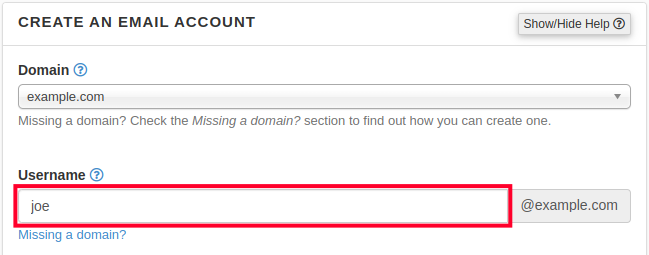
- Type in the Username that you want to use. The domain name is automatically appended based on the domain that you have selected. Note that you can only use letters, numbers, periods, hyphens, and underscores for the name. The user name can only be up to 64 characters long.
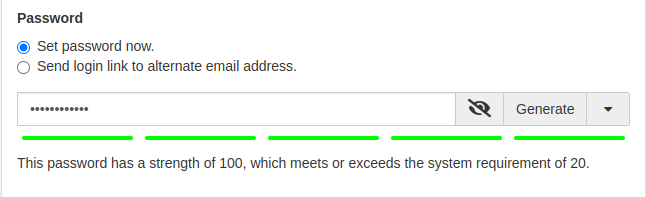
- The next option is for setting the password for the email account. You can choose to Set password now or Send login link to alternate email address to send an email for them to set their own password. There is also a Generate option that allows you to randomly generate a secure password.
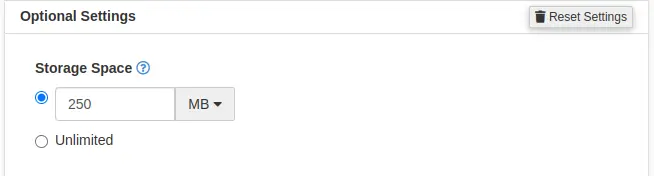
- The next are optional settings. Click the Edit Settings button to access them.
- Set the Storage Space. By default, the value is set to 250 MB. This space is the amount of space that the email account can occupy on the server. You can set this to a particular number or you can click on Unlimited.
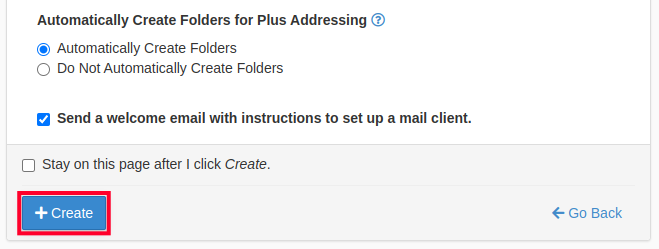
- After you set the storage space for the email account, you will see an option named Automatically Create Folders for Plus Addressing. This option allows for folders to be created automatically if they are using Plus Addressing. You can also set it to not create folders.

- You can also opt to send a welcome email that instructs your user on how to setup a mail client. By default, this option is checked. If you don’t want to send the email, then simply uncheck the box.
- Click on the blue button labeled CREATE in order to create the account. If you wish to stay on the same page after the account is created, then check the box labeled “Stay on this page after I click Create.”
Next Steps
Getting Started With Email
Now that you know how to create an email account in cPanel you can begin sending and receiving emails using Webmail, your phone, and a client such as Mac Mail, or Outlook. Here are some helpful guides:
- How to Login to Webmail
- Using Outlook
- Using Mac Mail
- Using Thunderbird
- Using Windows Live Mail
- Using Gmail
- Configuring Email on an iPhone
- Configuring Email on an Android
Migrating Email From Another Host
If you’re in the process of transferring to InMotion Hosting from a different hosting provider, you may have emails that you want to copy to this email account you just created. We have a tutorial on how to accomplish that:
Congratulations! You now understand how to create an email account in cPanel! We recommend bookmarking our section on Setting Up and Troubleshooting Your Email. Be sure to avoid any future errors by managing the storage space for email accounts.