
A TXT record lets an external service verify that you own your domain or configure policies like SPF, DKIM, and DMARC for email. To add a TXT DNS record in cPanel, you use the Zone Editor tool, which gives you direct access to your domain’s Domain Name System (DNS) zone file.
Note: DNS changes can take 4 to 24 hours to propagate across the internet. Plan accordingly if the record is time-sensitive.
Add a TXT DNS Record in cPanel Zone Editor
- Log in to cPanel. See How to Log in to cPanel if you need help.
- In the Domains section, click Zone Editor.

- Click Manage next to the domain you want to update.
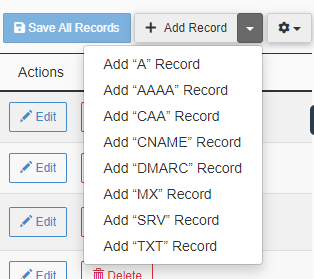
- Click the down arrow next to the + Add Record button, then choose Add “TXT” Record.
- Enter a valid value in the Name field. This is the zone name for the record. The value must end with a period. For example, enter
example.com.(note the trailing dot) to apply the record to the root of your domain. - Enter a TTL (Time to Live) value in seconds. A lower value means DNS resolvers refresh the record more frequently, which is useful while you are testing.
- Enter the required text string in the Record field. Paste the exact value provided by the service you are configuring. For SPF, DKIM, or domain verification records, copy the value character by character.

- Click Save Record.

cPanel saves the record and adds it to your zone file immediately. The change will be visible in DNS lookups once propagation completes, which can take up to 24 hours depending on the TTL value and your resolver’s cache.
Troubleshooting
The record does not appear in a DNS lookup tool
DNS propagation takes time. Wait at least 30 minutes after saving the record and then re-check using a tool such as Google Admin Toolbox Dig. If the record still does not appear after 24 hours, log back in to Zone Editor and confirm the record was saved and the zone name includes the trailing period.
The verification service says the record is not found
Check that the value in the Record field matches exactly what the service provided, including any quotation marks the service specifies. Some services require the text string wrapped in double quotes inside the record value. Also, confirm you entered the record under the correct zone name: a record on example.com. is different from one on www.example.com..
Zone Editor shows an error when saving
If cPanel returns a validation error, the most common cause is a missing trailing period on the zone name. Make sure the Name field ends with a dot (for example, example.com.). Also, check that the TTL value is a positive integer and that the record value field is not empty.
Conclusion
Your TXT DNS record is now saved in the cPanel Zone Editor. Once propagation completes, the record will be live, and the external service can verify it. If you are setting up email authentication, your next step is to confirm your SPF and DKIM records are also in place. See Creating a Basic SPF Record in cPanel and How Do I Add DNS Records? for related guidance.