
A Zone Editor error in cPanel or WHM almost always points to a Time to Live (TTL) mismatch: one DNS record has a different TTL value than the rest of your zone. Correcting that one record clears both the cPanel API failure: Zone is invalid error and the WHM Zone Manager Error ID: t85tzu.
TTL tells DNS resolvers how long to cache a record before checking for updates. The specific number matters less than consistency across your zone. cPanel’s default value works well for most records, including email, so the fix is to bring the outlier in line rather than change anything else.
What These Errors Mean
You will see one of two messages depending on where the conflict surfaces:
- cPanel Zone Editor:
API failure: Zone is invalid: Line 56: TTL set to prior TTL (900) at /usr/local/cpanel/Cpanel/ZoneFile/LineEdit.pm line 390. - WHM Zone Manager:
(Error ID: t85tzu) Ask your hosting provider to research this error in cPanel & WHM's main error log.
Both trace back to the same root cause: a record whose TTL does not match the zone’s existing TTL. The fix is the same in both cases and takes only a few clicks in cPanel Zone Editor.
Fix the Zone Editor Error by Correcting the TTL
Scan your DNS records for the one with a different TTL value, then update it to match the others. No other records need to change.
- Log in to cPanel.
- In the Domains section, click Zone Editor.
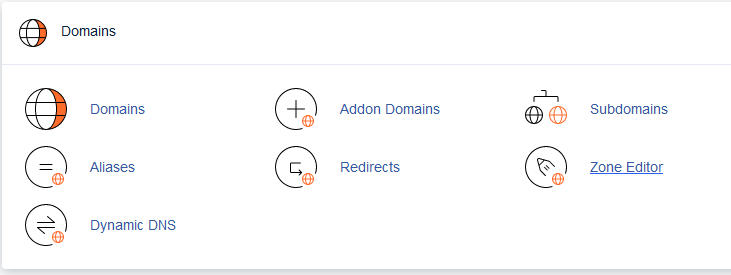
- Click Manage to the right of the domain that triggered the error.

- Scan the TTL column. Look for the record whose value differs from the others. For example, if all records show 900 but one shows 9000, that is the record to fix.
- Click Edit to the right of that record.
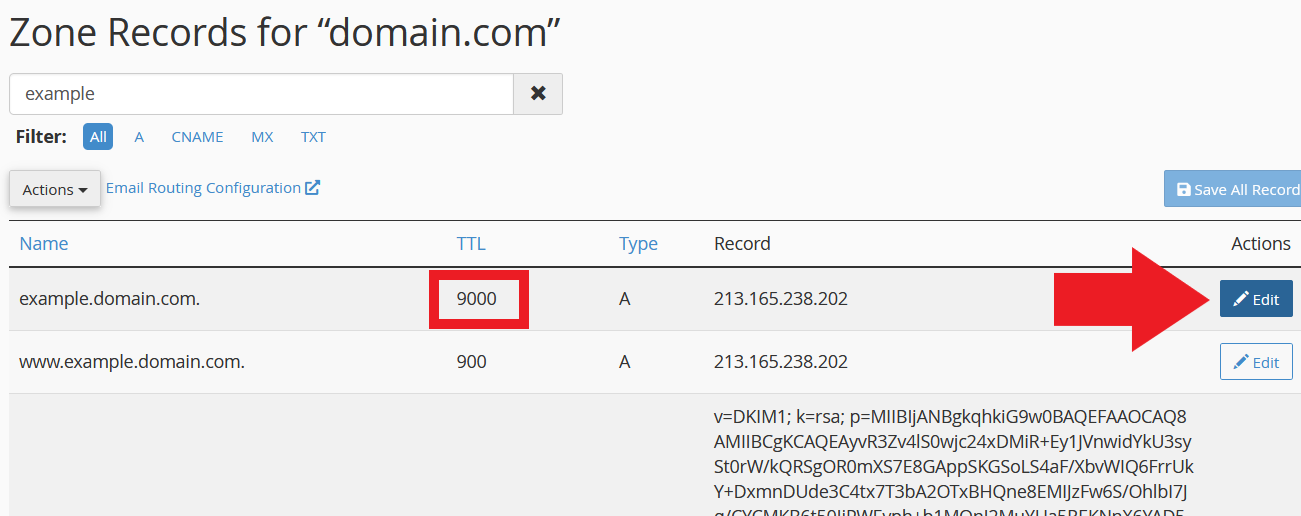
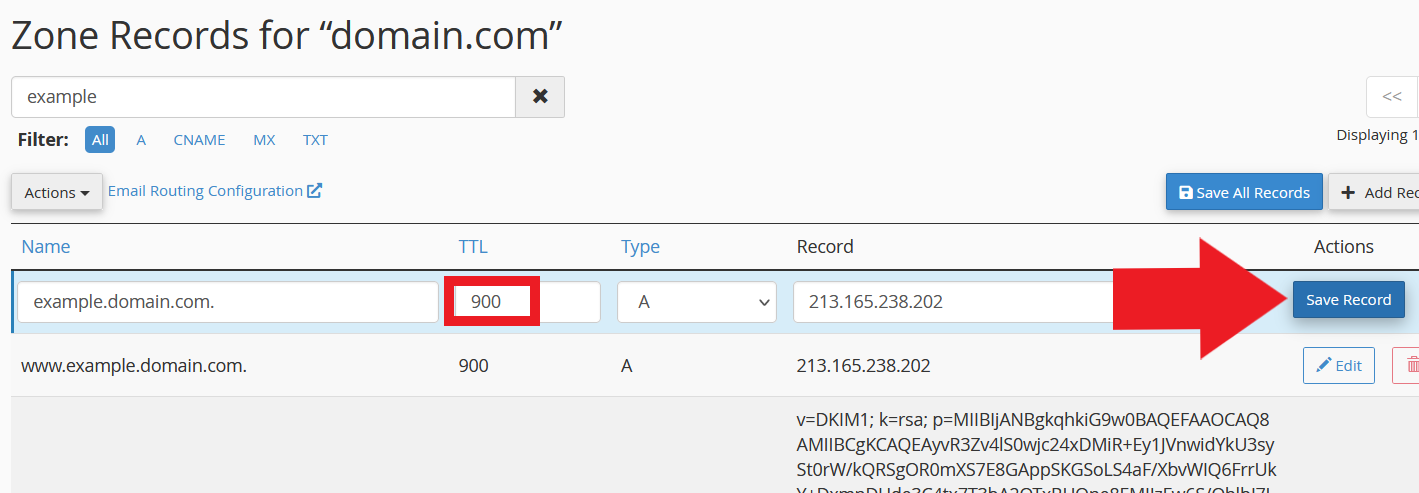
- Change the TTL field to match the value the other records use (for example, 900).
- Click Save Record.
Note: Changing a record’s TTL has no effect on service quality, email deliverability, or record resolution. You are only aligning the value so the zone file validates cleanly.
Troubleshooting
The error returns after saving
More than one record may have a mismatched TTL. After saving the first correction, reload the Zone Editor and scan the TTL column again. Repeat the edit-and-save process for each outlier until all records share the same value.
You cannot tell which record has the wrong TTL
If your zone has many records, sort the TTL column by clicking its header. Records with a different TTL will group together and stand out from the rest. If Zone Editor does not support column sorting, use WHM’s DNS Zone Manager under DNS Functions to view the zone’s records, where the mismatched TTL is easier to spot.
Conclusion
Once you save the corrected TTL, cPanel and WHM can write the zone file without conflict, and the error clears. If you need to make broader DNS changes after fixing the error, see Using the Zone Editor in cPanel for a full walkthrough of adding, editing, and deleting DNS records.