You do not need a separate File Transfer Protocol (FTP) client or a text editor on your computer to edit HTML code in cPanel. File Manager includes two built-in editors. The HTML Editor makes visual changes to .html files, and the Edit tool opens direct code editing for any text-based file. This guide covers both, starting with the HTML Editor.
Warning: Editing a live file can break your site if you make a mistake. Back up the file first by right-clicking it in File Manager and selecting Copy, or download a copy using an FTP or SFTP (Secure File Transfer Protocol) client. See the FTP getting started guide for connection details. If you want a full safety net, clone your site with Softaculous and test your changes there first.
Note: Older versions of cPanel had a separate “Code Editor” tool and a different HTML editor. In current cPanel, the Edit button opens the code editor, and the HTML Editor has a new interface. If you are following an older tutorial, use the steps below instead.
Open File Manager
Both editors live inside File Manager, so start there before you choose a tool.
- Log in to cPanel.
- In the Files section, click File Manager. See the File Manager guide if you need a refresher on navigating it.
- Navigate to the folder that contains the file you want to edit, then select it with a single click.

With the file selected, the toolbar lights up the tools that apply to it. Which tool you use next depends on the file type.
Edit HTML Code in cPanel with the HTML Editor
The HTML Editor is a visual editor built only for .html files. Its toolbar button stays grayed out until you select an HTML file, so select an HTML page before you look for the button.
- Select the
.htmlfile you want to edit, then click HTML Editor in the toolbar. You can also right-click the file and choose HTML Editor, which appears as the last option on the menu.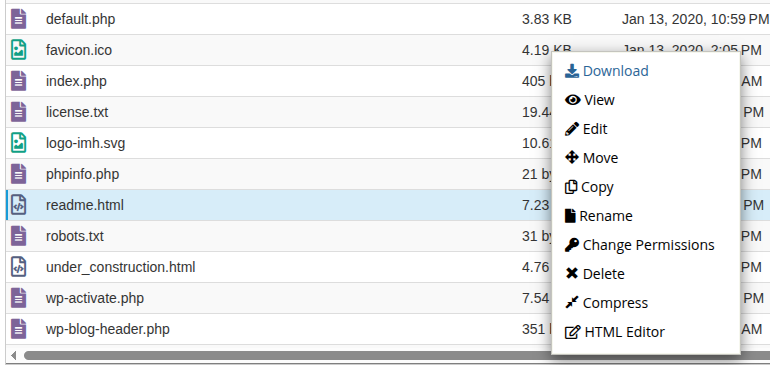
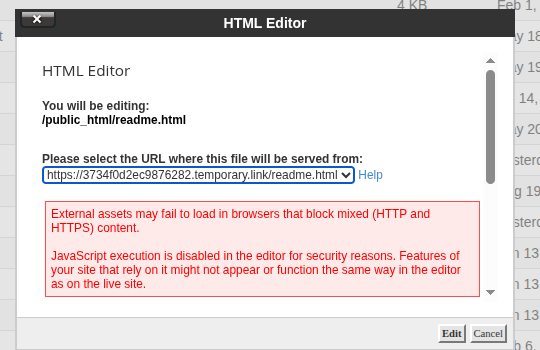
- In the HTML Editor dialog, confirm the file path shown next to “You will be editing:”, then choose the correct entry from the Please select the URL where this file will be served from drop-down. Click the Help link next to the drop-down if you are not sure which entry to pick.
- Review the two warnings in the dialog: external assets may fail to load in browsers that block mixed (HTTP and HTTPS) content, and JavaScript execution is disabled in the editor for security reasons. Click Edit to continue. cPanel opens the HTML Editor in a new browser tab.
- Make your changes using the formatting toolbar (bold, lists, alignment, tables, links, and similar tools), or click the </> button at the top right to switch to the raw HTML source.
- Click the save (disk) icon in the top left corner to save your changes.
The HTML Editor is the fastest way to make visual edits without touching markup directly. If you need to edit the underlying code of any file type, including HTML, the Edit tool covers that instead.
Edit Code in cPanel with the Edit Tool
The Edit tool opens a code editor with syntax highlighting for any text-based file, including .php, .css, .js, .html, .txt, and .htaccess. Use it when you want to work directly in the code instead of a visual layout.
- Select the file you want to edit, then click Edit in the toolbar. You can also right-click the file and choose Edit from the context menu.
- In the Edit dialog, confirm the path shown next to “You will be editing:”. The dialog warns you to back up the original file before converting character sets, since that action can produce unexpected results. The Disable Encoding Check button stops this dialog from appearing again, which cPanel suggests only if you work exclusively in English or other Western languages.
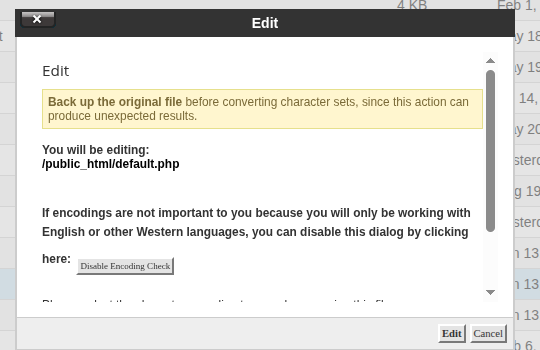
- Click Edit to continue. cPanel opens the code editor in a new browser tab.
- Make your changes. The editor detects the language for syntax highlighting, and you can adjust the font size, toggle word wrap, or use the search and undo/redo controls in the toolbar as needed.
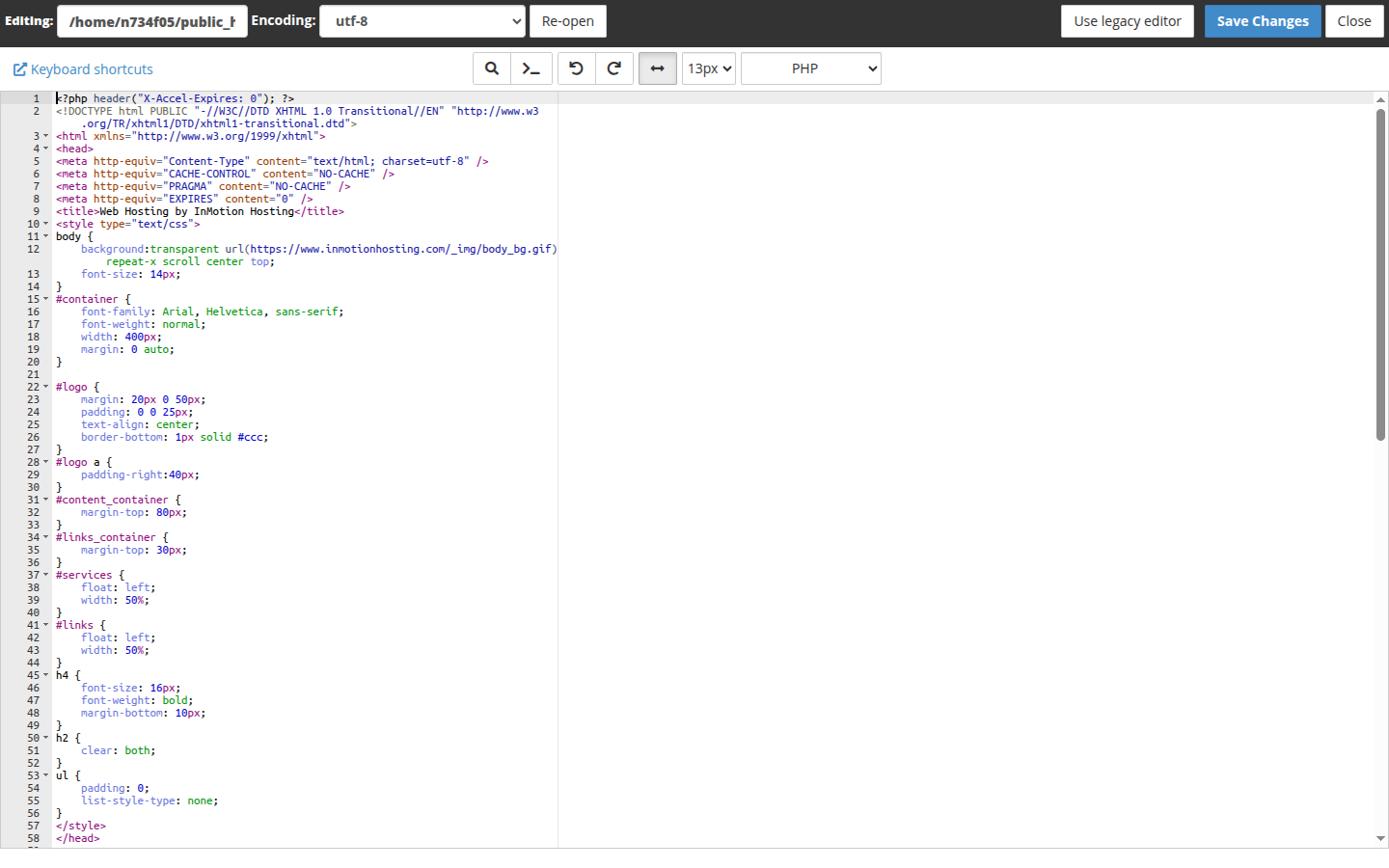
- Click the blue Save Changes button in the top right, then click Close when you are done.
Both tools write your changes straight to the live file when you save, so it helps to know exactly what each interface offers before you rely on it. Here is a closer look at both.
HTML Editor and Edit Tool Features
HTML Editor
- Formatting toolbar for bold, italic, underline, strikethrough, color, font, headings, lists, alignment, and indentation.
- Insert tools for images, video, files, tables, links, and horizontal lines, plus undo/redo, cut/copy/paste, superscript/subscript, and find.
- A source code toggle (</>) and a full-screen toggle at the top right, for switching between the visual view and raw HTML and for expanding the editing area.
- A save (disk) icon in the top left corner. There is no separate “Save” text button.
Edit tool
- Syntax highlighting, with a language drop-down that shows the detected file type, such as PHP.
- An Encoding drop-down and a Re-open button, plus a Use legacy editor option if you prefer the older interface.
- Search, undo/redo, a word-wrap toggle, a font size drop-down, and a Keyboard shortcuts link in the toolbar.
- A blue Save Changes button and a Close button in the top right corner.
Troubleshooting
The HTML Editor button stays grayed out
This happens when the selected file is not an .html file. Click the file once to select it, confirm the name ends in .html, then check the toolbar again.
Clicking Edit does not open a new tab
Both the Edit and HTML Editor dialogs open their editors in a new browser tab. If no tab appears, check your browser for a blocked pop-up notice and allow pop-ups for the address you use to reach cPanel, then click Edit again.
Elements on the page look broken inside the HTML Editor
JavaScript execution is disabled in the HTML Editor for security reasons, so features of your site that rely on it might not appear or function the same way in the editor as on the live site. External assets can also fail to load in browsers that block mixed (HTTP and HTTPS) content. Save your changes, then check the live page in a normal browser tab to confirm it looks right.
Conclusion
Whether you need a quick visual tweak or a direct line-by-line edit, File Manager’s HTML Editor and Edit tool cover both without leaving your browser. For more File Manager tools and shortcuts, browse the cPanel Education Channel.