You are heading out of the office, and every email that arrives should still get a reply. Follow these steps to create an autoresponder in Webmail using only your email address and password.
Note: If you manage several email addresses, you can also create autoresponders for all of them from cPanel.
What an Autoresponder Does
An autoresponder is an automatic reply that your mail server sends when someone emails your address. Use it for out-of-office notices, or to confirm that you received an order or an inquiry. The interval sets how many hours the server waits before it answers the same sender again. If someone writes twice within that window, they get only one reply.
How to Create an Autoresponder in Webmail
- Go to
https://yourdomain.com/webmail, replacingyourdomain.comwith your domain name. See how to log in to Webmail if you need help. - Enter your Email Address (for example,
[email protected]) and Password, then click Log in. - Under Manage Your Inbox, click the Autoresponders card.

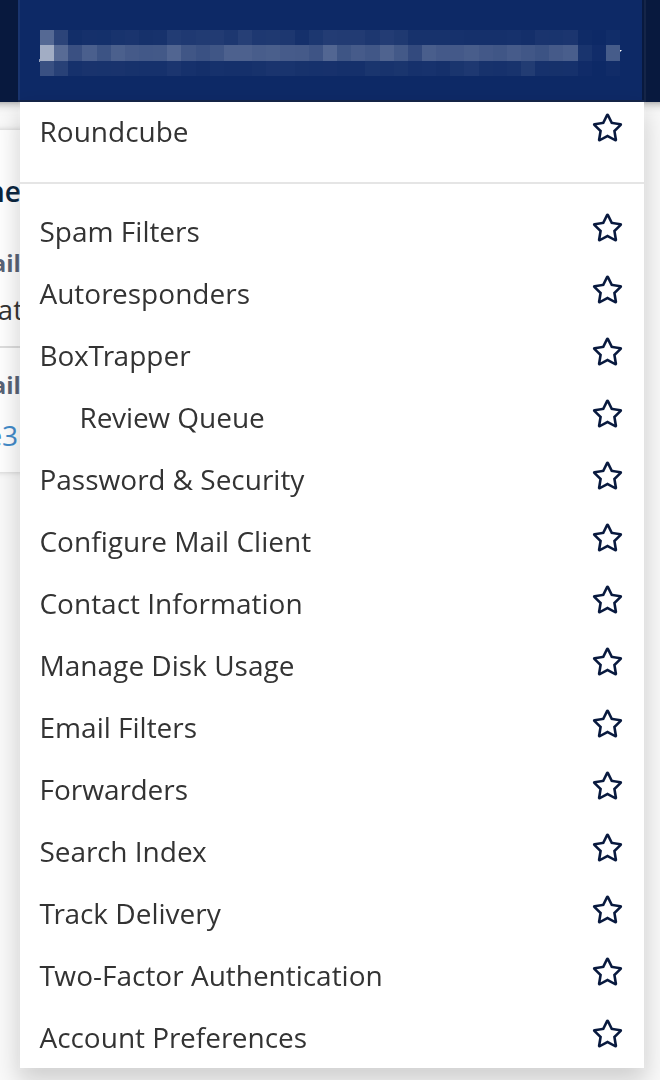
You can also click your email address at the top right of any Webmail page, then choose Autoresponders from the menu.
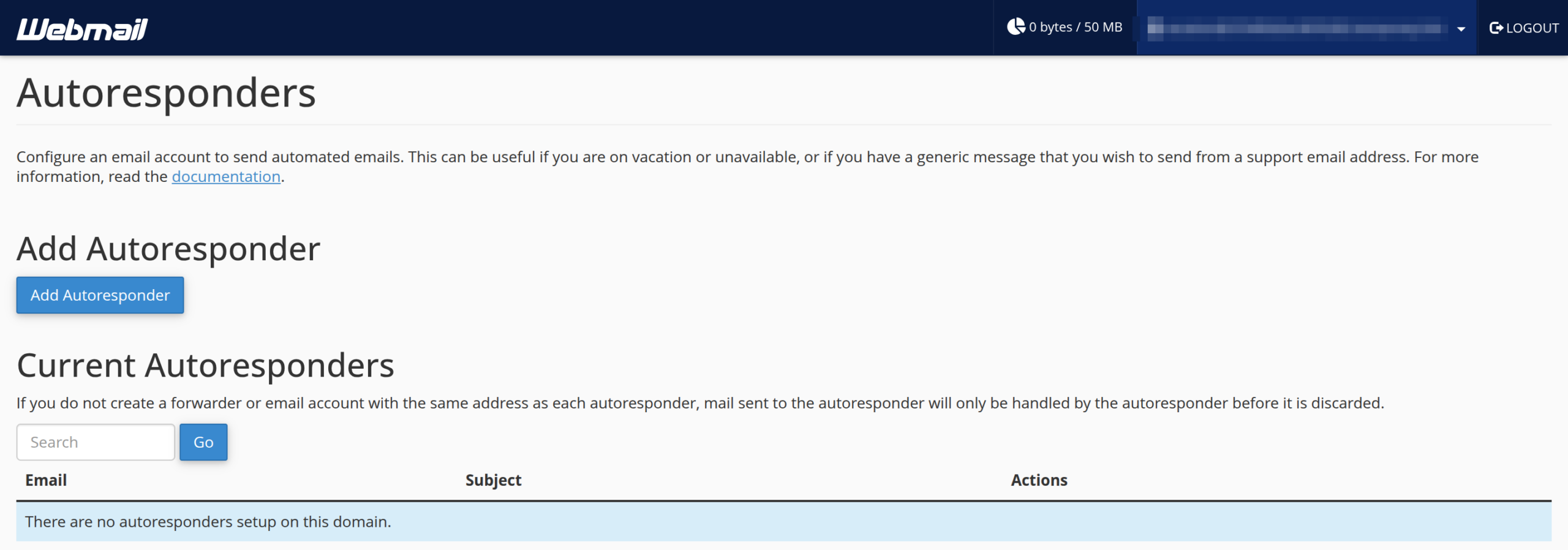
- Under Add Autoresponder, click the blue Add Autoresponder button.
- Fill in the form. The table after the next screenshot explains each field.
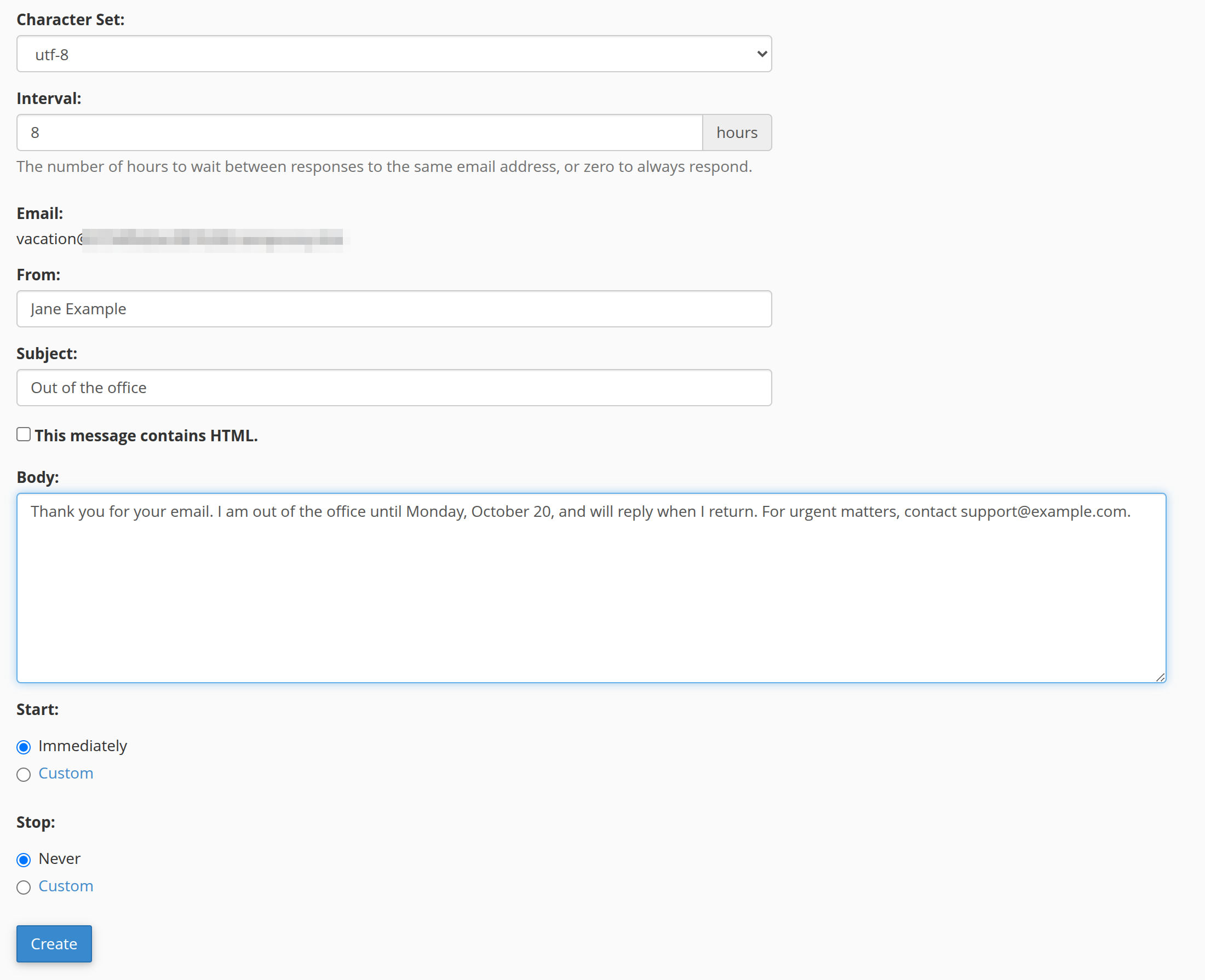
| Field | What to enter |
|---|---|
| Character Set | Leave the default, utf-8. |
| Interval | Hours to wait before replying to the same sender again. Enter 0 to always respond. |
| Shows the address you are logged in as. You cannot change it in Webmail. | |
| From | The sender name shown on the reply. |
| Subject | The subject line of the reply. |
| This message contains HTML. | Check this box only if the body uses HTML. |
| Body | The message text. You can use %subject% (subject of the incoming message), %from% (sender’s name, if available), and %email% (sender’s address). |
| Start | Immediately (default) or Custom to pick a start date and time from the calendar. |
| Stop | Never (default) or Custom to pick a stop date and time from the calendar. The stop time must be later than the start time. |
Tip: Choose Custom for Stop and enter your return date and time, so the reply switches off by itself. Avoid an interval of 0 unless you need it: the autoresponder then answers every message, and it can trade replies in a loop with another autoresponder.
- Click Create.
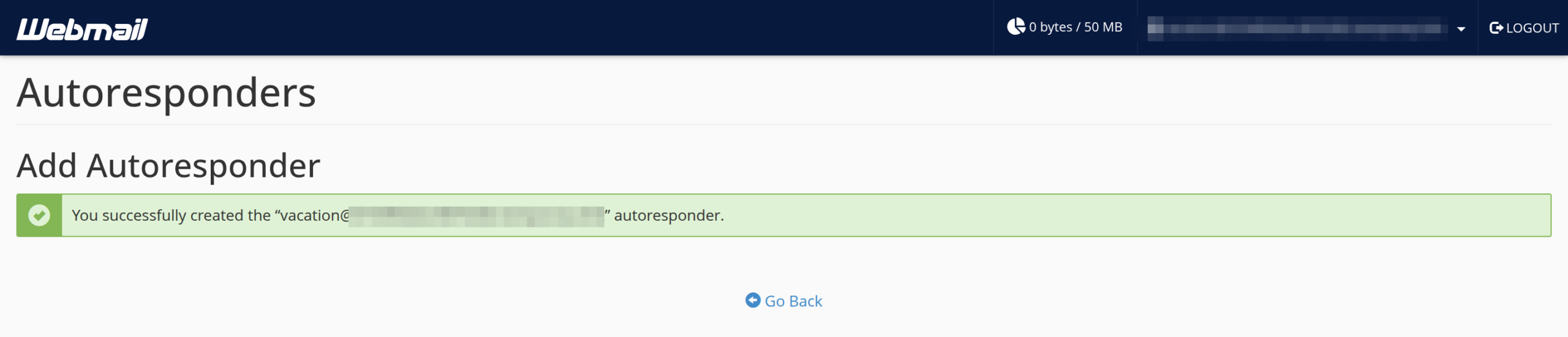
A green banner reads “You successfully created the “[email protected]” autoresponder,” with your own address in the quotation marks. Go Back returns you to the Webmail home page; open Autoresponders again to see the new entry in the list.
Plans change, so the next section shows how to adjust or remove it.
How to Edit or Delete an Autoresponder in Webmail
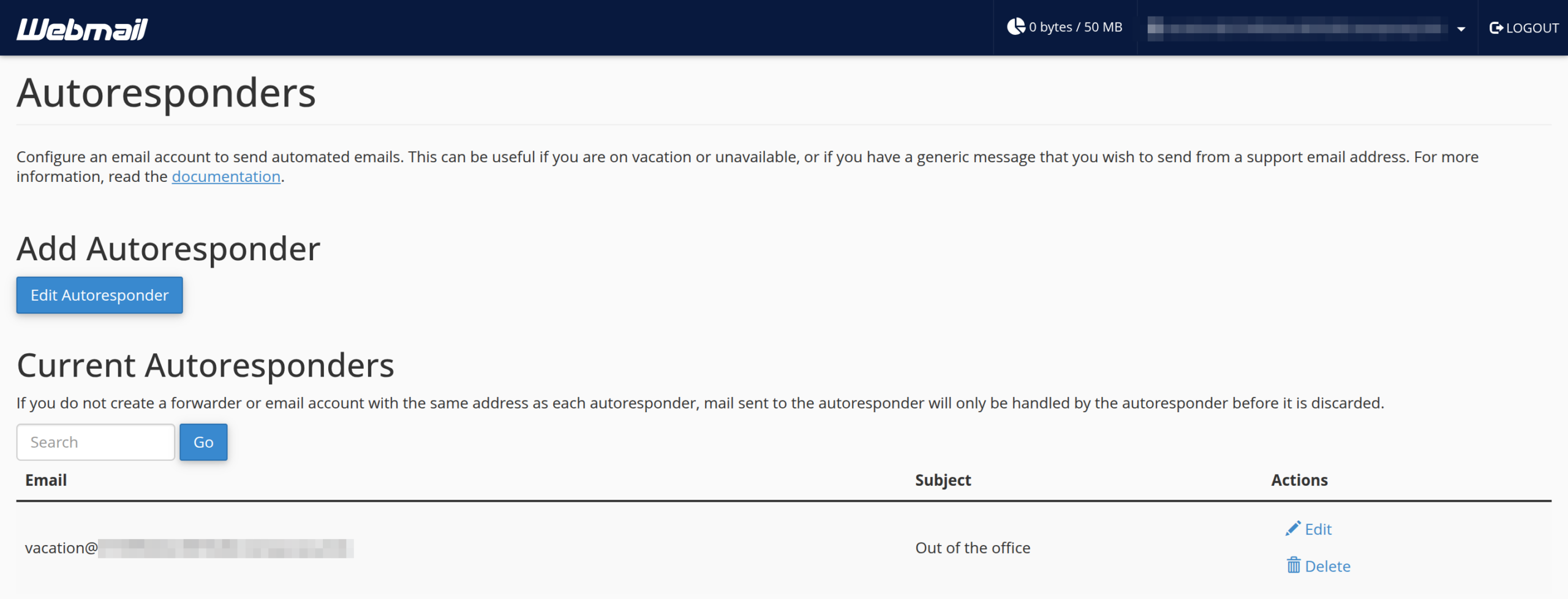
- Open the Autoresponders page. Under Current Autoresponders, find your address in the table.
- To change the message or dates, click Edit in the row. The form opens under the heading Modify Autoresponder; update it and click Modify.
- To remove it, click Delete in the row.
- When Webmail asks “Are you sure you want to delete the autoresponder for” your address, click Delete Autoresponder. Click Cancel to keep it.

Webmail confirms with a banner that reads “The autoresponder “[email protected]” was deleted,” showing your own address. If you manage many addresses and want to handle them all in one place, see how to set up an autoresponder in cPanel.