In this Joomla 3.0 tutorial, we’ll show you how to add an iframe when writing an article. You can’t simply use the HTML editor and type in your iframe code because Joomla will strip it out for security reasons. Therefore, you need to update your editor’s settings and allow iframes.
To use an iframe in Joomla 3.0:
- Log into your Joomla 3.0 administrative dashboard
- In the top menu, click Extensions and then click Plug-in Manager
- In the left menu under Filter, click Select Type and then click editors. In the list of results, click Editor – TinyMCE.
- At the top of the page, click the Basic Options tab
- Scroll down until you find the Prohibited Elements setting:
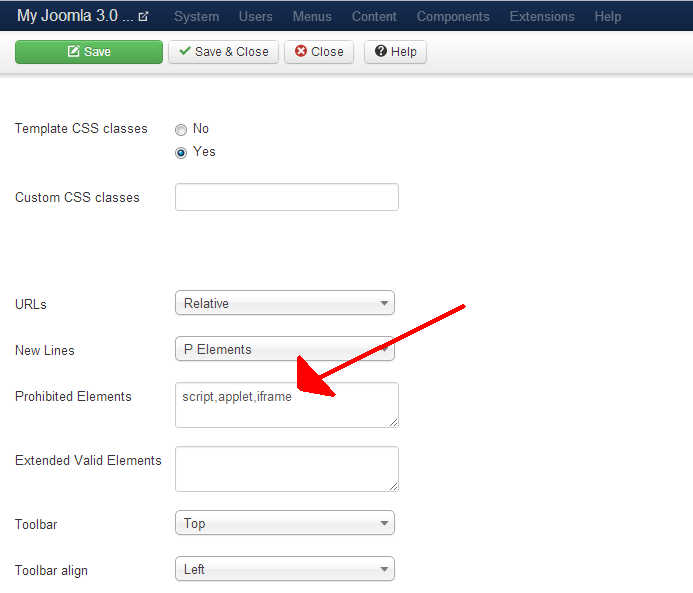
Prohibited Elements
Elements that will be cleaned from the text. Do not leave empty – if you do not want to prohibit anything enter dummy text e.g.cmsThe default text is script,applet,iframe. Delete ,iframe so that the setting now reads script,applet
Click Save in the top left menu.
You should now be able to use the HTML editor within the TinyMCE WYSIWYG editor without worrying about your iframe code being stripped out.
