The mail settings in WHMCS will cover some technical considerations, such as which “mail type” to use, and they will also cover some aesthetic considerations like email signatures, CSS styles, header and footer content, and more.
- Login to your WHMCS Admin
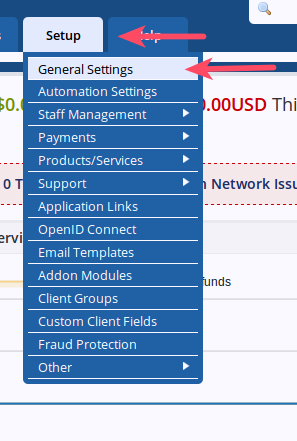
Hover over Setup and choose General Settings

Choose the Mail tab
- Fill in the settings:
Mail Type: Select the mail type you want to use to send emails Mail Encoding: Select from the dropdown SMTP Port: The default port your mail server uses SMTP Host: Enter in the SMTP Host (typically your domain) SMTP Username: Enter the username to send emails from SMTP Password: Enter the SMTP password SMTP SSL Type: Select the SSL type radio button Global Email Signature: Enter an email signature in the field Global Email CSS Styling: Add any global CSS you wish to use in emails Client Email Header Content: Any text you enter here will be prefixed to the top of all client email templates sent out by the system. HTML is accepted. Client Email Footer Content: Any text you enter here will be added to the bottom of all client email templates sent out by the system. HTML is accepted. System Emails From Name: Enter the name you wish to display on emails System Emails From Email: Enter an email address to send from BCC Messages: If you want copies of all emails sent by the system sent to an address of yours enter the address here. You may enter multiple addresses seperated by a comma (,) Presales Form Destination: Select a department OR enter an email below Presales Contact Form Email: Enter the email address for your presales email to be sent to 
Click Save Changes
Now that you have gone through the Mail options you are ready to proceed to the Support tab.
If you want to learn more about using WHMCS to manage your reseller account activities, please see:
- How to Add a General Email Signature in WHMCS
- How to Configure WHM Contact Manager
- WHMCS General Settings Overview
- Creating Hosting Plans in WHMCS and Syncing with WHM
- How to Add a New Server in WHMCS
- How to Add a Payment Gateway in WHMCS
- How to Change Default Currencies in WHMCS
- How to Configure Domain Settings in WHMCS
- How to Link Your Reseller Server to WHMCS