For more information about SSL certificates and when you might need one for your website, please see our article: What is SSL and why is it important?
Please note, the following information is for customers purchasing an SSL through InMotion Hosting. If you have (or will be ordering) an SSL from a separate (third party) SSL vendor, please see our article on requesting installation of a third party SSL.
Shared vs Dedicated SSL
FreeSSL Certificates
Free SSL provides viewers with a a secure connection and the reassuring green padlock without a self-signed error. It suffices for blogs and informational websites. However, major businesses and eCommerce store owners should consider a dedicated SSL. There are different installation procedures for free SSL certificates on shared, reseller, and VPS accounts. They automatically renew every three months.
Note: Before switching between a Free SSL and dedicated SSL, you may need to remove older SSL’s using the cPanel SSL/TLS section.
You can read more in our detailed article explaining differences between Free SSL and Paid SSL certificates.
Shared SSL Certificates
If you are on a shared server (business class hosting), you will have access to the shared SSL certificate on the server. To access this, you can create https links in your website files that use the secure server name. The secure server name is always ‘secure##’, with ## being the number of your server. Your server number is listed in your account’s technical details in AMP.
For example, if you are on the server biz30.inmotionhosting.com and your username is ‘userna1‘, your secure URL will be:
https://secure30.inmotionhosting.com/~userna1
Please note that the above URL will be visible when visitors hover over links on your website.
Please keep in mind that if you use the shared SSL, every link will need to use the same link structure as above. Shared SSLs only work using the URL format shown above (https://secure##.inmotionhosting.com/~userna1).
For more information specifically on Shared SSL certificates, please see our article on How does the shared SSL work?
Dedicated SSL Certificates
To have the SSL certificate installed, your domain WHOIS information must match the information for the SSL certificate. SSL certificate requests sent to our certificate provider that have mismatching information will NOT be processed. After completing the SSL installation, our support team will send you an email with more information. Click here to learn more about Dedicated Hosting.
Our Dedicated SSL certificates are 256-bit encrypted Comodo SSL certificates and are only $99.99 per year. There is also a one-time $25 installation fee for all SSL certificates.
Purchase a Dedicated SSL Certificate from AMP
- Login to AMP (Account Management Panel).
- Click the Purchase a Dedicated SSL Certificate button.
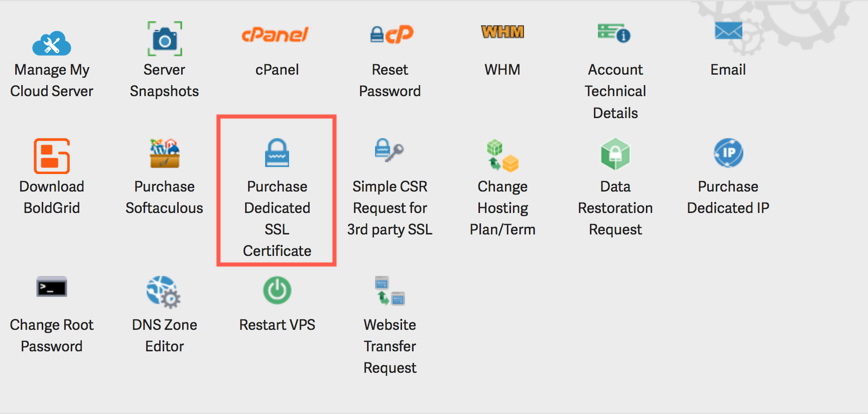
- On the next screen, select the SSL Certificate’s subscription length (i.e. 1 year). Also enter the Desired Certificate Name. Generally www. is the most common certificate names, followed by the domain name. For example, a certificate for our website would read www.inmotionhosting.com. When you are done click Next.
- Enter valid contact information for the owner, or business the SSL certificate is for.
- Finally, after hitting Next you can choose how you want the SSL billed. Once you have completed the form, click Submit, you will then see a message stating “Your order has been submitted for processing. Please look for a follow up from our staff shortly.“
How Long Before the SSL is Installed?
Typical turn-around time is up to 48 hours, but there are many reasons why an SSL may take longer to be issued. If this SSL is critical for your business, I recommend allotting up to 2 weeks for this process, in case you run into any issues.
Tech Support will send you an email immediately after installing your SSL successfully. The email will go to your primary email address on file, which you can update in AMP.
Obtaining the Image and Code for Your Secure Seal
After you get the SSL set up you can show the Secure Comodo Seal on your website. For more information, see our full guide:
- How do I show the secure seal for my site?
- How to Purchase an SSL Certificate for your Dedicated Server
Cancel an SSL From Amp
- Login to AMP.
- In the main menu, move your mouse over the Billing option, and click My Subscriptions.
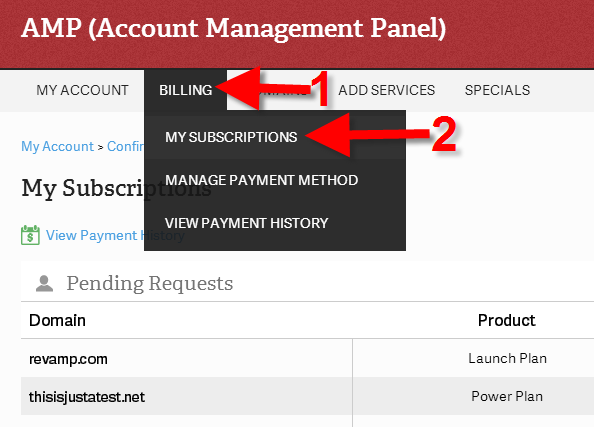
- Find your SSL on the My Subscriptions page, and click the “X” to the right.
- Confirm you want to cancel the SSL on the next screen by clicking the Submit button. You will then see a message stating “You have cancelled your SSL subscription.”
To learn how to cancel your hosting account please visit How Do I Cancel My Hosting Account?