
If you need to renew domain registration early or your billing is past due, you can do it yourself in the Account Management Panel (AMP). Your domain is set to renew automatically before the due date, but this guide covers both the early-renewal and past-due paths to keep your domain active.
Before You Renew: Know Your Domain Status
The steps you take depend on whether your domain bill item is still active or already suspended. Check your domain status in AMP before proceeding.
- Active (not suspended): Follow the steps in the next section to renew your domain registration directly in AMP.
- Suspended (past the renewal date): You cannot process the renewal yourself at this stage. Contact InMotion Hosting Customer Service for help. See Renew / Pay for your Current Plan in AMP for additional billing context.
Note: InMotion Hosting suspends domain bill items that are not paid on or before the due date. Once suspended, associated services stop working until the Customer Service team processes the renewal.
How to Renew Domain Registration in AMP
Log in to AMP at https://secure1.inmotionhosting.com/amp, then follow the steps below.
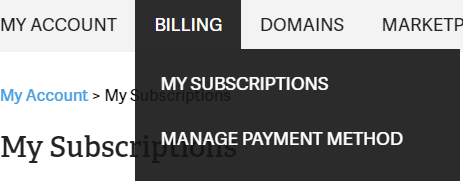
- Hover over the Billing menu and click My Subscriptions.
- Locate the domain you want to renew.
- Click the icon under the Renew Now column for that domain.
- Review the bill items and total due, then click Proceed to Checkout.
- Check that the billing information listed is correct.
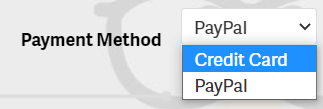
- Select your payment method from the drop-down menu.
Paying with a credit card
If a saved card is already on file, confirm it is the one you want to use. To add a new card, select the option from the drop-down.
- Make sure the correct card is selected in the drop-down, or add a new card.
- Click Submit to process the renewal.
Paying with PayPal or Venmo
AMP opens a separate window for PayPal and Venmo so you can authorize the payment without leaving the checkout page.
- Click the yellow PayPal button or the blue Venmo button.
- Enter your login credentials for the account you want to use.
- Select your payment method within the PayPal or Venmo window.
- Click Submit to complete the renewal.
Troubleshooting
The Renew Now icon is missing or grayed out
If you do not see the Renew Now icon for your domain, the bill item may already be suspended. Contact InMotion Hosting Customer Service to have the renewal processed manually.
The PayPal or Venmo window does not open
Your browser’s pop-up blocker may be preventing the payment window from opening. Allow pop-ups from secure1.inmotionhosting.com in your browser settings, then click the PayPal or Venmo button again.
Conclusion
Your domain registration has been renewed, and it will remain active through the next billing cycle. If you encountered a suspended domain or need help with reseller domain renewals, see How to Renew a Domain in eNomCentral for the reseller workflow, or Renew / Pay for your Current Plan in AMP for general plan billing.