
The previous guide showed you how to create and download a backup using Softaculous. In this tutorial, we will show you how to restore the backup you created using Softaculous. This is helpful since it allows you to restore your own full website backup, including your database.
Restoring your website using a Softaculous Backup
- Log into your cPanel
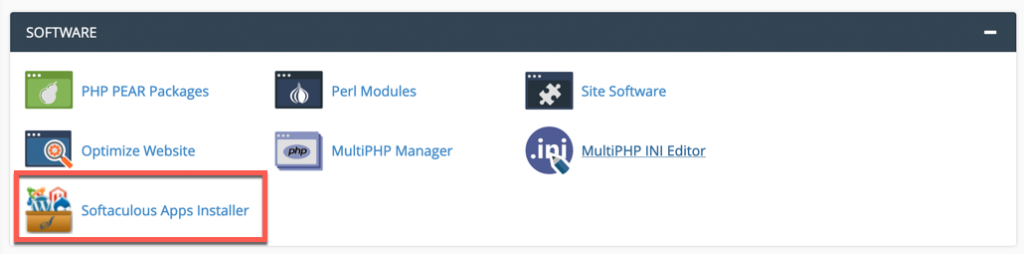
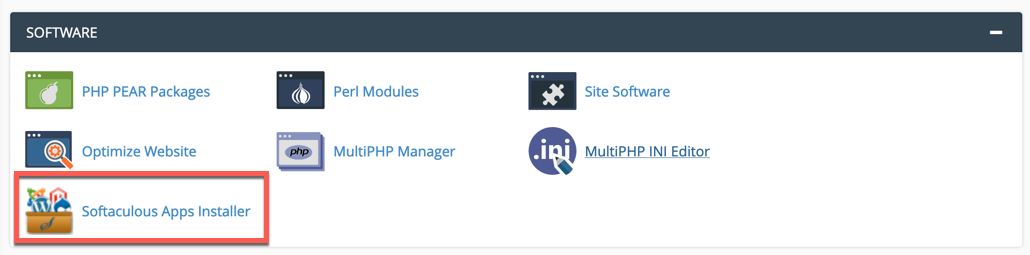
- Click the Softaculous button under the Software/Services section.
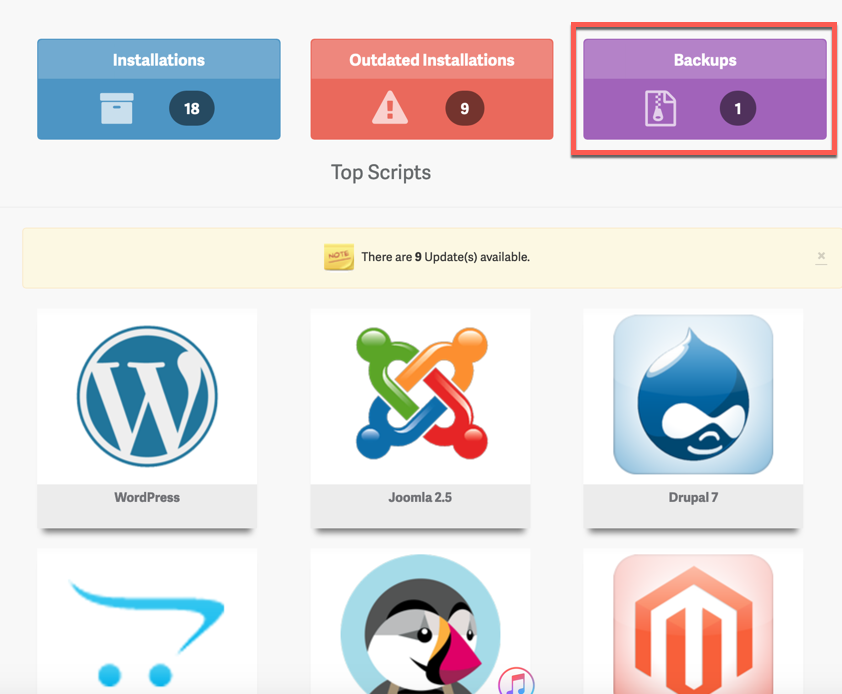
- Click the Backup link, on the top right. The restore option is located in the list of backups.
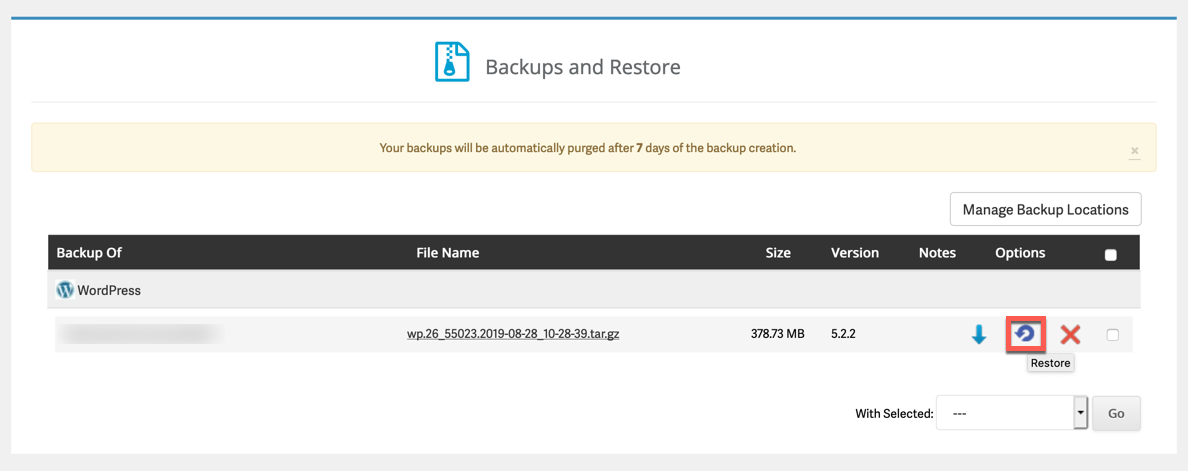
- On this page, you will see a list of backups you’ve previously created. Next to the backup, you would like restored, click the Restore icon. It will be located to the right of the title of the backup item that you select.
If you downloaded and deleted the backup previously, it will not be listed. You must upload the backup to the softaculous_backups folder in your home directory. You will then need to add a backup location as per the instructions below
- On the next page, select whether you would like to restore either or both your website files and your website database.
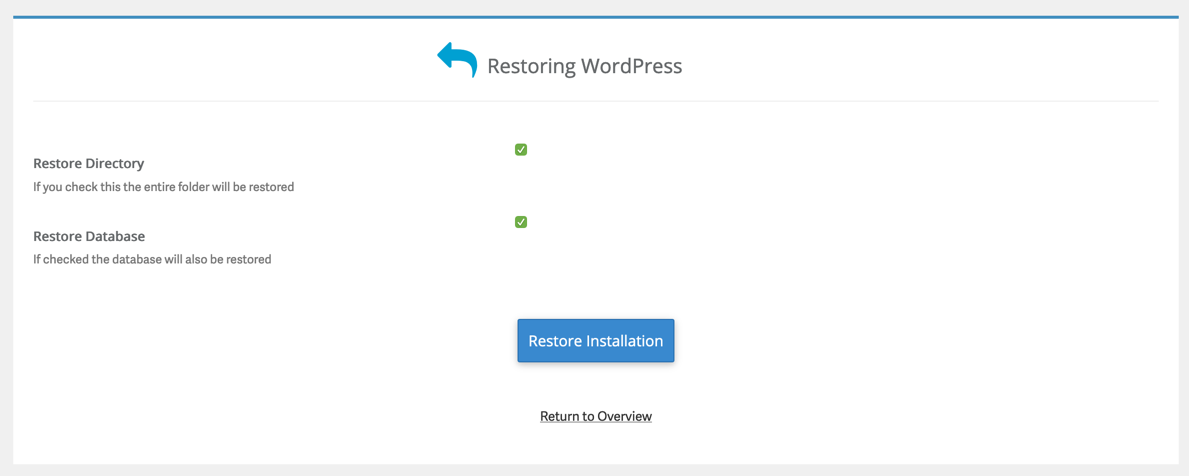
- Click the Restore Installation button. A progress meter will appear to show how much time is left with the restoration process. When it has finished, you will see a message stating “Your backup has been restored successfully.” At this time, if you visit your website and refresh the page, you should see your website restored to an earlier version!



How to Add a Backup Location
Backup files that have been removed from your current server will need to be uploaded to a location which is accessible by FTP. Here the steps for creating a Backup location within Softaculous. These instructions start from within the Backup option of Softaculous.
- Click on Manage Backup Locations.
- Click on Add Backup Location
- Type in the information for the location of the location using FTP. The easiest thing to do is simply upload to your current server by using the default domain name, or by creating an FTP account.
Congratulations, now you know how to restore a backup you created using Softaculous!
Install WordPress, Drupal, and other programs in just a few clicks with Softaculous Instant installer.