
You switched inboxes, or the address on your game panel profile was never the one you use. Your email address is stored on your account profile in CubeCoders AMP, the AMP game panel that comes with Minecraft Hosting from InMotion Hosting. This guide shows you how to update your Minecraft email address in four steps.
Steps to Update Your Minecraft Email Address
The email field lives on your account profile page, the same screen where you change your profile picture or turn on two-factor authentication. Follow these steps to update it.
- Log in to the AMP game panel with your Minecraft Hosting credentials.
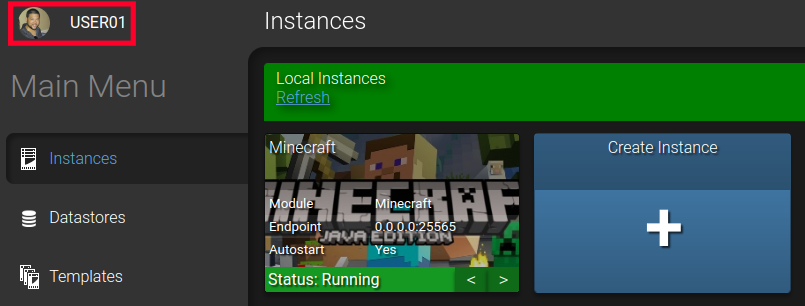
- Click your username in the top left corner of the panel to open your account profile options.
- Enter your new address in the field under Email Address.
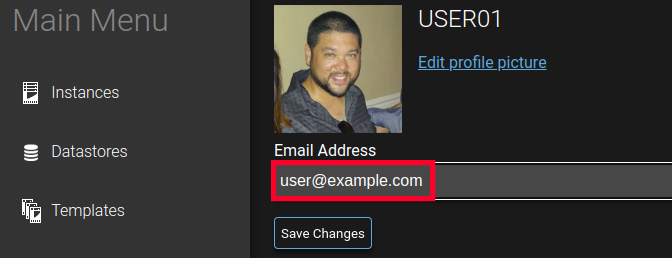
- Click Save Changes to confirm the new address.
Note: This is your user profile in the AMP game panel for your Minecraft server. It is separate from your InMotion Hosting Account Management Panel profile, so changing the address here updates your game panel account only.
If the new address does not show up after you save, the checks below cover the most common causes.
Troubleshooting
The new address doesn’t seem to save
Check that you entered a complete address in the format [email protected], with no leading or trailing spaces, then click Save Changes again.
The panel still shows the old email after you log back in
Log out of the AMP game panel completely, close the browser tab, then log back in and reopen your account profile to confirm which address is stored.
Conclusion
The email address on your AMP game panel profile is now current. Put that account to work by connecting to your Minecraft server or adding a modpack to customize gameplay for your community.