In this tutorial, we will show you how to reset your WordPress Permalinks. Resetting permalinks rebuilds your link structure for WordPress. Often, this process must be performed after migrating a WordPress website, or when troubleshooting 404 errors. This is accomplished by choosing a different permalink setting and saving it. Then putting the permalink setting back to the original setting and saving it again. This is a common step when Troubleshooting WordPress problems.
Resetting your WordPress Permalinks
- Log in to the WordPress Dashboard.
- In the navigation menu click Settings, then click Permalinks.
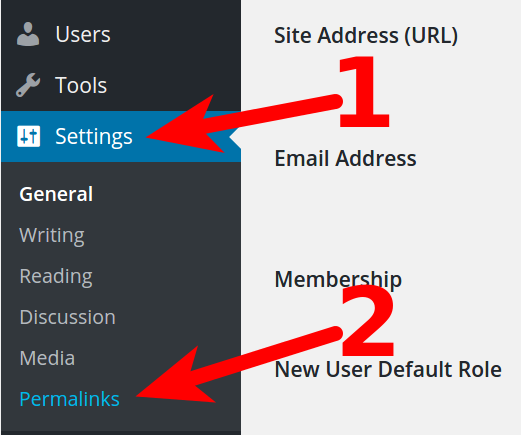
You will then be on the WordPress Permalinks Settings page.
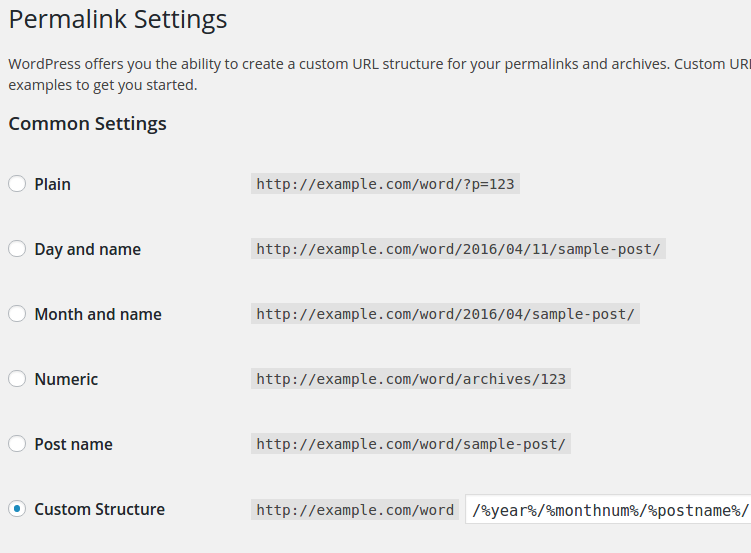
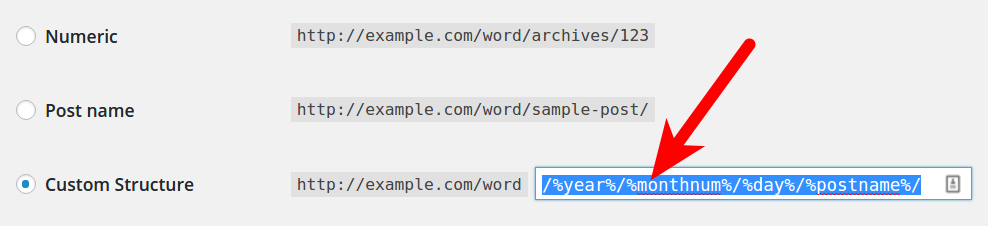
- Notice what setting you have selected, options are Plain, Day and name, Month and name, Numeric, Post name, Custom Structure. If you are using a Custom Structure copy and save it, so you can put it back later.
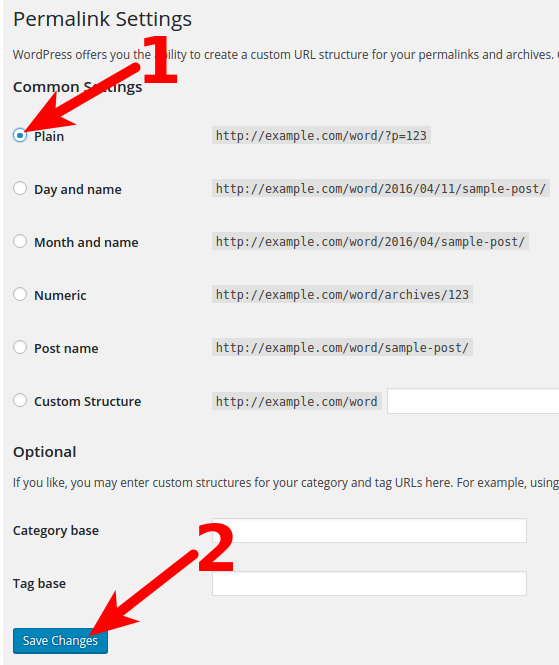
- Select the Plain setting, then click the Save Changes button. If you already have the Plain setting selected, choose Day and name, then click the Save Changes button.
You will then see a message stating Permalink structure updated.
- Now, select your original setting, and click the Save Changes button again. You are finished when you see the “Permalink structure updated” message again. Your site permalinks should now be working again. You may have to clear your browser cache before testing in order to see the change.




Congratulations, now you know how to reset your WordPress Permalinks!
