
The .htaccess file is a critical Apache configuration file that controls how your WordPress site handles URLs, redirects, and page loading. WordPress relies on a specific default .htaccess configuration to function correctly. However, themes and plugins frequently modify this file, which can introduce conflicts, PHP errors, or unexpected site behavior.
Resetting the WordPress .htaccess file to its default state is one of the fastest ways to isolate and resolve these issues.
Important note on the filename: The file is properly named .htaccess (with a leading dot). Files that begin with a dot are hidden by default in most file managers. The leading dot is required—without it, the server will not recognize the file.
Why You Should Reset the WordPress .htaccess File
A corrupted or heavily modified .htaccess file is a common cause of:
- Misleading PHP version errors (even when the correct PHP version is selected in MultiPHP Manager)
- White screen of death or 500 Internal Server Error
- Broken permalinks
- Plugin or theme conflicts after installation or updates
Example scenario: You install a new theme or plugin and receive an error stating your PHP version is outdated. You check cPanel MultiPHP Manager and confirm you are running the latest available version. In many cases, the real problem is a conflict or syntax error inside the .htaccess file.
Resetting the file allows you to start with a clean configuration and systematically reintroduce custom rules.
How to Deactivate the Current .htaccess File
Warning: Temporarily removing or renaming the .htaccess file will take your site offline until a new one is created. Consider restricting access with the IP Deny Manager while troubleshooting.
Steps to Rename (Deactivate) the File in cPanel
- Log in to cPanel.
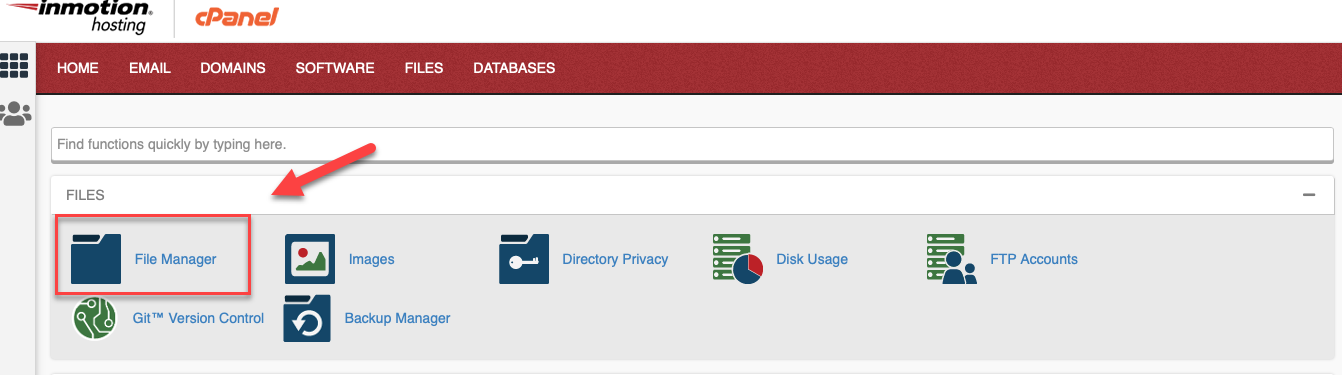
- Open File Manager.
- Navigate to the root directory of your WordPress installation (usually
public_htmlor a subdirectory). - Locate the
.htaccessfile.
If it is not visible, enable the option to show hidden files.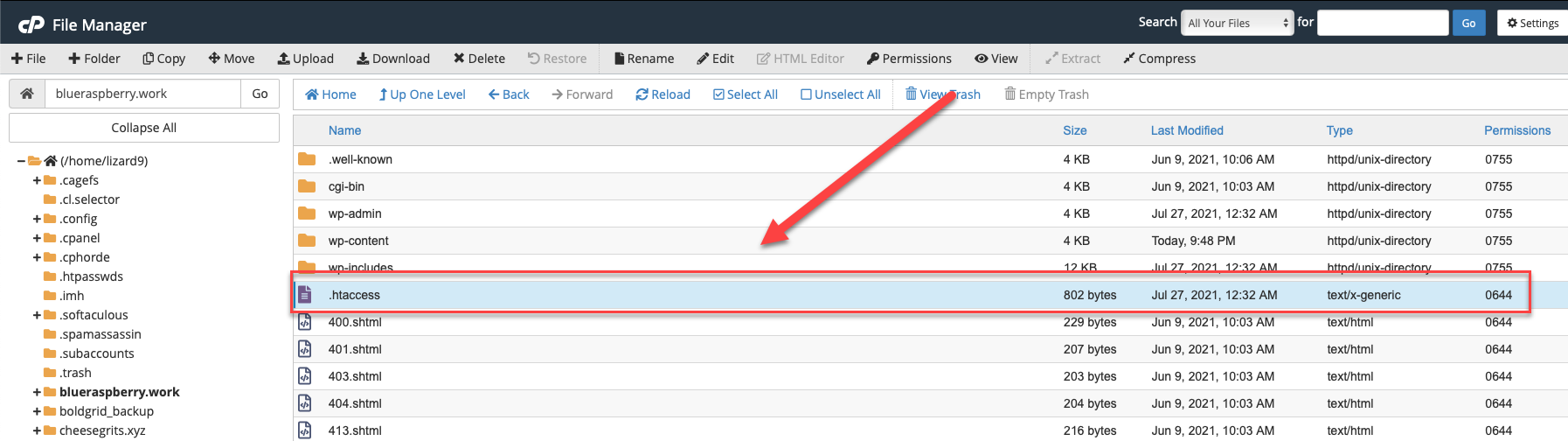
- Right-click the
.htaccessfile and select Rename.
- Rename the file to something descriptive, such as
.htaccess-YYYYMMDD.bak(example:.htaccess-20260728.bak).
Using a date makes it easy to identify later.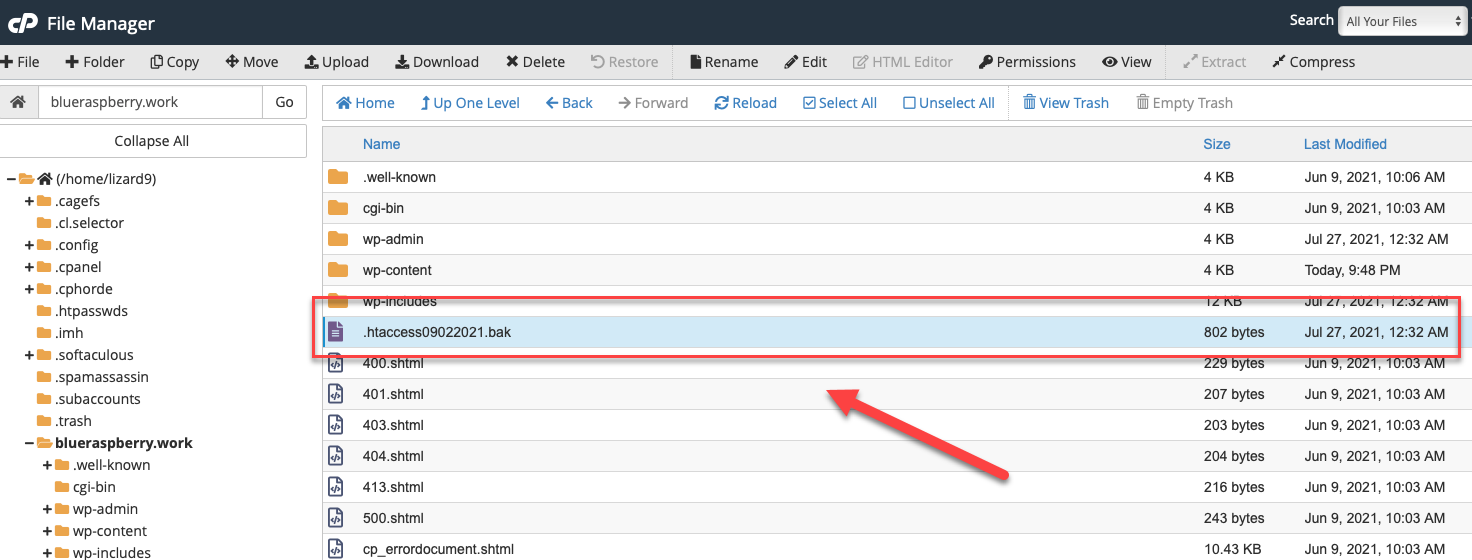
Your original configuration is now safely archived. You can either create a fresh default file or further inspect the old one.
For additional File Manager tips, see our complete guide to using File Manager in cPanel.
Default WordPress .htaccess Code
Copy and save the following code. This is the standard default configuration generated by WordPress:
BEGIN WordPress

RewriteEngine On
RewriteBase /
RewriteRule ^index.php$ - [L]
RewriteCond %{REQUEST_FILENAME} !-f
RewriteCond %{REQUEST_FILENAME} !-d
RewriteRule . /index.php [L]

END WordPress
How to Manually Create a New Default .htaccess File
- In File Manager, create a new file named exactly
.htaccessin the same directory. - Open the new file for editing.
- Paste the default WordPress
.htaccesscode shown above. - Save the file.
Your site should now load using the clean default rules. Note that any plugins that previously added custom rules will temporarily stop functioning until they are reactivated or their rules are restored.
How to Rebuild Custom Rules After Resetting
After creating the default file:
- Update WordPress core, themes, and plugins if needed.
- Reactivate plugins one at a time. Many plugins automatically rewrite the necessary
.htaccessrules when activated. - After each reactivation, test the site to confirm the original problem does not return.
- If a plugin requires extensive custom rules that were not automatically restored, open the archived
.htaccess-YYYYMMDD.bakfile and carefully copy only the relevant sections into the new.htaccessfile.
This methodical approach makes it easy to identify which plugin (if any) is responsible for the conflict.
How to Restore a Previous .htaccess File
If you need to return to a previous version:
- Rename the current
.htaccessfile (for example, to.htaccess-current.bak). - Rename your archived file (e.g.,
.htaccess-20260728.bak) back to.htaccess.
What to Check If Resetting .htaccess Does Not Fix the Problem
If the issue persists after resetting the .htaccess file, examine these other common sources of conflicts:
Always create backups before editing either file.
Key takeaway: Resetting the WordPress .htaccess file is a low-risk, high-value troubleshooting step. By archiving the original file, creating a clean default version, and methodically restoring rules, you can quickly isolate plugin conflicts and restore normal site operation.