Replacing an image on a page using WordPress is a common task you may need to complete when updating your website. Instead of removing and adding a new image from within the Page Editor, you can simply replace an image on the page you are editing by following the steps outlined below.
Replacing Images in the Gutenberg Editor
- Log into your WordPress Dashboard.
- Open the page or post you want to replace the image on.
- Click the image you want to change then click the Replace button.
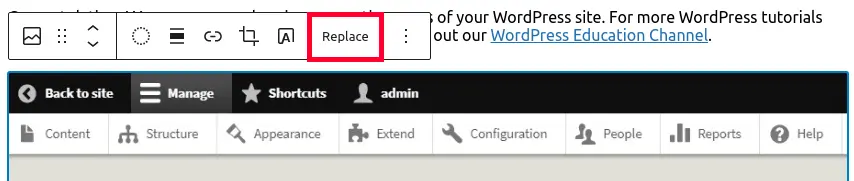
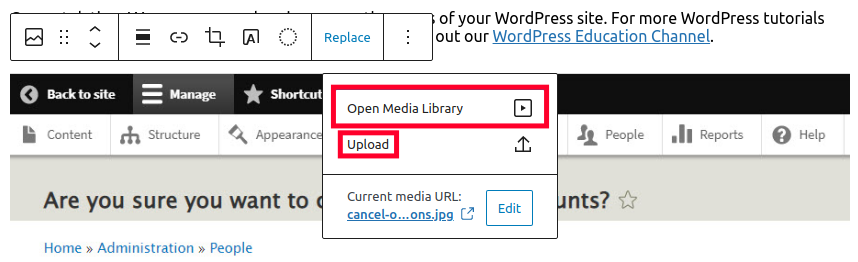
- You can then click Open Media Library and choose an existing image or Upload to add a new image to your WordPress Dashboard.
- Click the Update button to save any changes.
Replace an Image in the Classic Editor
- Click on Pages from the left side menu of the WordPress Dashboard.
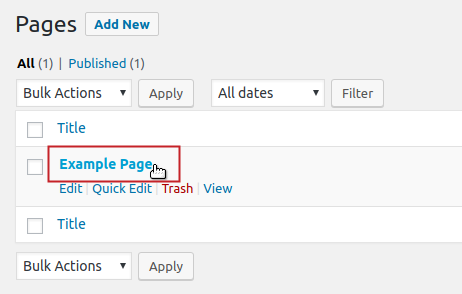
- Click on the name of the page that you want to change the image on. This will open the Page Editor.
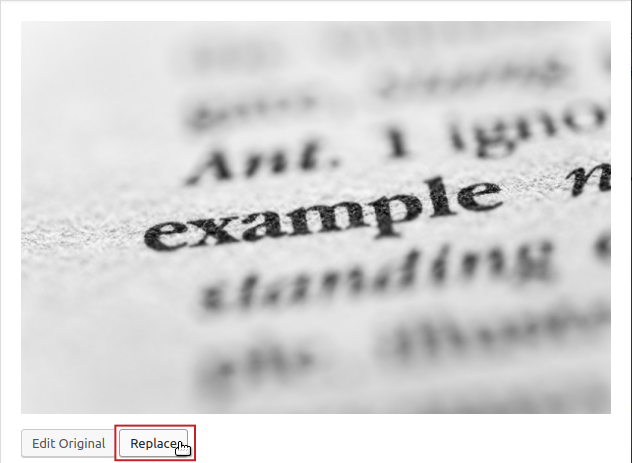
- Click on the image you wish to replace. Then, click on Pencil Icon from the menu that appears.
- Click on the Replace button below the image preview.
NOTE: If you wish to use a picture already uploaded, simply select the image from the media library. Then, skip to step 9.
- In order to add pictures not in the library, click on the tab labeled Upload Files.
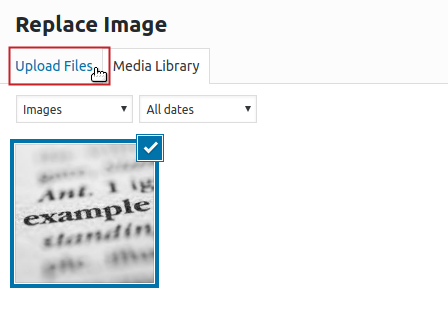
- You can drag and drop pictures located on your computer into the screen, or select the Select Files button in order to add your images.
- Locate the file on your computer, select it, and click Open.
- Once you have selected your image, click on the blue button on the bottom right side labeled Replace.
- If you are satisfied with the pictures in your page, click on Update in order to save your changes.
Congratulations! You can now replace images on the pages of your WordPress site. For more WordPress tutorials that can help you with updating your site, be sure to check out our WordPress Education Channel.
If you need a new home for your WordPress site, look no further than InMotion’s WordPress Hosting solutions for secure, optimized, budget-friendly servers.
 Fast & Easy Transfers Free SSLs Hack Protection Affordable
