Recently, cPanel released the cPanel App for iOS which allows you to maintain your server from anywhere you take your iOS device! This means that you can connect your iPhone/iPad directly to your server for cPanel, Webmail, and WHM access. The following guide will show you how to setup the cPanel App using an iOS device.
cPanel is the main software installed on your server that controls various web hosting components of your account. You can use cPanel to create email accounts for your domain, manage your DNS zone records, and much more. cPanel’s Webmail application allows you to send/receive email, view your email settings, and more. If you are a reseller or have a VPS/Dedicated server, you can use cPanel’s Web Hosting Manager (WHM) application to create cPanel accounts, suspend/unsuspend cPanel accounts, and much more.
- Installing the cPanel App
- Configure a cPanel Connection
- Configure a Webmail Connection
- Configure a WHM Connection
Installing the cPanel App
Apple’s App Store is where you can find the cPanel App and download/install it. The instructions below will provide the steps to assist you with the installation.
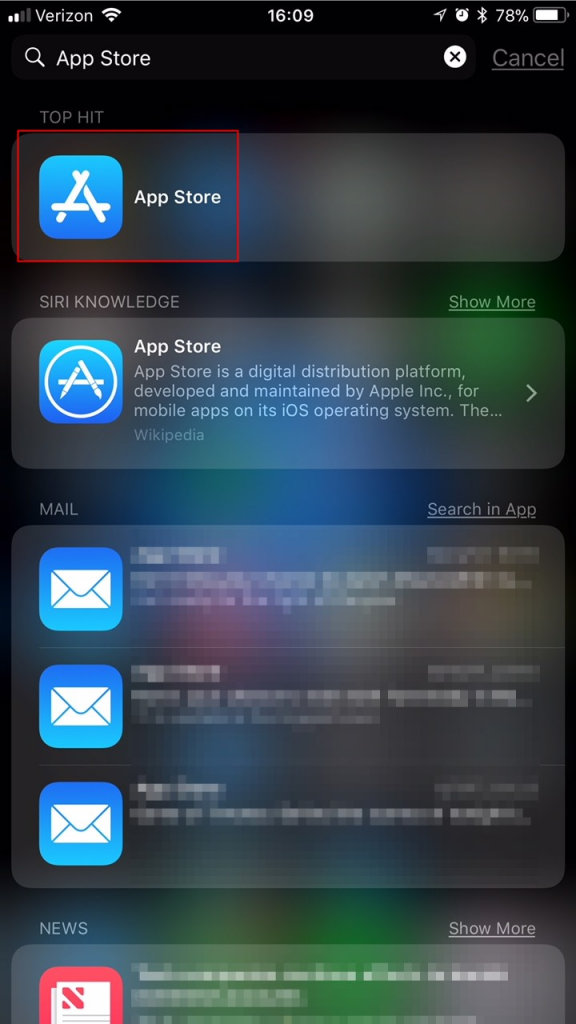
- Swipe down from the middle of your home screen to open up Spotlight Search. Type App Store into the search field. Then, tap the App Store icon to open the App Store.
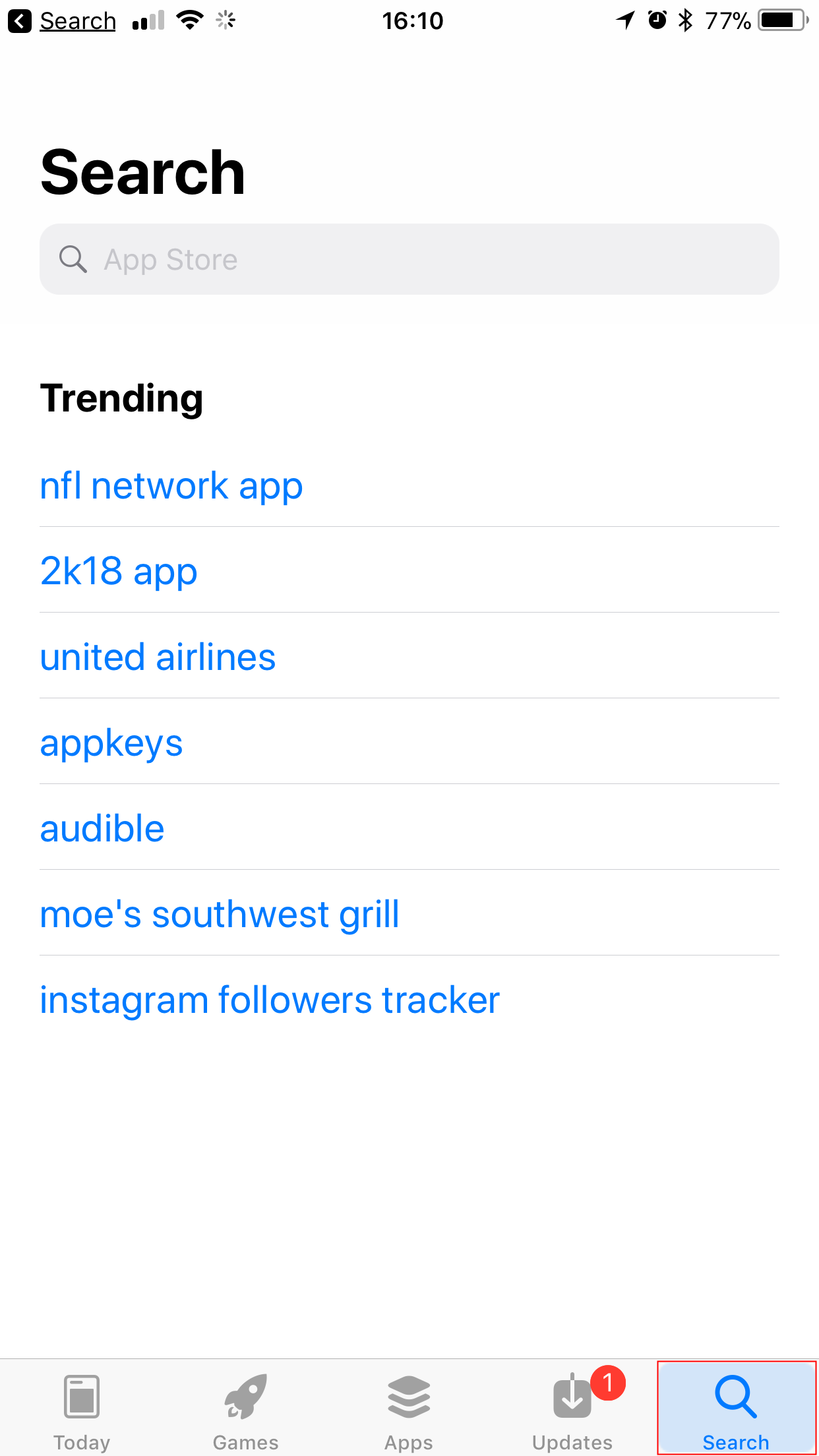
- Once the App Store opens, tap the Search tab at the bottom of the screen.
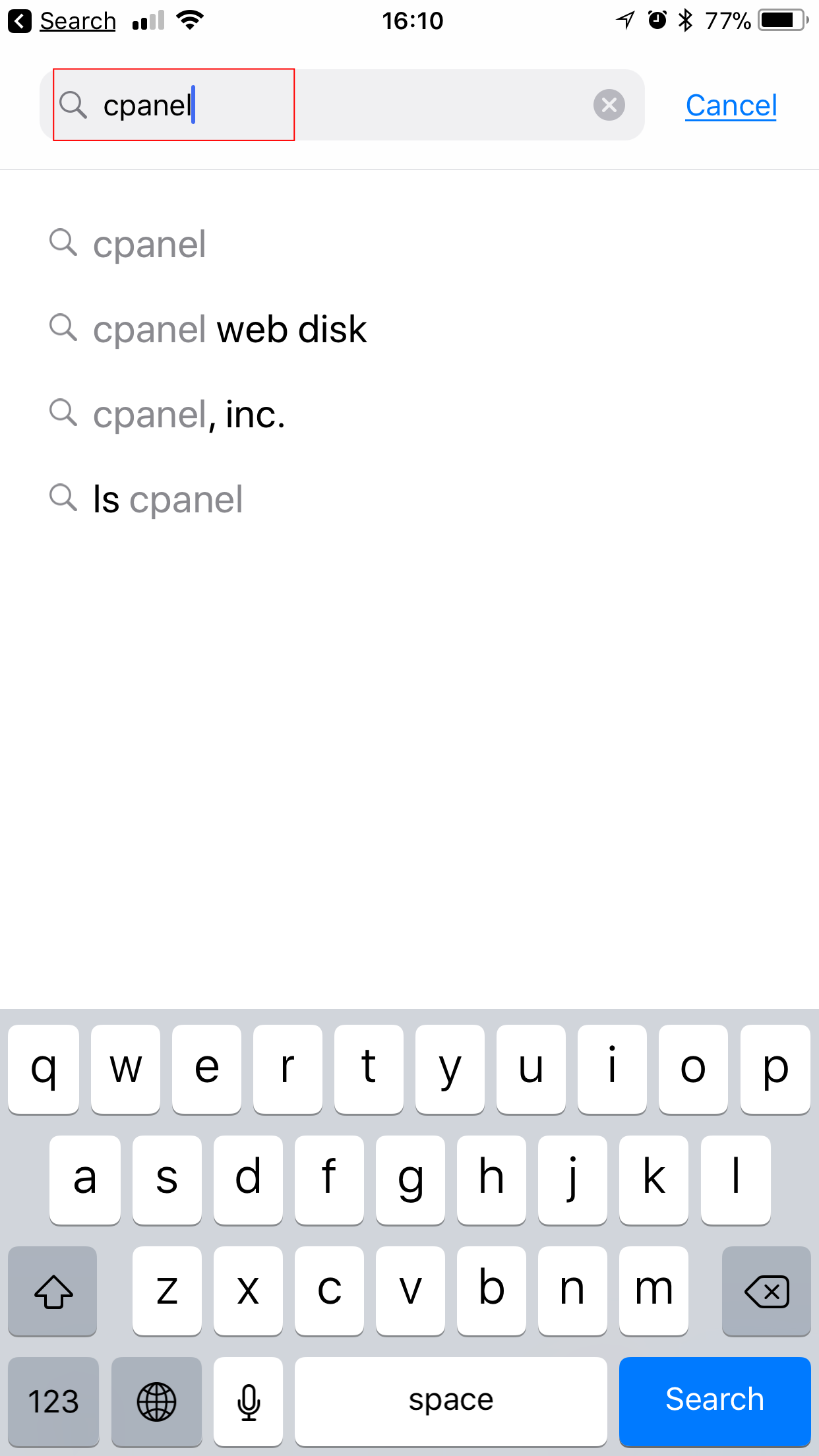
- Tap into the search field at the top of the page, type “cpanel“, and then tap the keyboard’s blue Search button.
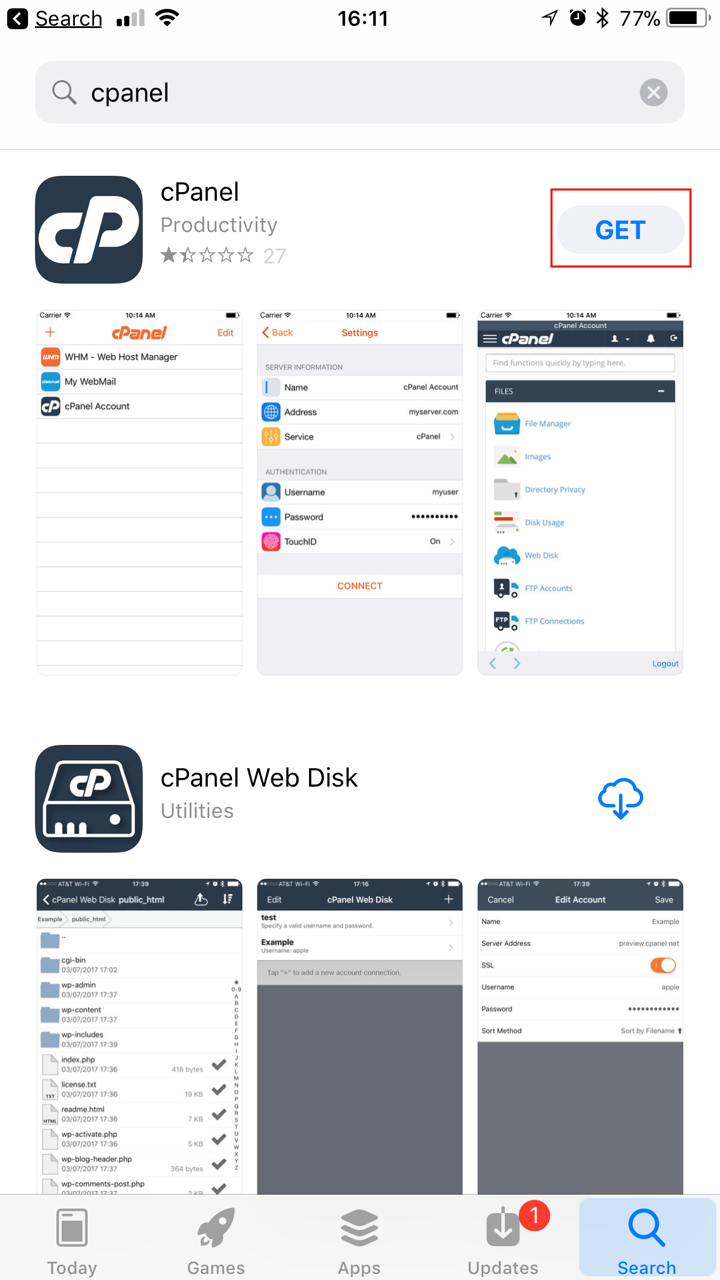
- Then, find the cPanel App from the search results and tap the Get button.NOTE: You may need to use your TouchID or passcode to approve and initiate the download.
- Once the App finishes installing, tap the Open button to open up the App.
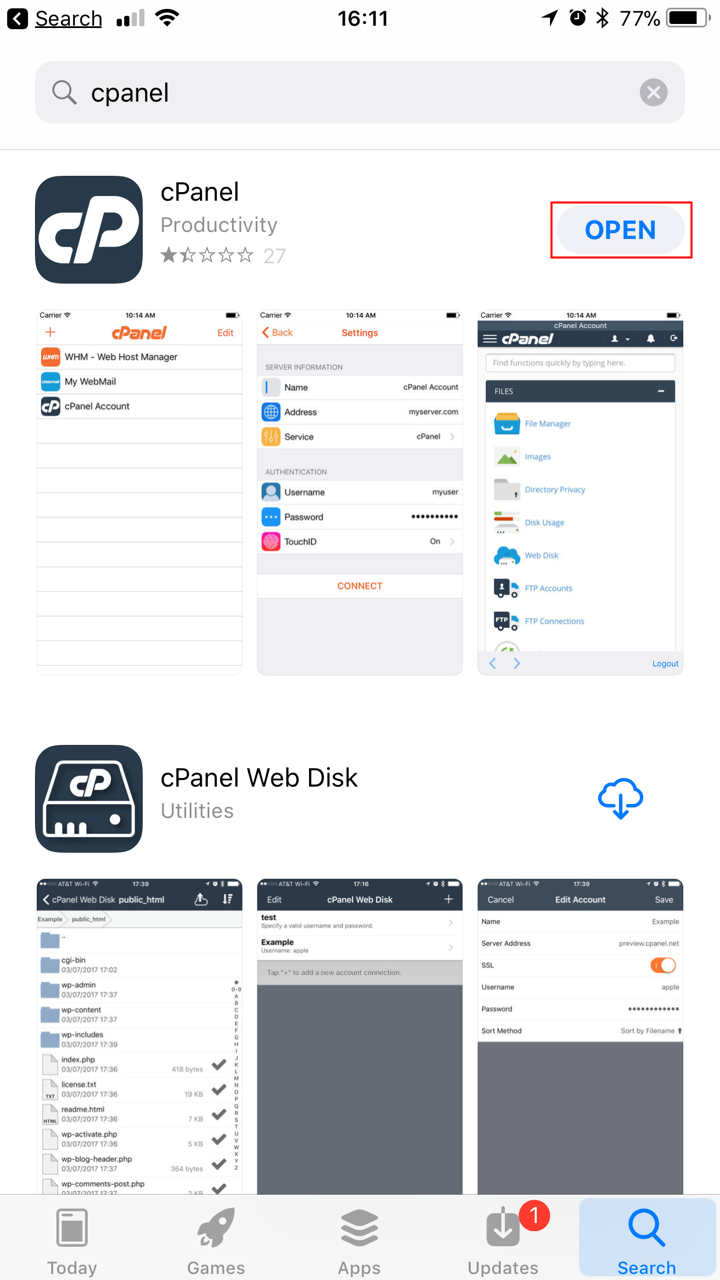
Congratulations! You have just installed cPanel’s powerful new App on your iOS device. Now it’s time to setup your device to connect with your server.
Configure a cPanel Connection
Once you have installed the cPanel App, you can begin to create connections to remotely access cPanel. The instructions below will guide you through configuring the App to connect to your cPanel.
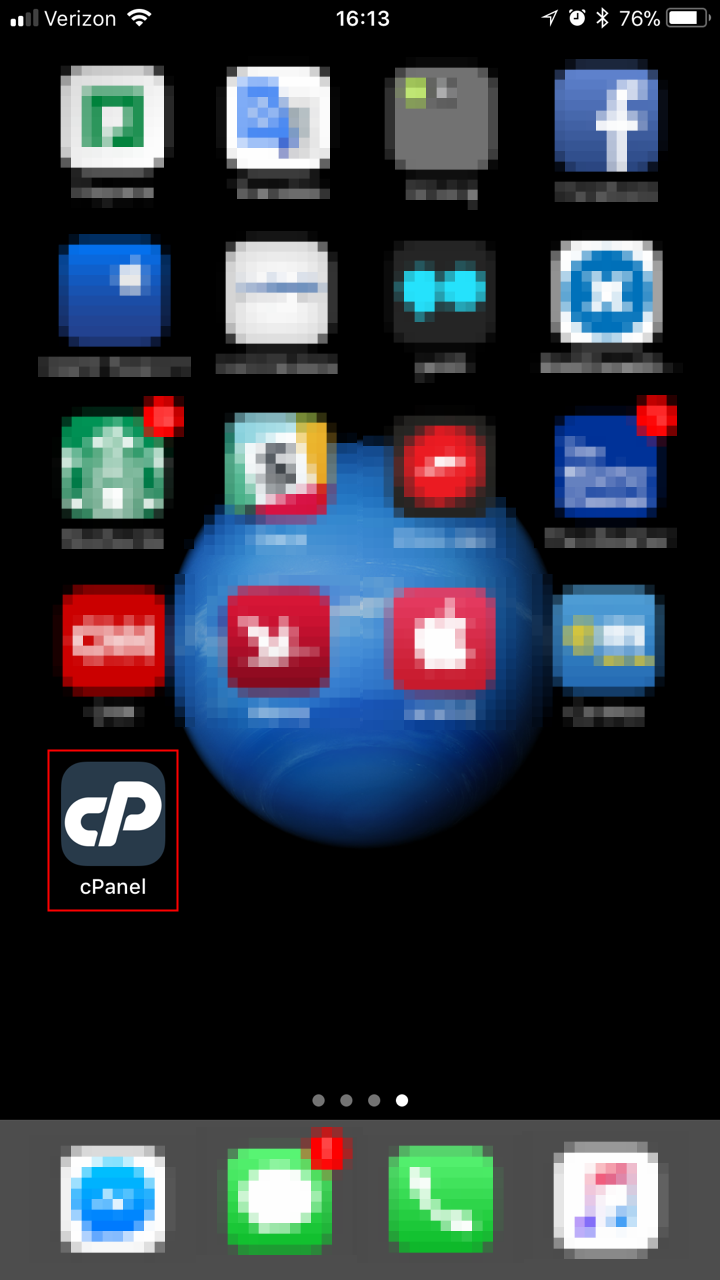
- Find the cPanel app icon and tap it to open the App.
- Tap the + icon, in the upper left.
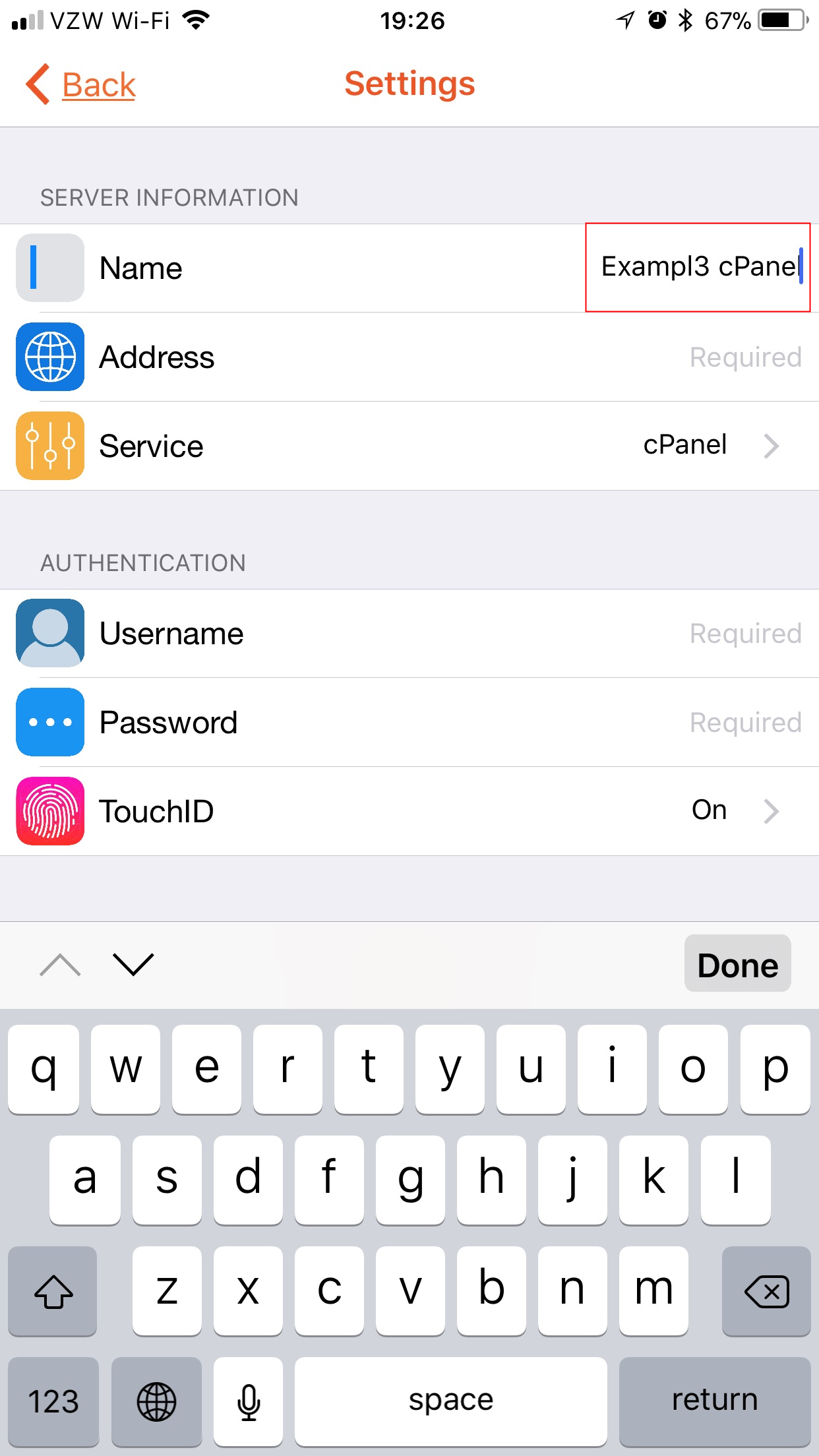
- Under Server Information, tap on the Name field and type what you would like to name the connection. This is the name that will appear in the connections list, for you to easily identify your saved connections.
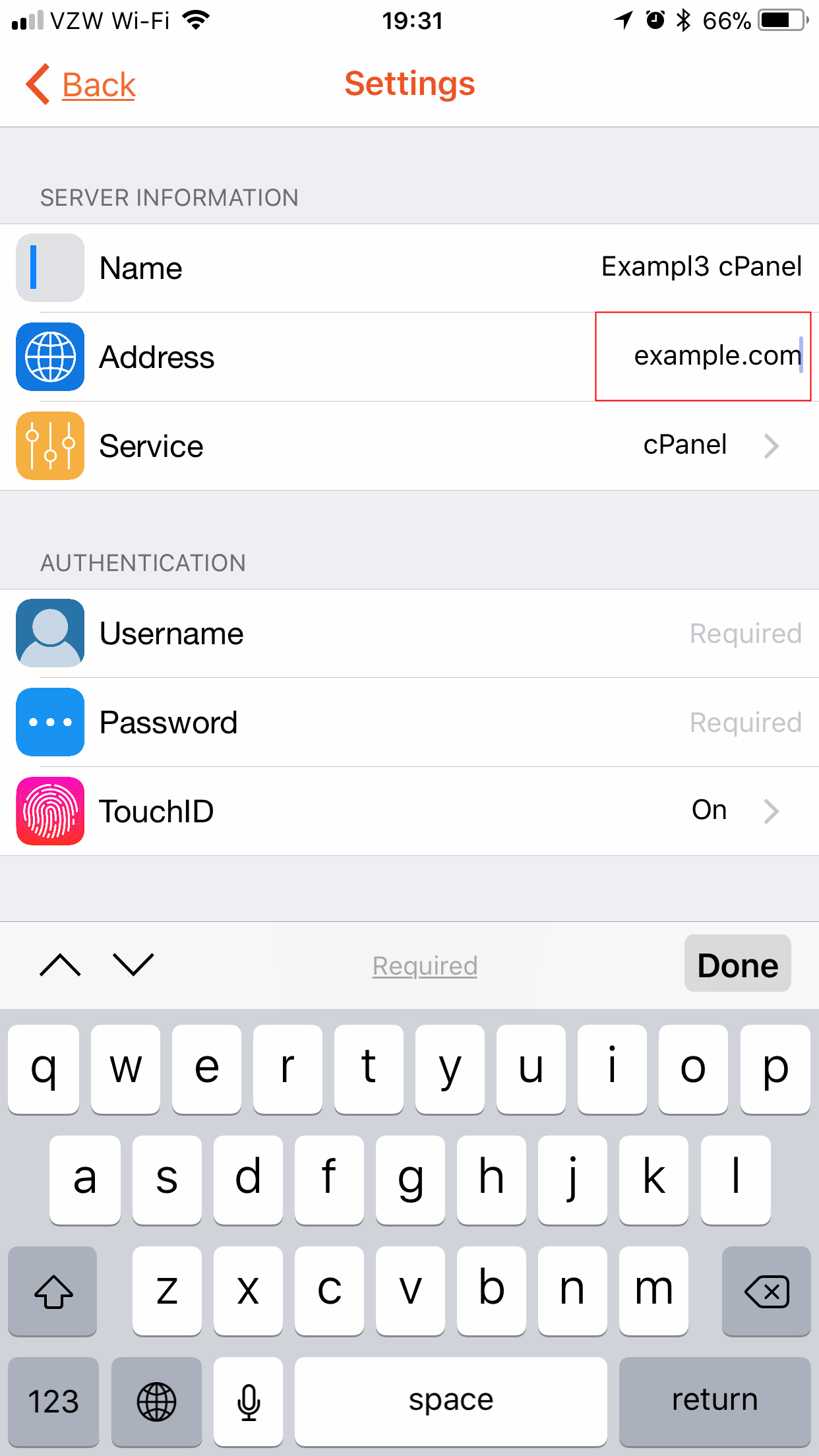
- Under Server Information, tap on the Address field and type in your server’s hostname.
- Under Server Information, the Service field should have cPanel selected by default. If it is not, tap on the field and select cPanel.
- Tap the Settings button, in the upper left, to return to the previous screen and continue with setting up the connection.
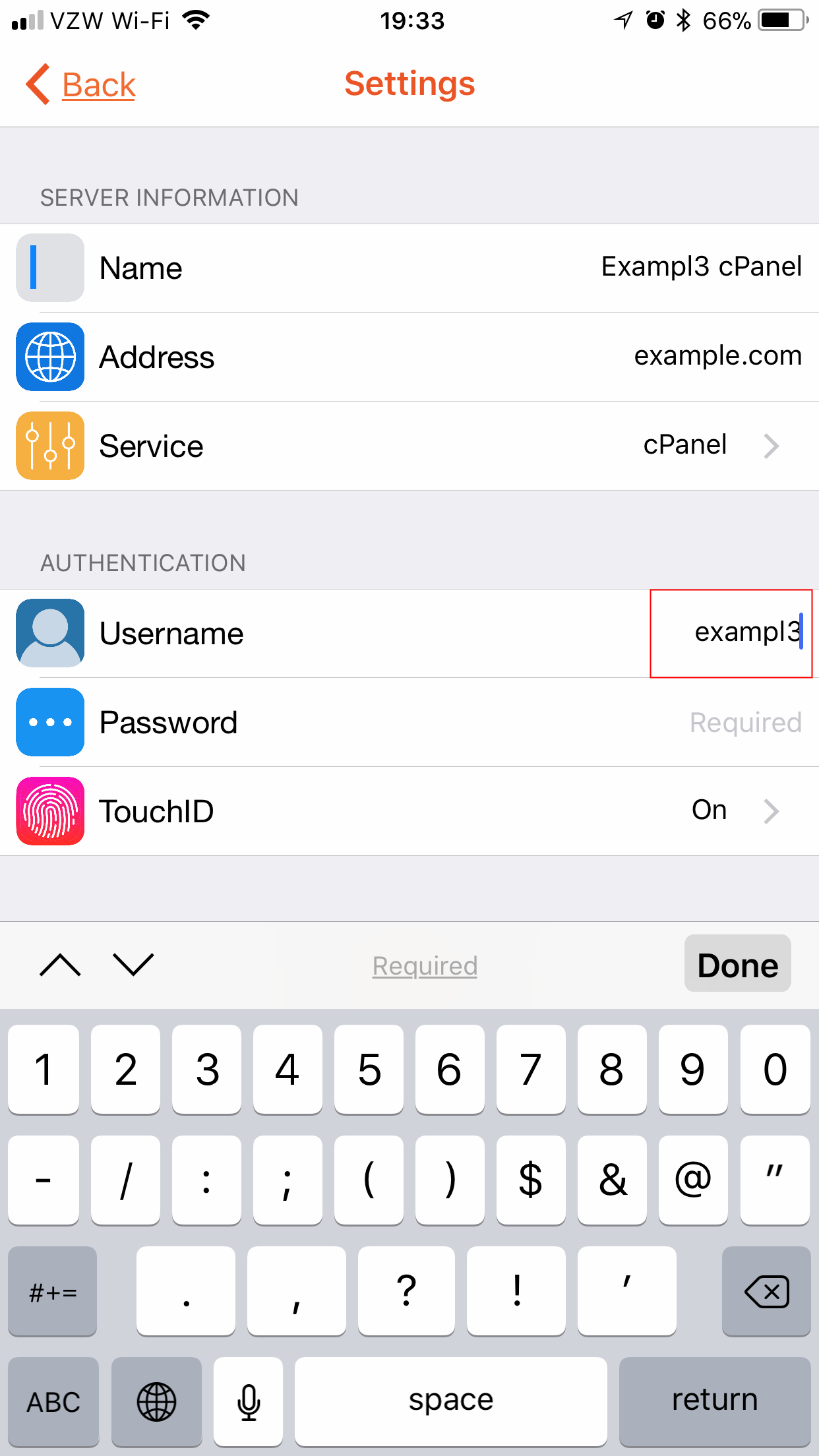
- Below Authentication, tap on the Username field and type your cPanel username.
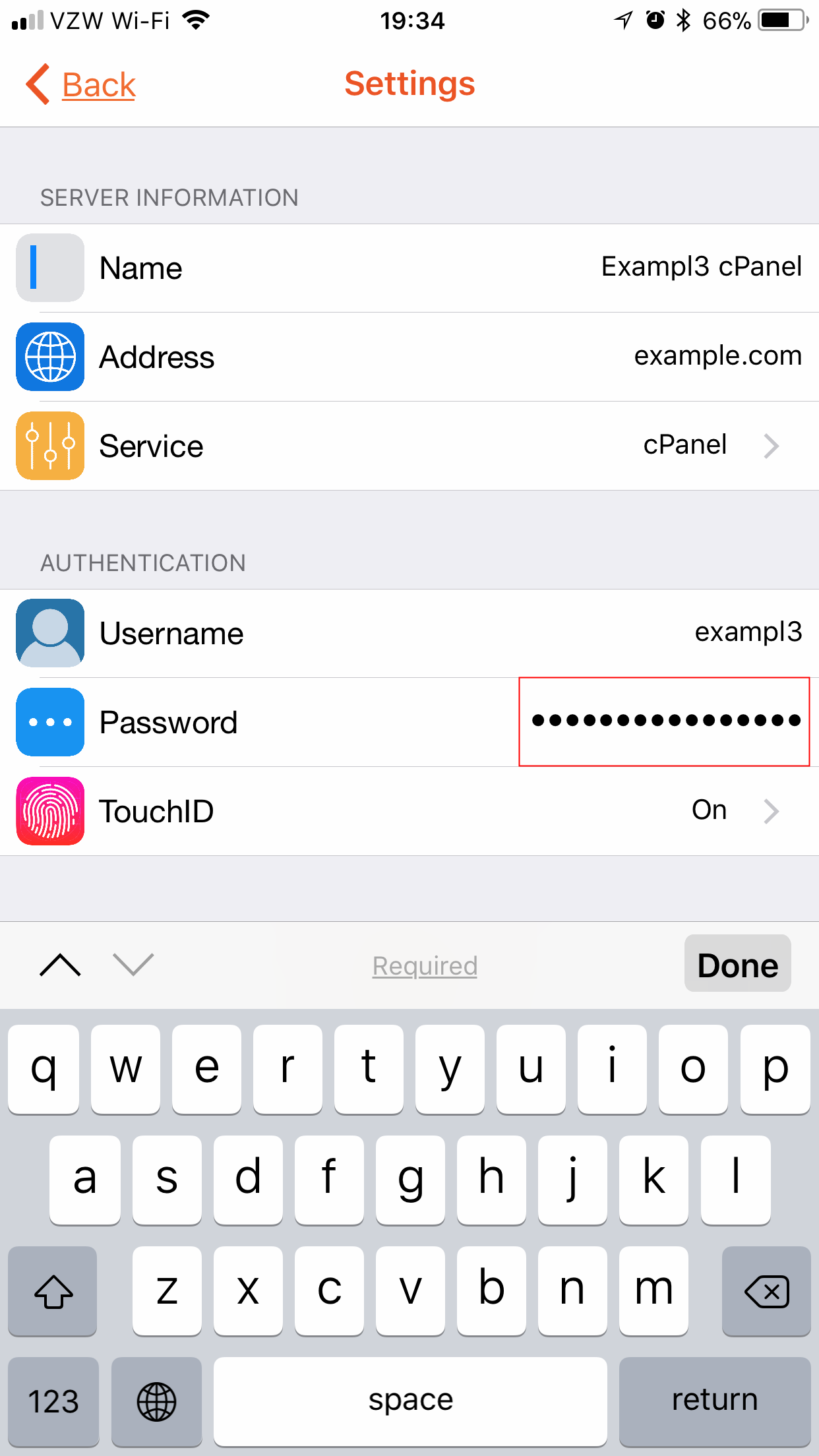
- Below Authentication, tap on the Password field and type your cPanel password.
- Below Authentication, tap on the TouchID field. Enabling TouchID will allow you to bypass entering your password each time you want to connect. If you would like to enable this feature, simply tap the TouchID for Login toggle switch. The toggle will turn green when enabled.
- Tap the Settings button, in the upper left, to return to the previous screen.
- Tap the Connect button at the very bottom of the Settings screen. Successfully connecting will save the connection settings to your cPanel App’s home screen for easy access.
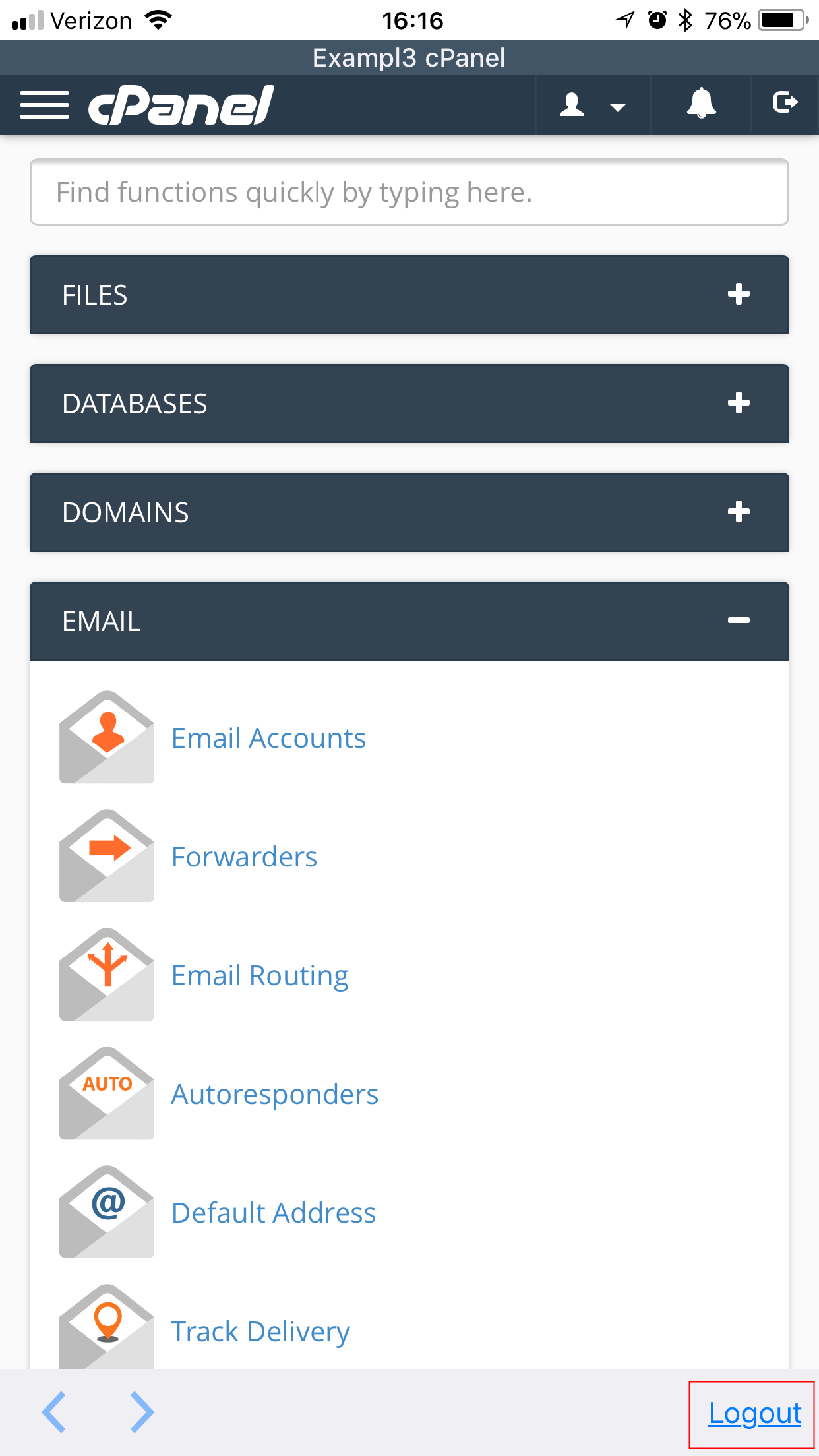
- Once you successfully login, you should be familiar with the appearance of cPanel and can begin to navigate as needed. In the lower right, you can tap the Logout button to close your connection.
Configure a Webmail Connection
Once you have installed the cPanel App, you can begin to create connections to remotely access your email using Webmail. The instructions below will guide you through configuring the App to connect to your Webmail.
- Find the cPanel App icon and tap it to open the App.
- Tap the + icon, in the upper left.
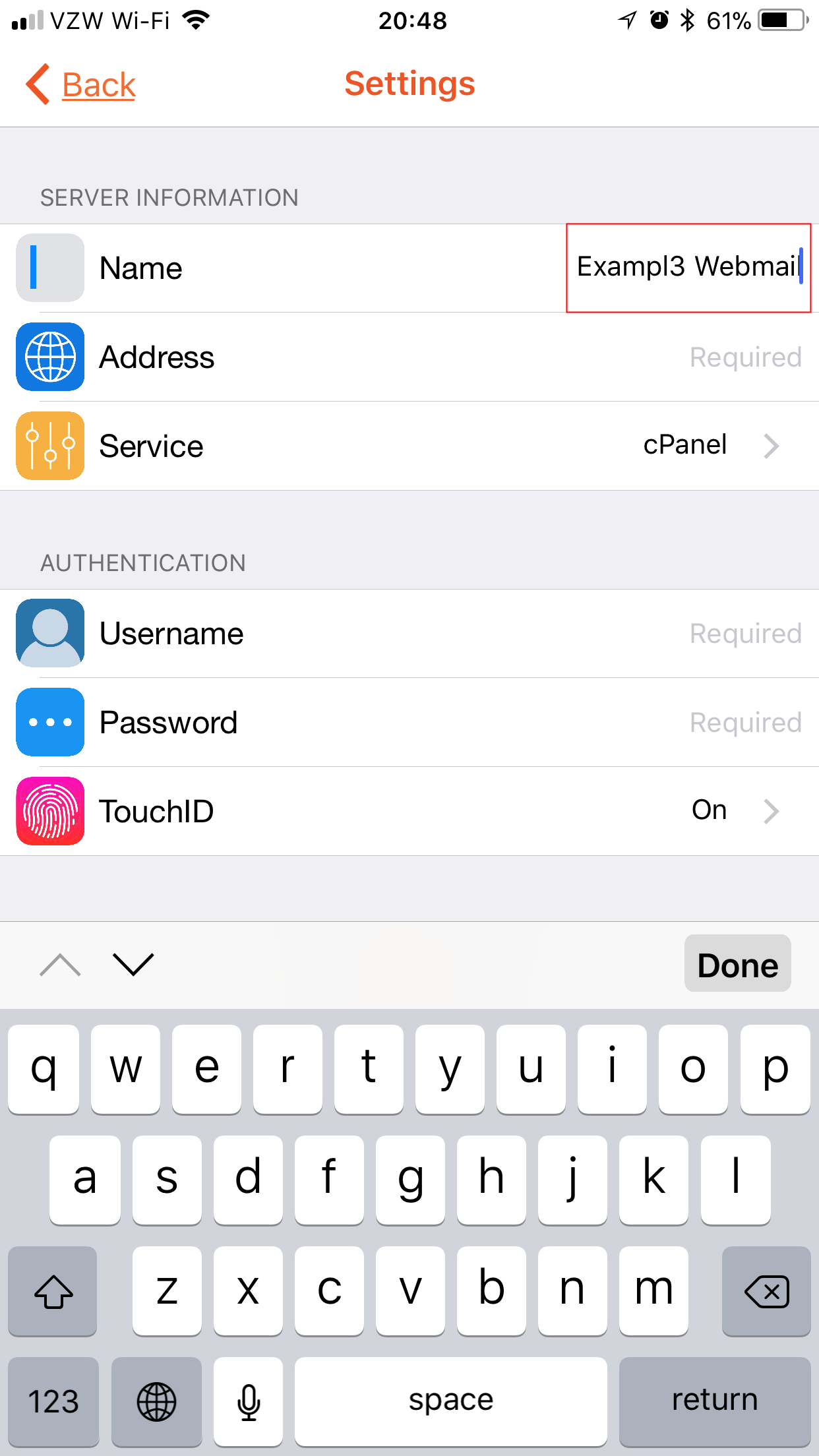
- Under Server Information, tap on the Name field and type what you would like to name the connection. This is the name that will appear in the connections list, for you to easily identify your saved connections.
- Under Server Information, tap on the Address field and type in your server’s hostname.
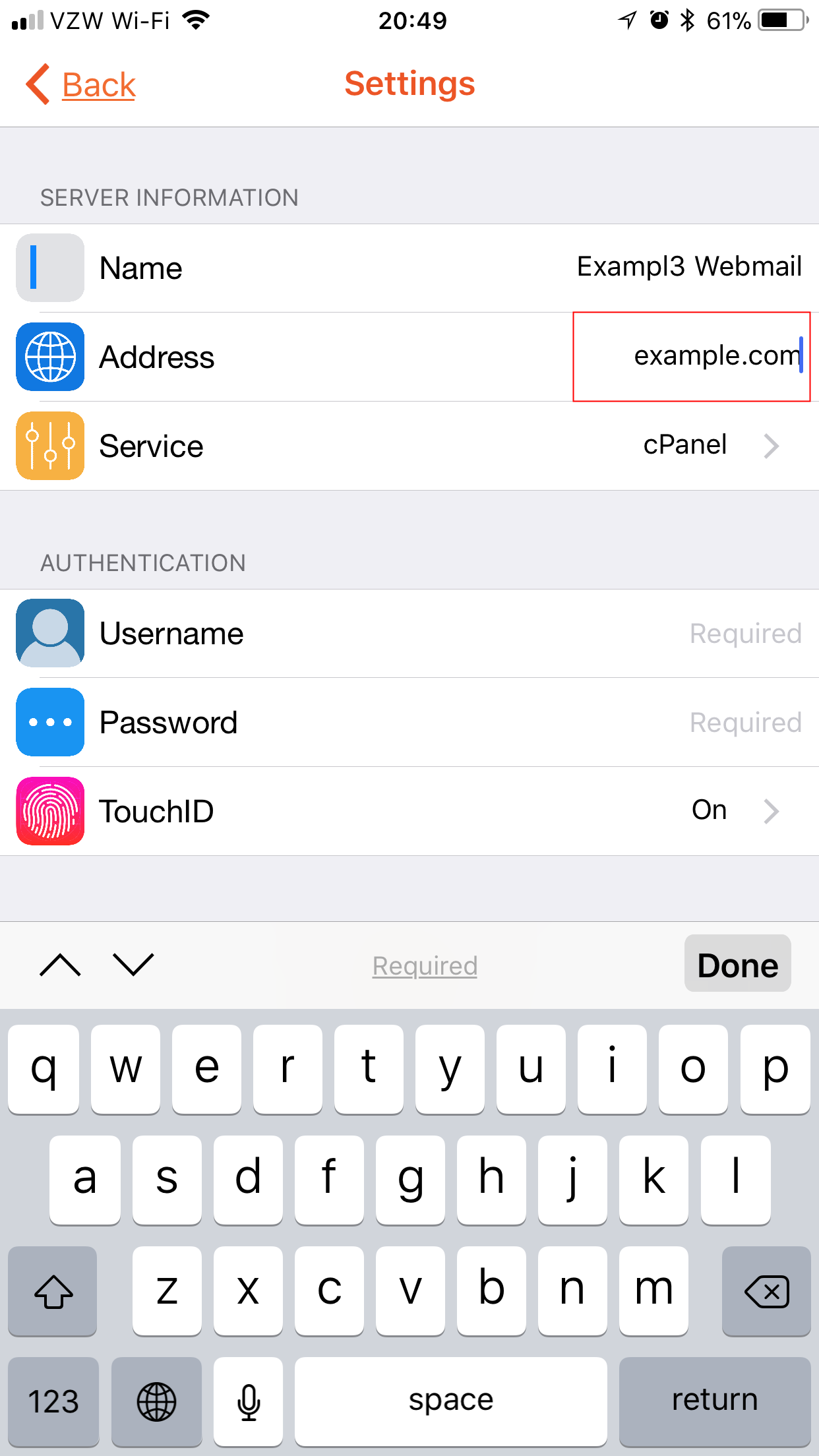
- Under Server Information, tap on the Service field. Tap on Webmail.
- Tap the Settings button, in the upper left, to return to the previous screen and continue with setting up the connection.
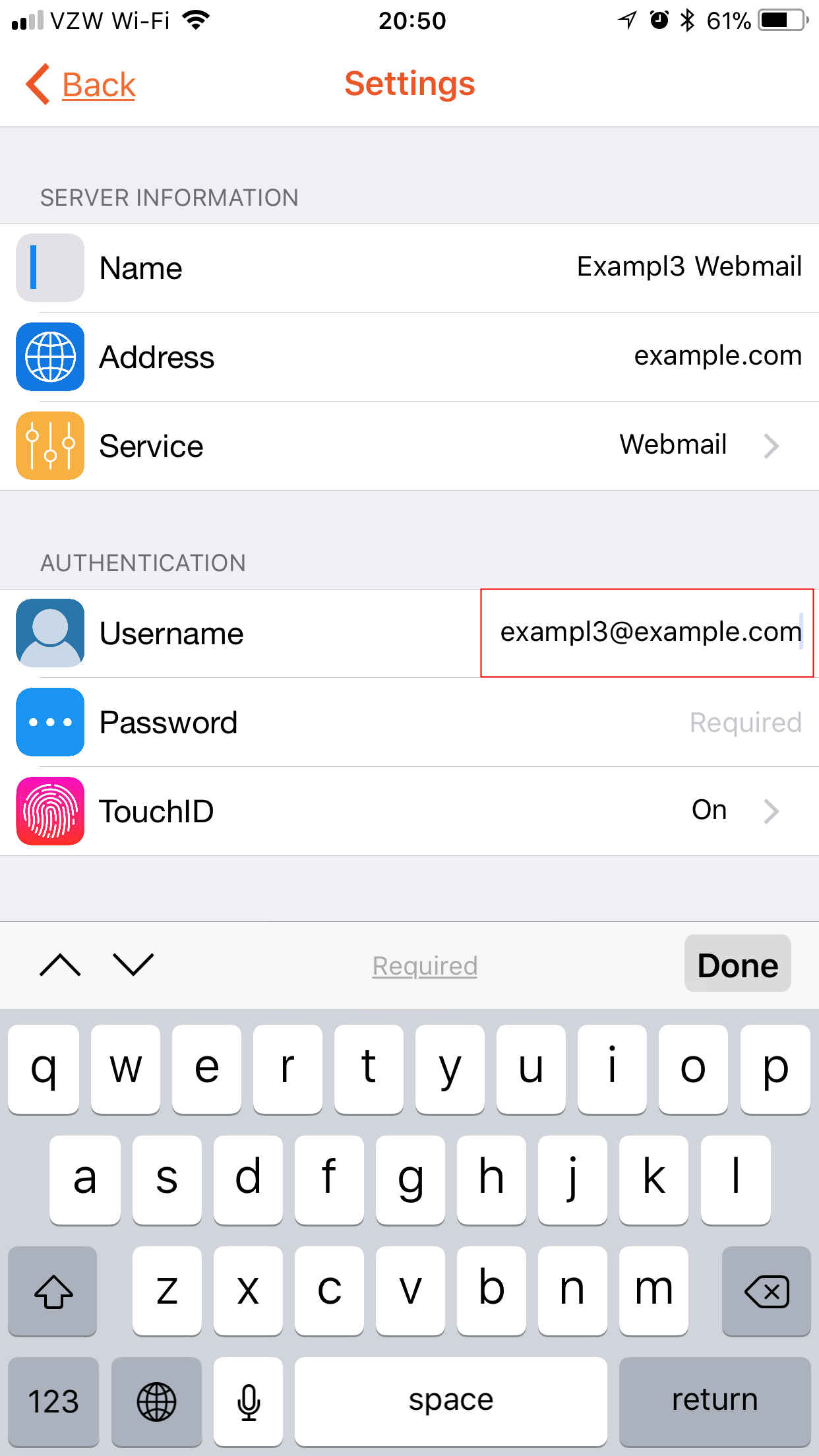
- Below Authentication, tap on the Username field and type your full email address.
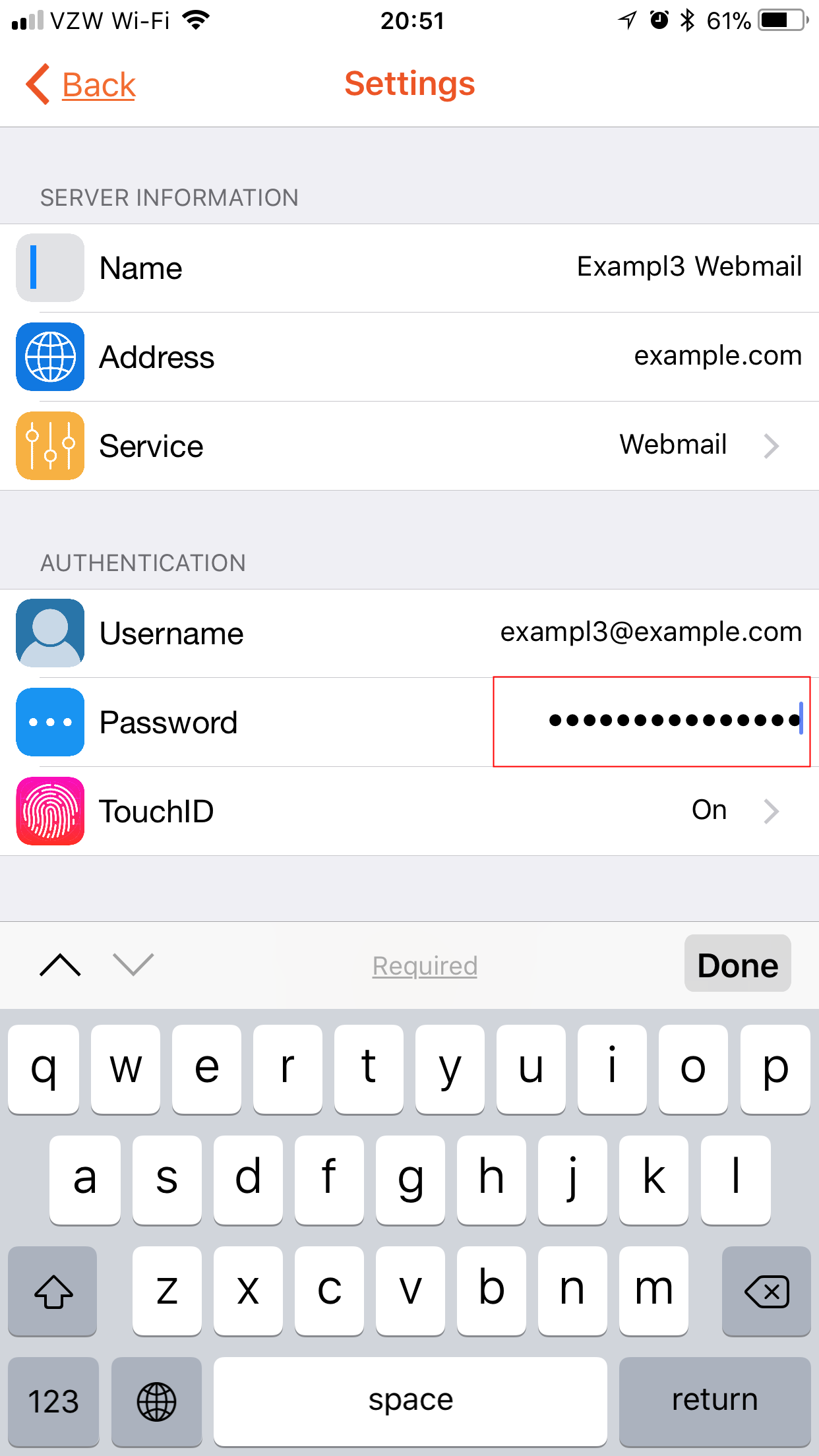
- Below Authentication, tap on the Password field and type the password for your email account.
- Below Authentication, tap on the TouchID field. Enabling TouchID will allow you to bypass entering your password each time you want to connect. If you would like to enable this feature, simply tap the TouchID for Login toggle switch. The toggle will turn green when enabled.
- Tap the Settings button, in the upper left, to return to the previous screen.
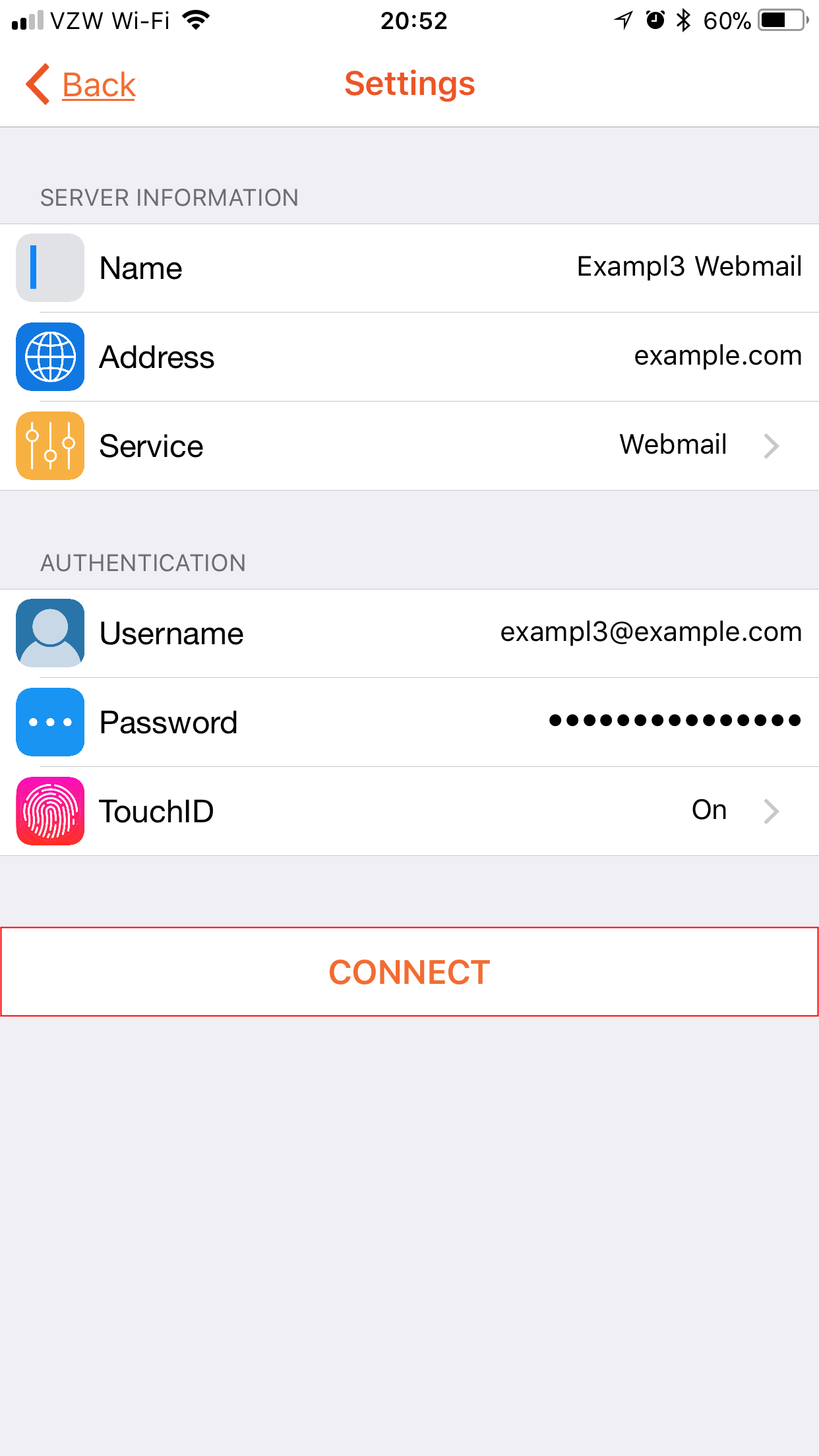
- Tap the Connect button at the very bottom of the Settings screen. Successfully connecting will save the connection settings to your cPanel App’s home screen for easy access.
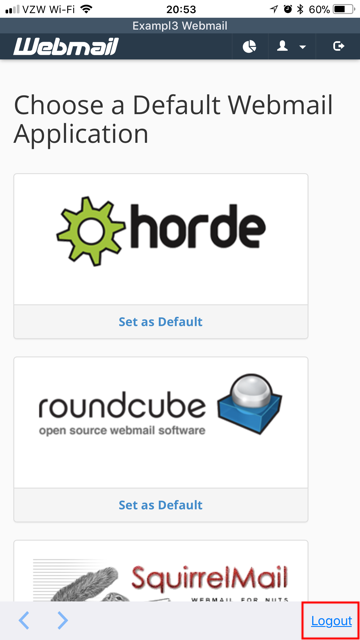
- Once you successfully login, you should be familiar with the appearance of Webmail and can begin to navigate as needed. In the lower right, you can tap the Logout button to close your connection.
Configure a WHM Connection
Once you have installed the cPanel App, you can begin to create connections to remotely access your WHM. The instructions below will guide you through configuring the App to connect to WHM.
- Find the cPanel App icon and tap it to open the App.
- Tap the + icon, in the upper left.
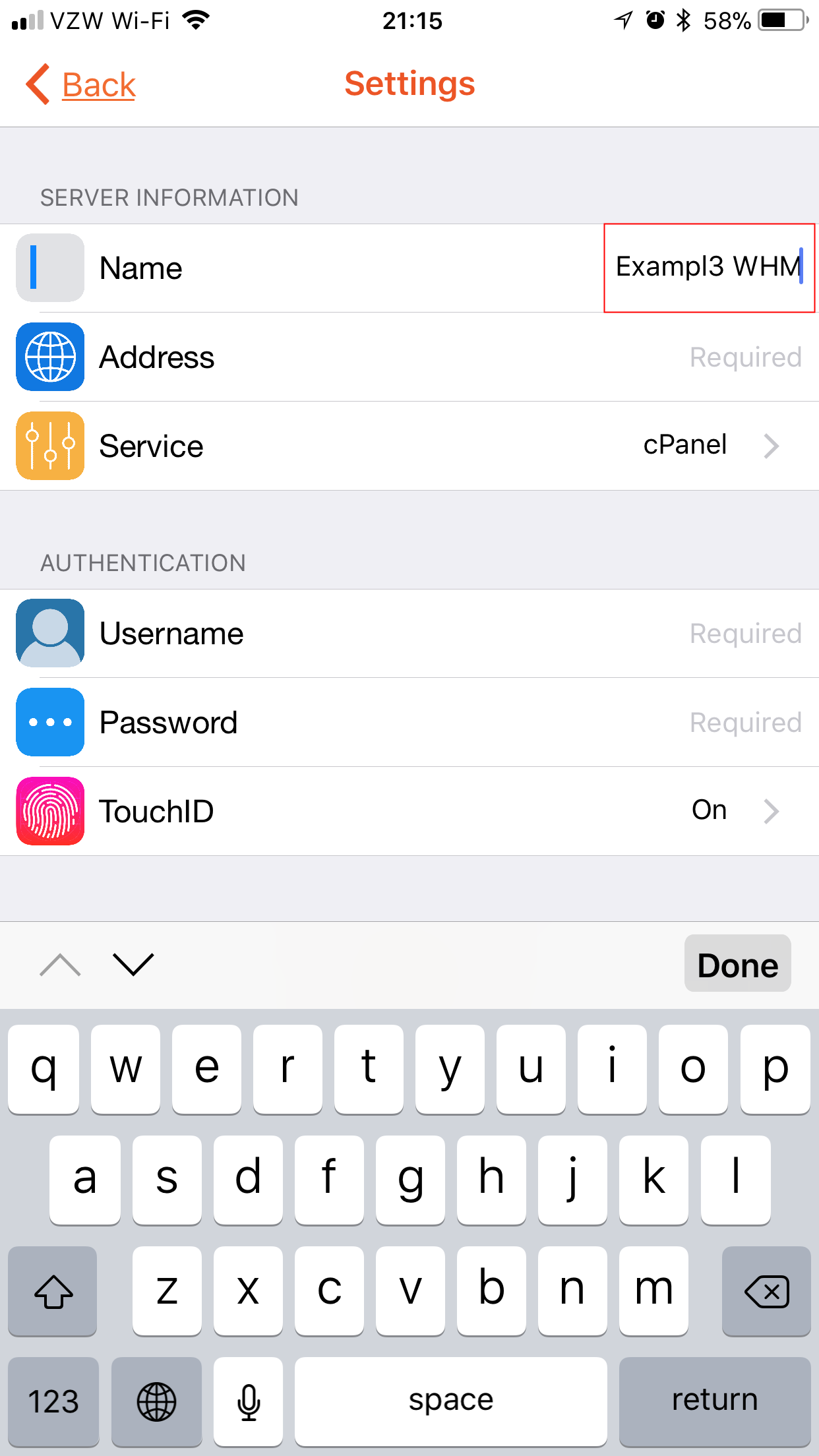
- Under Server Information, tap on the Name field and type what you would like to name the connection. This is the name that will appear in the connections list, for you to easily identify your saved connections.
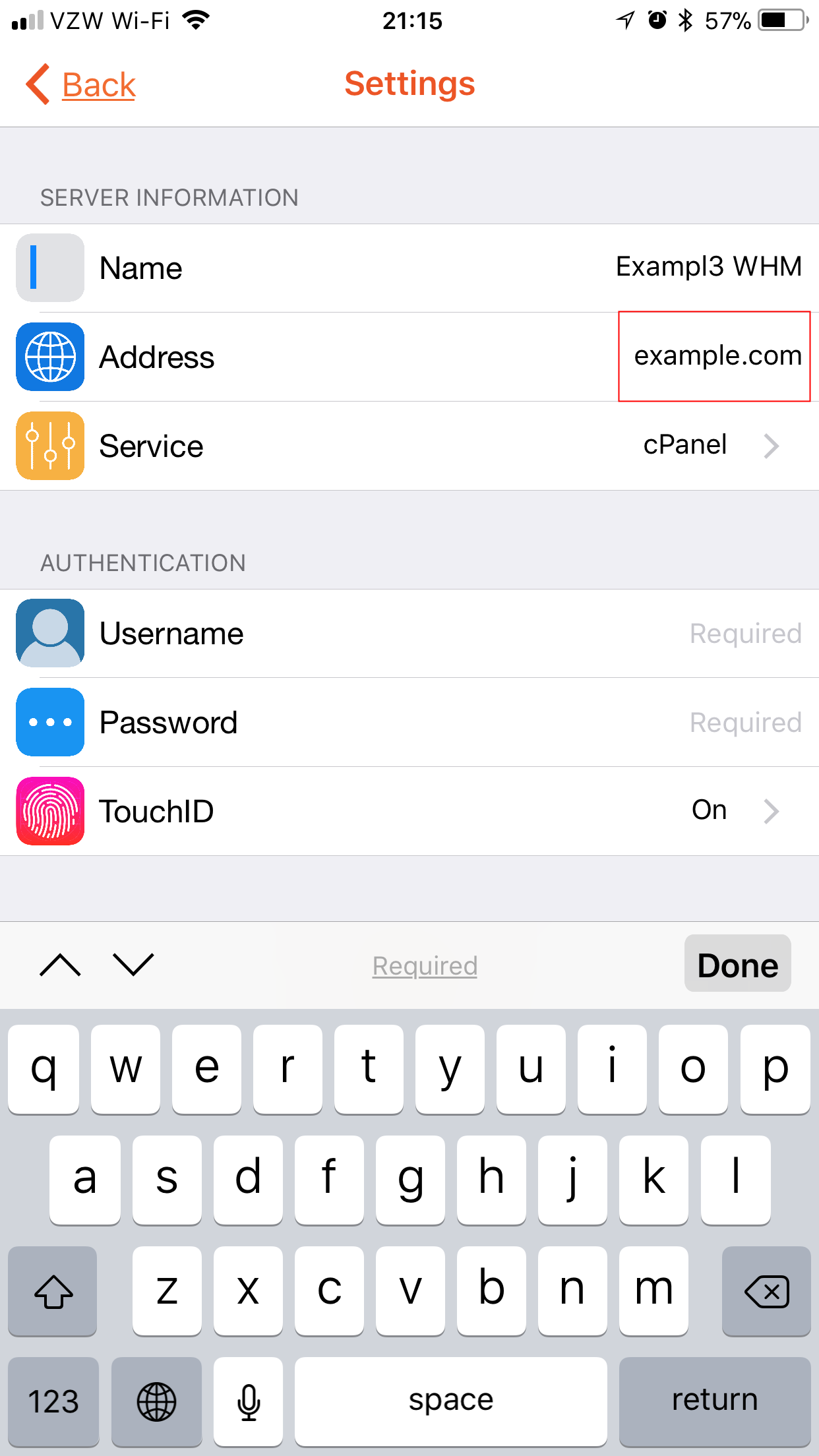
- Under Server Information, tap on the Address field and type in your server’s hostname.
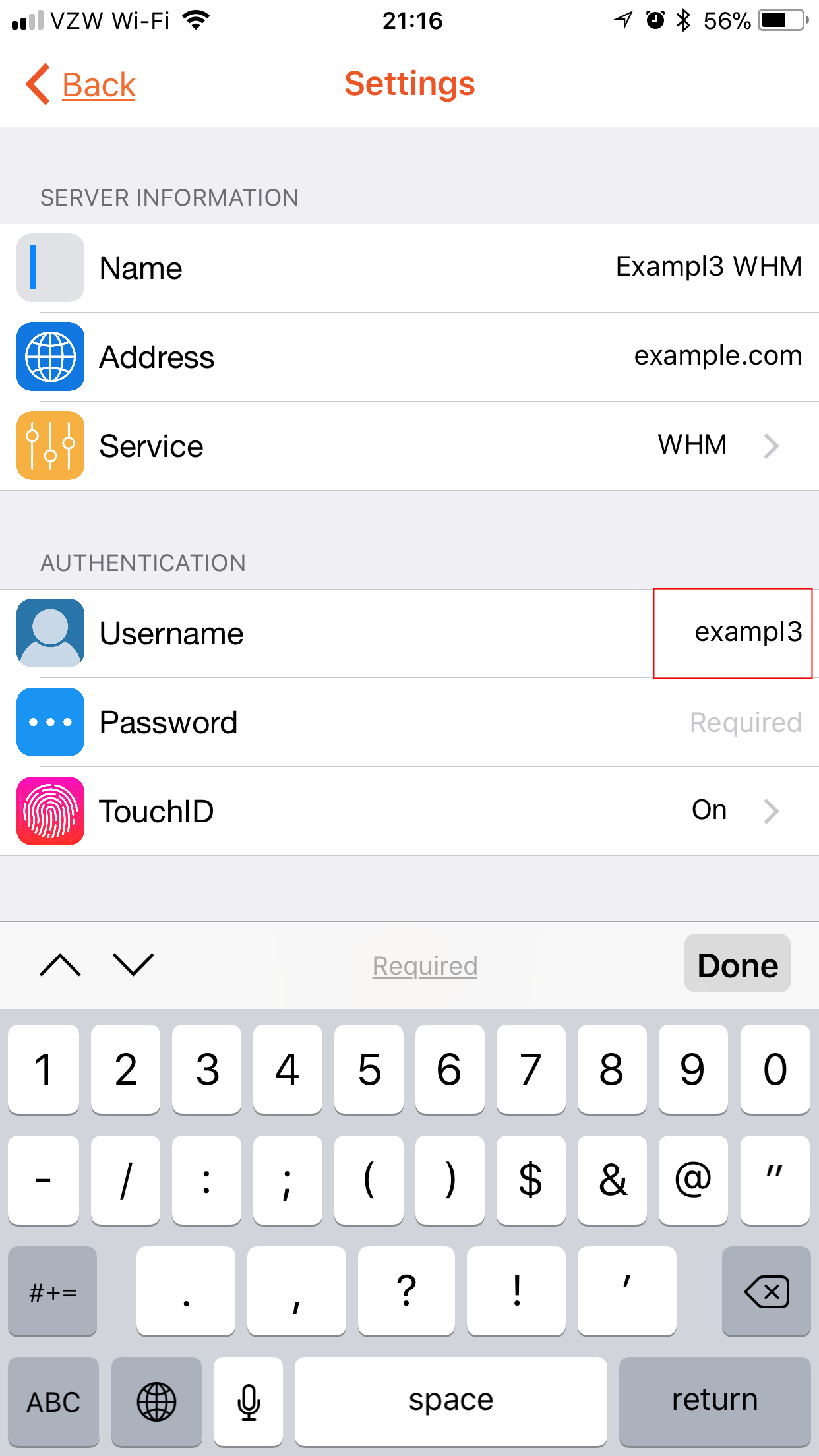
- Under Server Information, tap on the Service field. Tap on WHM.
- Then, click the Settings button, in the upper left, to return to the previous screen and continue with setting up the connection.
- Below Authentication, tap on the Username field and type your (main reseller) cPanel username.
- Below Authentication, tap on the Password field and type your (main reseller) cPanel password.
- Below Authentication, tap on the TouchID field. Enabling TouchID will allow you to bypass entering your password each time you want to connect. If you would like to enable this feature, simply tap the TouchID for Login toggle switch. The toggle will turn green when enabled.
- Tap the Settings button, in the upper left, to return to the previous screen.
- Tap the Connect button at the very bottom of the Settings screen. Successfully connecting will save the connection settings to your cPanel App’s home screen for easy access.

- Once you successfully login, you should be familiar with the appearance of WHM and can begin to navigate as needed. In the lower right, you can tap the Logout button to close your connection.

Now that you have setup your connection, you can use cPanel, Webmail, and WHM from your iOS device in the same manner you would from within your browser.
Reliable Shared Hosting for Growing Businesses
Get the performance your business website demands with NVMe SSD storage, industry-standard cPanel management, and direct access to hosting experts whenever you need assistance.
 Free Website Migration 24/7 Human Support 100% Money-Back Guarantee