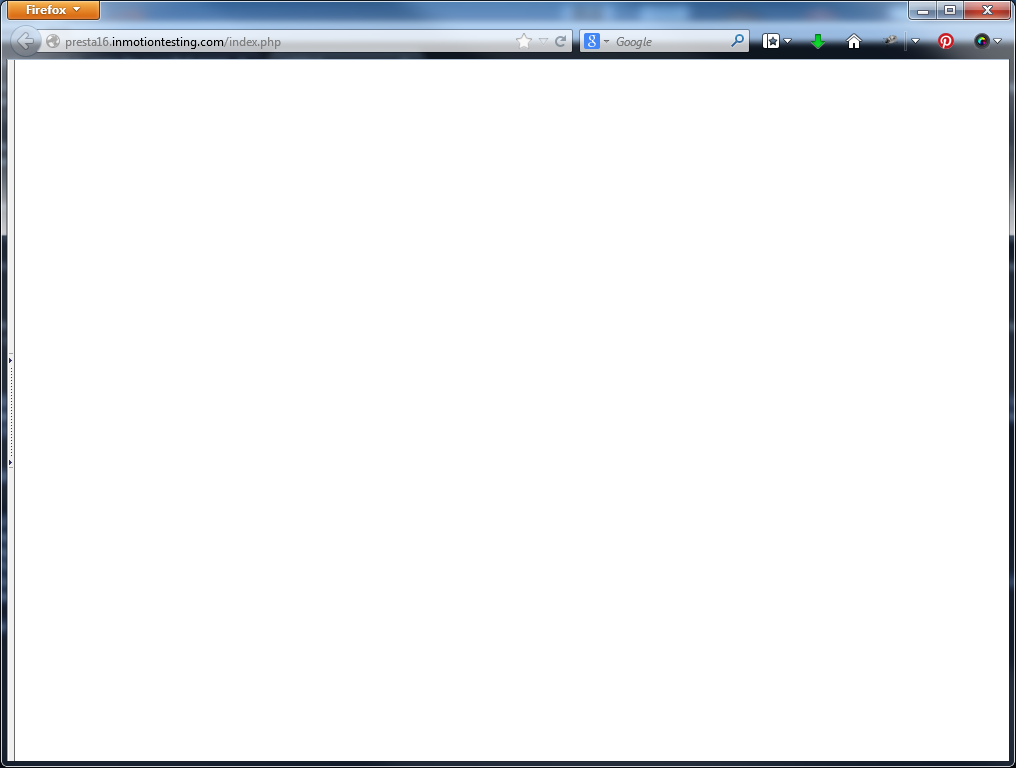
PrestaShop 1.6 has been released to the public and many people are upgrading their sites. One of the more common errors that we are seeing after upgrading or a new installation is a white screen. This is very disturbing to some people there is no error message telling you what is wrong. Most often, this is due to the program running out of the allowed memory. This is because PrestaShop 1.6 is a bit more memory intensive than previous versions. This article will demonstrate how to edit your php.ini file to fix the most common cause of the white screen error. Click here to learn more about PrestaShop hosting.
How to edit the php.ini file to fix the white screen error
- Log into your cPanel interface.
- Once in the cPanel, click on the File Manager icon located in the Files category.
- Once in the File Manager navigate to the folder where PrestaShop is installed. This is normally the public_html folder.
- Locate and then open the php.ini file for editing.

Scroll or search through the file and locate the memory_limit setting. It is normally set to 32M, which means 32 MB. Change the setting to something larger, say 128M.
- Once changed, click the Save Changes button in the upper right corner.
Congratulations. The white screen should now be a thing of the past and you should see your PrestaShop 1.6 storefront.
| Before | After |
|---|---|
|

|