
This tutorial is designed to show you how to setup a email on your iPad.
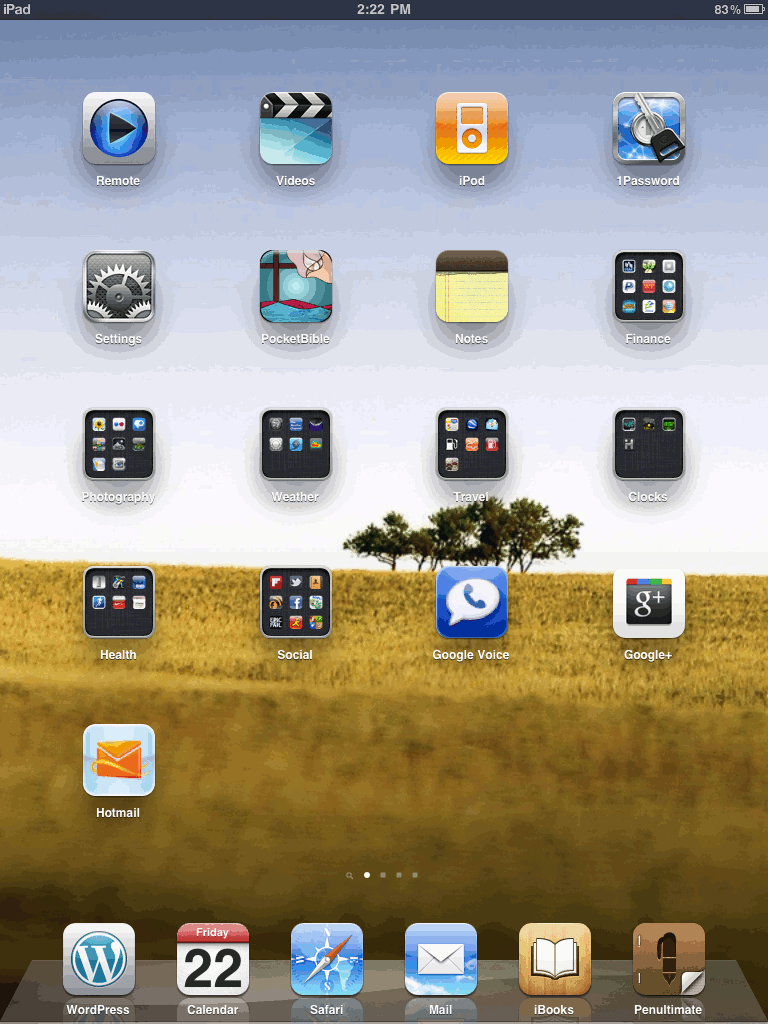
- From your “Home” screen, click “Settings“
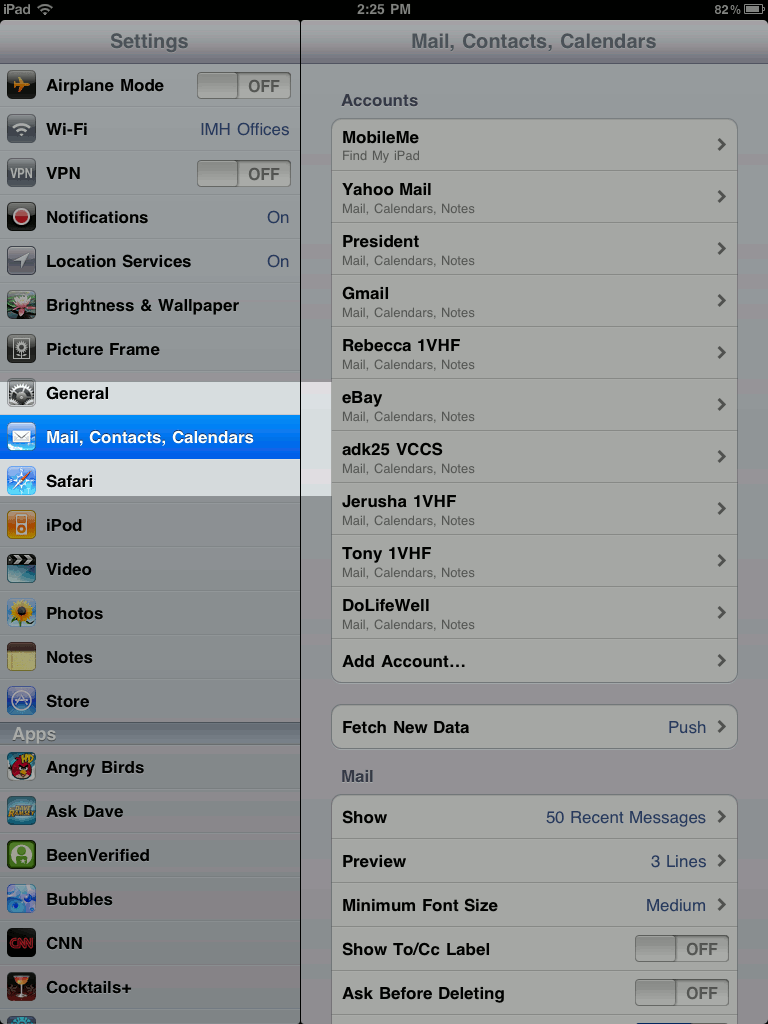
- Under “Settings“, click “Mail, Contacts, Calendars “
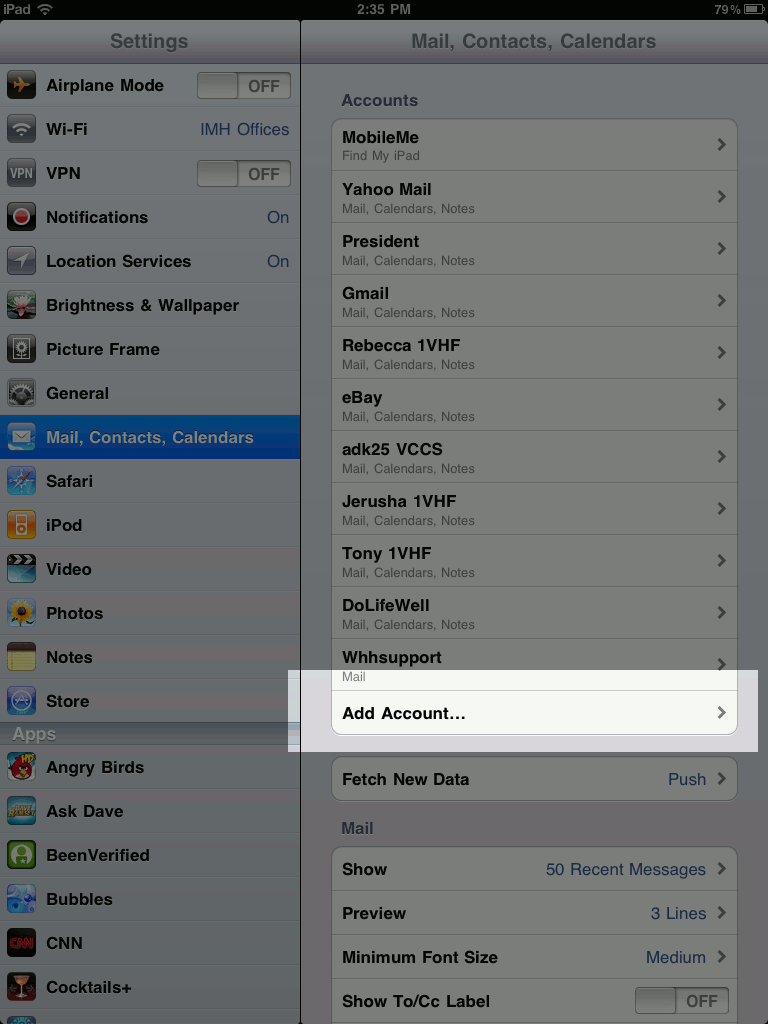
- Under “Mail, Contacts, Calendars“, click “Add Account…“
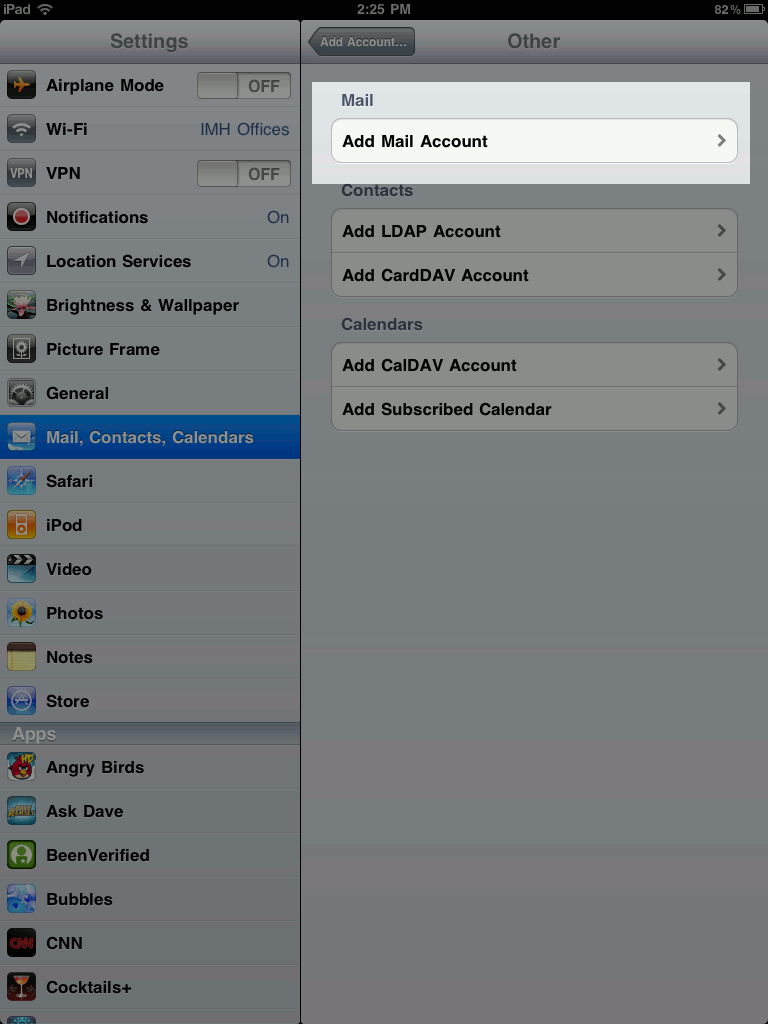
- Next under “Add Account..” Click “Other”
- Then under “Other” Click “Add Mail Account“
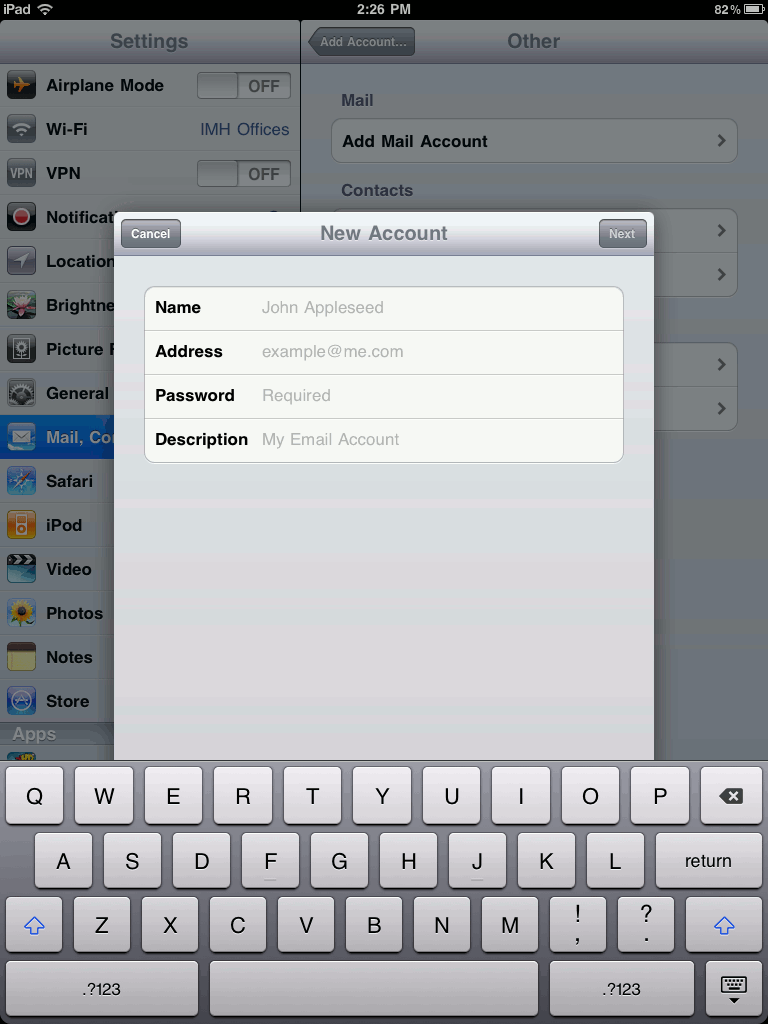
- Under “New Account“, enter your Name, Email Address, Password, and type a Description for the account. Click “Next” when done.
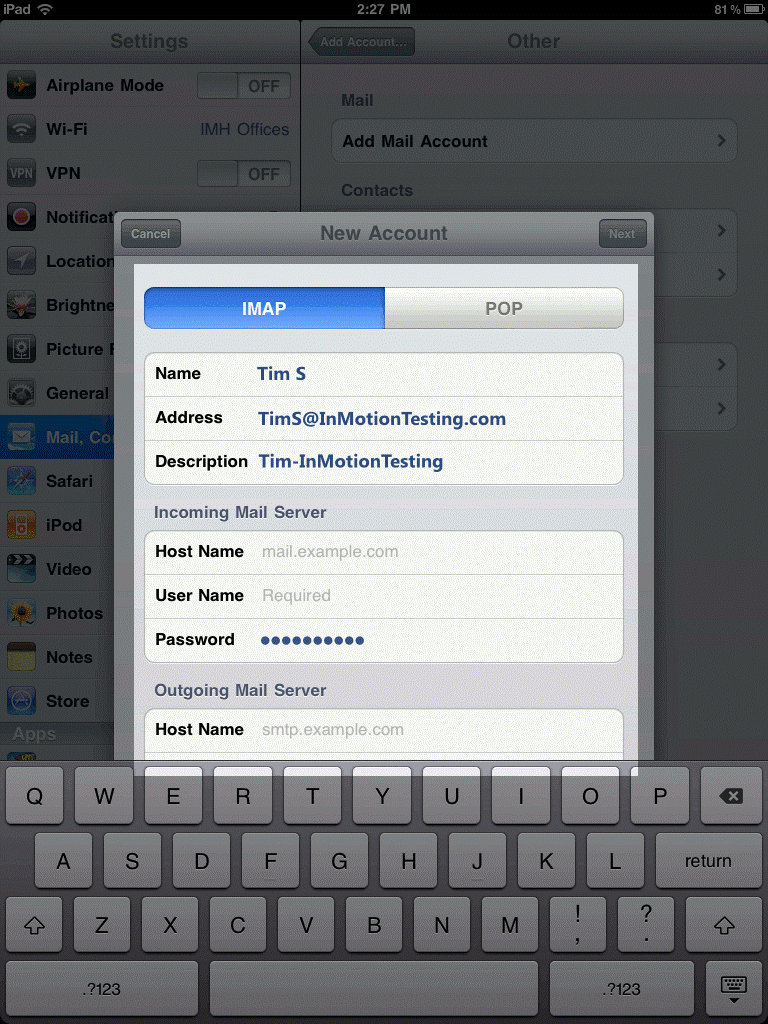
- Under New Account, choose IMAP or POP, enter your username, and enter mail.domain.com as the Host Name for both Incoming and Outgoing mail server. Be sure to replace domain.com with your actual domain name. Leave outgoing user and password blank. Click “Next” when done.
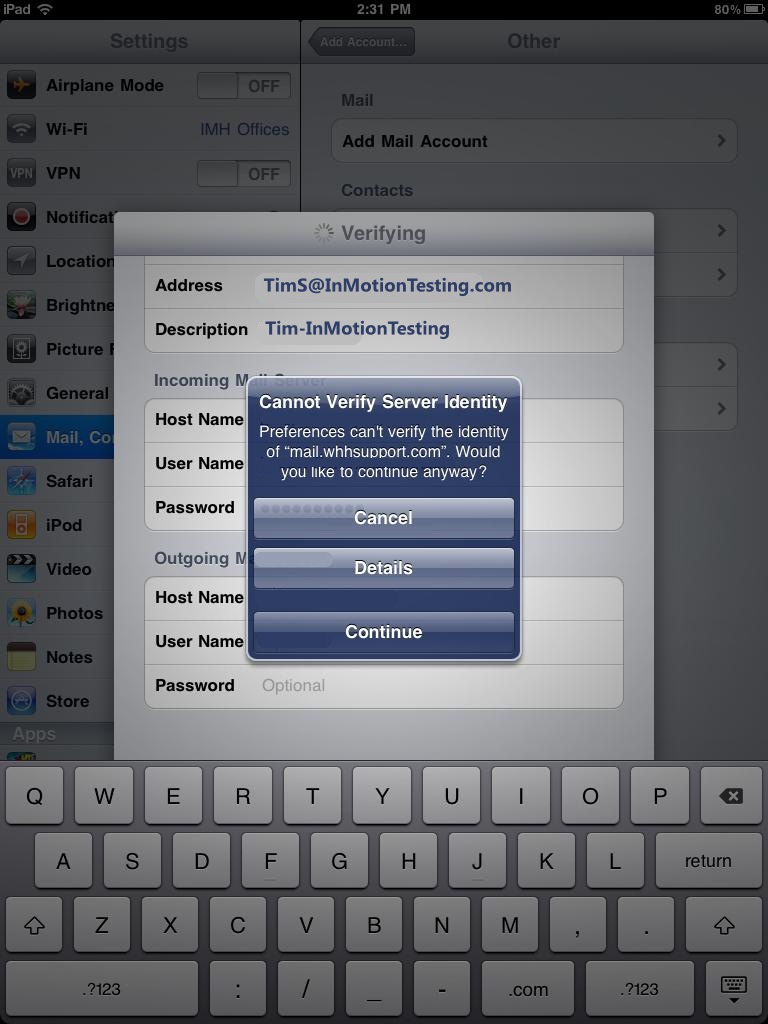
- Your iPad will try to verify the SSL certificate for mail.domain.com. If you do not have an SSL installed on your domain it will likely fail since the SSL is issued to the server not your specific domain, but it is safe to click Continue.
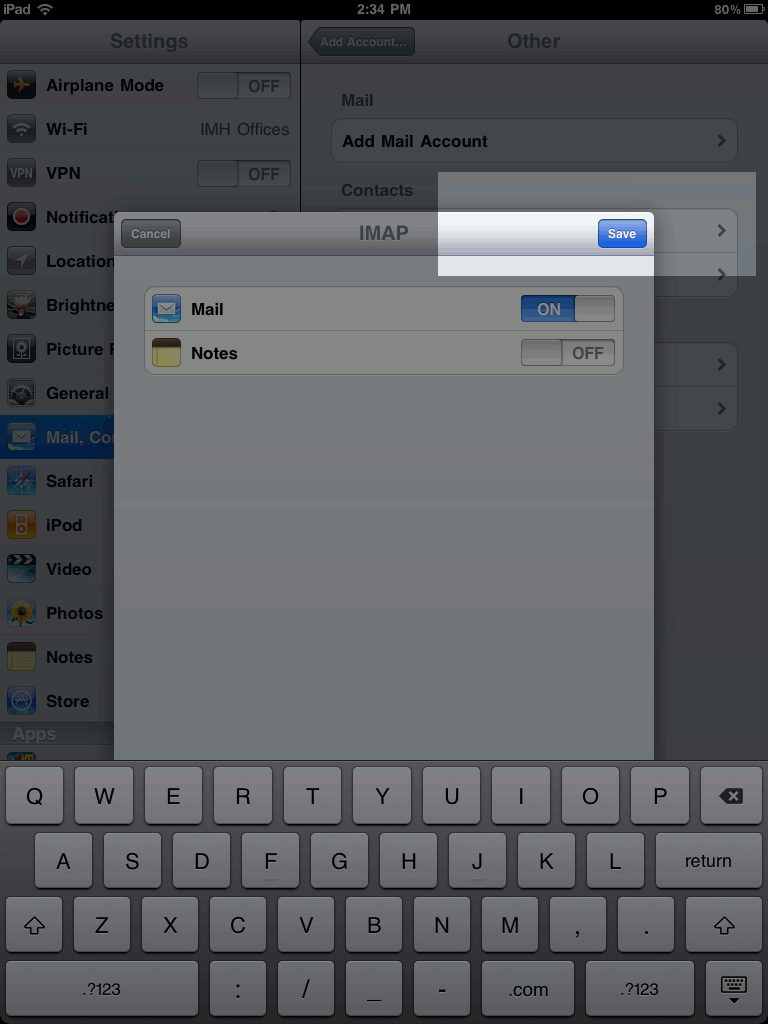
- On the “IMAP” screen, click “Save“
- You will see a message on the screen that states it is adding the account, and then you have successfully set up your email account on your iPad!

If you are unsure which settings to use for POP/IMAP you can refer to our Email Configuration Tool.