osCommerce by default only has one theme available. Before you can Change the theme in osCommerce you will need the Theme Switcher module. To switch themes, there is quite a few steps. You will need the Theme Switcher module so the themes can be changed within the osCommerce Administrative Dashboard. First the Theme switcher module needs to be installed, then the jQuery needs to be fixed, and lastly a theme can be uploaded. This article will explain how to install the Theme Switcher module.
Before you can install the module, you will need to Download the plugin at the following link:
Once you have the theme switcher files, you can install the module. Follow the steps below to install the Theme Switcher module in osCommerce.
Steps to install the Theme Switcher module
- Login into your cPanel.
- Go to the File Manager Select the directory for your osCommerce installation and click Go.
- Extract the .zip file with the Theme Switcher files in it and upload the following files to each specified location.
ht_theme_switcher.php
Find the following file in the catalogincludeslanguagesenglishmodules/header_tags folder of the .zip file:
ht_theme_switcher.php
Upload the ht_theme_switcher.php file to the following directory on your server:
/includes/languages/english/modules/header_tags
template_top.php
Find the following file in the catalogincludes directory of the .zip file:
/template_top.php
Upload the file to the following directory on your server:
/includes
ht_theme_switcher.php
Find the following file in the catalogincludesmodulesheader_tags directory of the .zip file:
ht_theme_switcher.php
Upload the file to the following directory on your server:
/includes/modules/header_tags
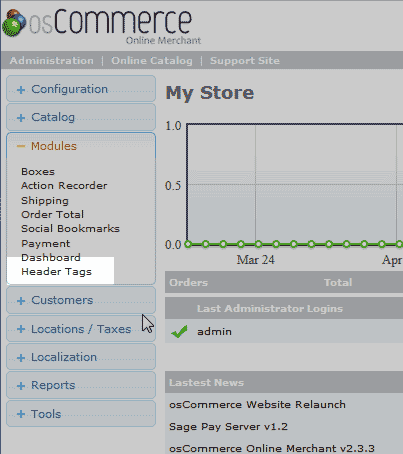
Log into your osCommerce administrative Dashboard.
Navigate to Modules > Header Tags on the left navigation menu.
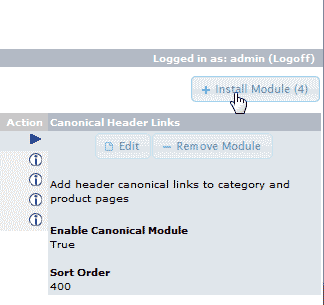
Click the Install Module button at the top right.
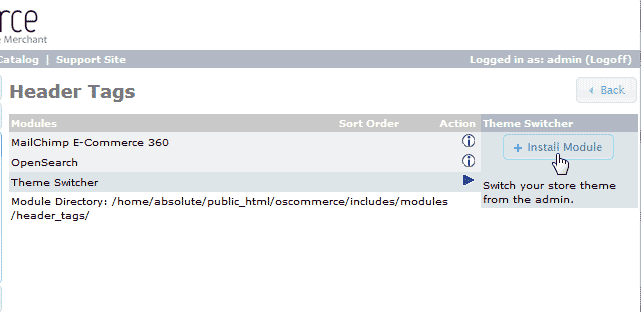
Click the Theme Switcher title in the Modules list.
Click Install Module.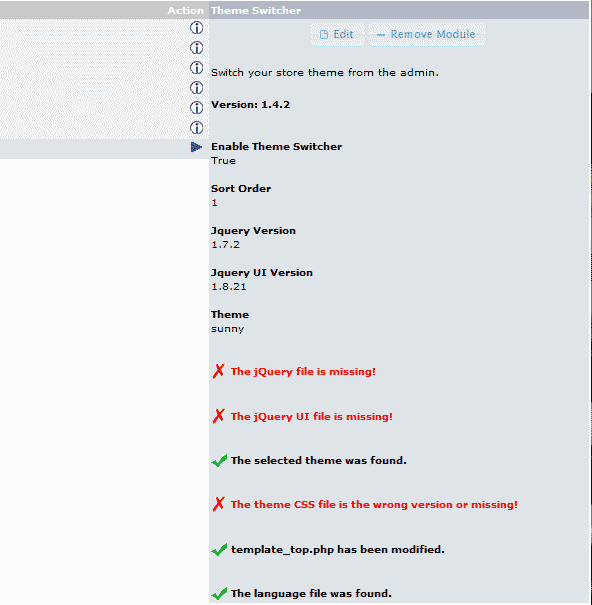
The Module will install with red errors like the snapshot to the right.
Don’t worry about this now. The next tutorial will explain how to update your jQuery files to the newest version.
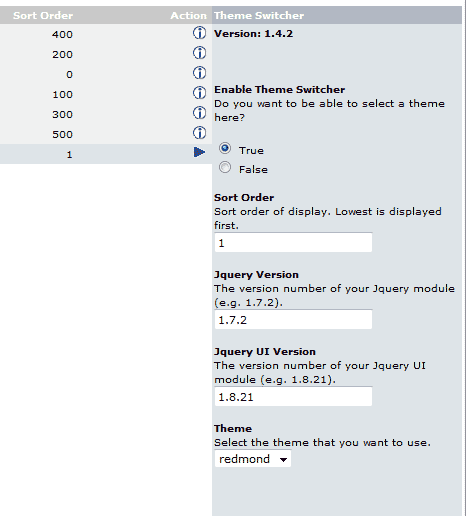
Click the Edit button towards the top. You will see the theme switcher interface. Now we need to fix the version of jQuery and upload a new theme.




