
In this tutorial, we’ll show you all the methods for viewing and adding HTML code to a Page or Post in WordPress. There may be times when you want to use HTML in your WordPress website. For example, you can code a hyperlink by hand or view the entire post in HTML and make several changes at once.
So, follow along as we cover the steps for the latest editor (Gutenberg) as well as the classic editor.

How to Add HTML to a Page/Post
In the latest version of the WordPress editor, there are 3 ways to add HTML to a page or post. You can add a Custom HTML block, edit a single block as HTML, or edit the entire page/post HTML with the code editor.
Add a Custom HTML Block
Keep in mind that if you use this option, you will not be able to switch back to the visual editor.
- Login to your WordPress Dashboard.
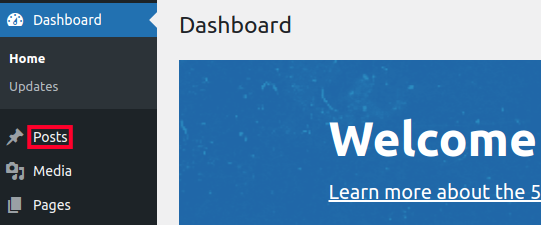
- In the navigation menu click the Pages or Posts link, depending which one you want to add HTML to. For the purpose of this tutorial we’re modifying a Post.
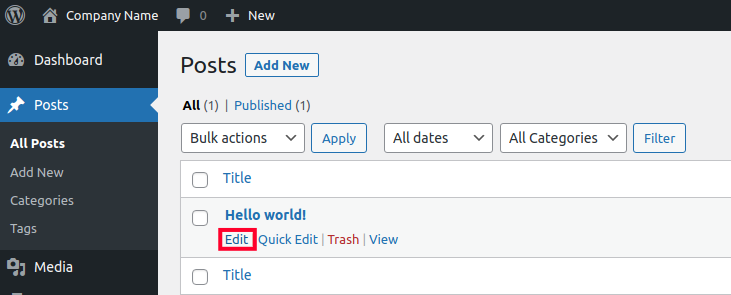
- Roll your mouse over the one you want to add HTML to and click the Edit button.
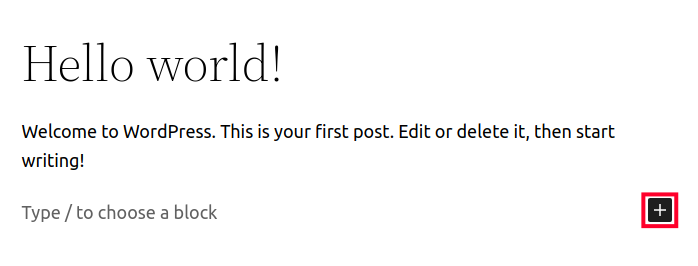
- Navigate to the section you want to add HTML to and click the plus + button.
- Type HTML in the search box.
- Click the Custom HTML option.
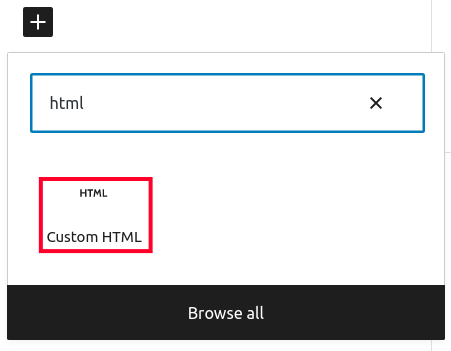
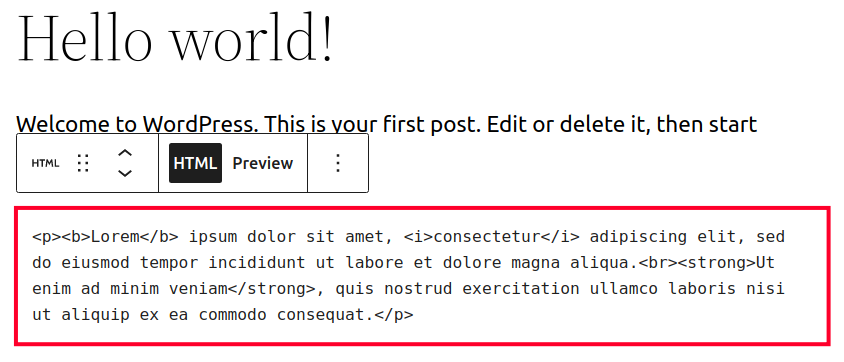
- A new block will be created where you can add your HTML code as needed.
Edit A Single Block as HTML
If you have an existing block WordPress allows you to switch to the code editor. You can then view and modify the HTML as needed. This is a good option if you only want to make changes to a single section of the page or post.
- Edit a page or post in the WordPress Dashboard.
- Click the block you want to modify.
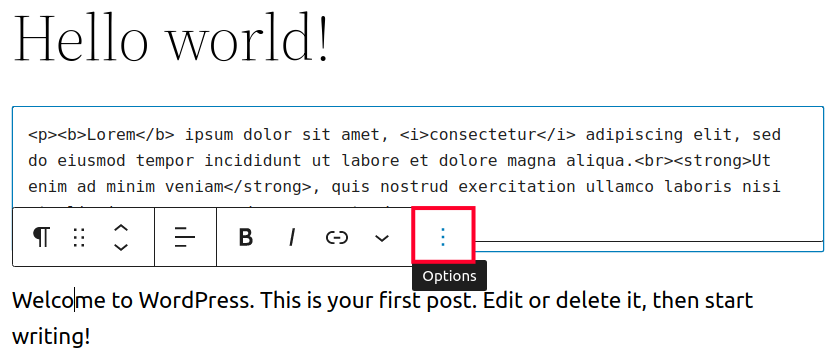
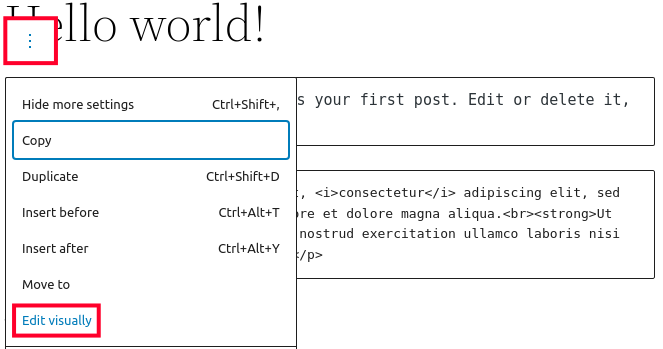
- Select the options link, it looks like 3 dots.
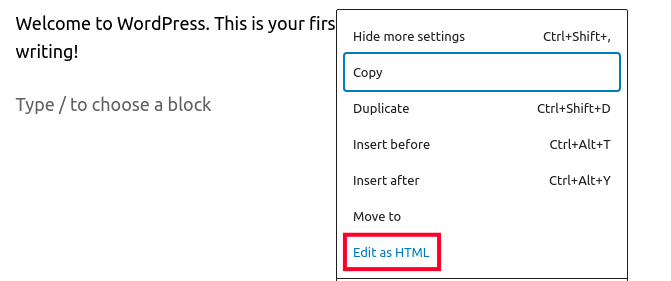
- Choose the Edit as HTML option.
- You will then see the HTML code for that block and can modify it as needed.

- If you want to switch back to the Visual editor click the block again, select option, then choose Edit visually.
Edit Full Page/Post With the Code Editor
The third option is to edit the entire page or post with HTML. This method is a quick way to make HTML changes to several sections of the page or post at the same time.
- Edit the page or post you want to modify.
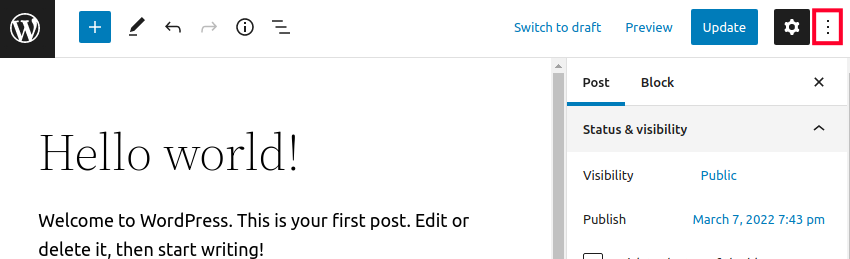
- Click the Options menu on the top right of the screen. It looks like 3 vertical dots.
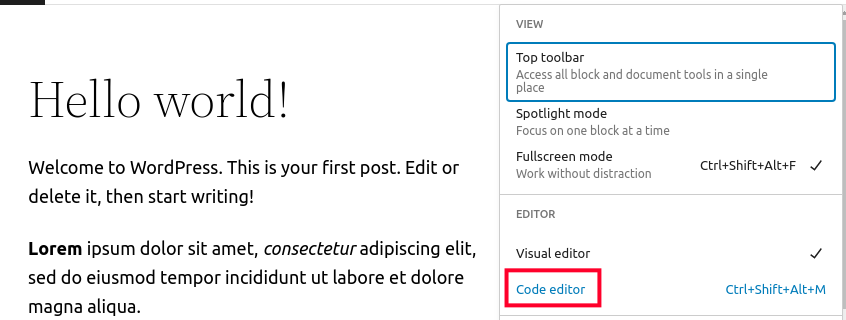
- Choose the Code editor section under Editor. Another option is to click the Ctrl+Shift+Alt+M keys at the same time.
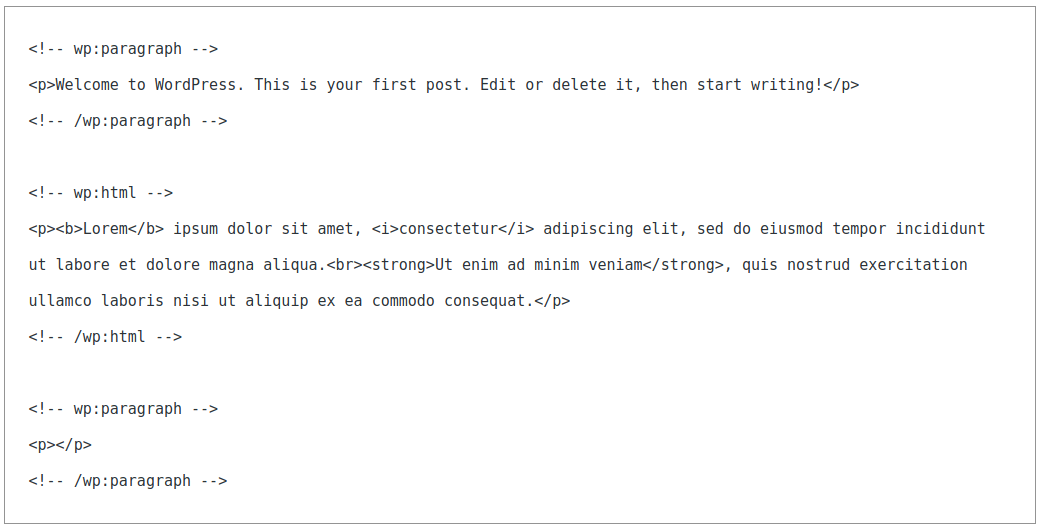
- Will then see the entire page/post as HTML and can add code as needed.
Add HTML to a Page/Post With the Classic Editor
- Navigate to the page or post you want to modify and edit it.
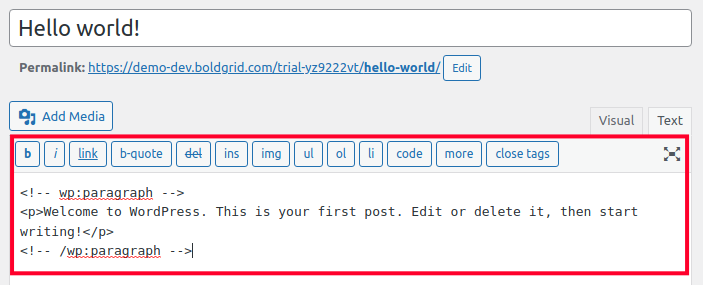
- Click the Text tab. You will then see the text of the page or post and you can enter the HTML.
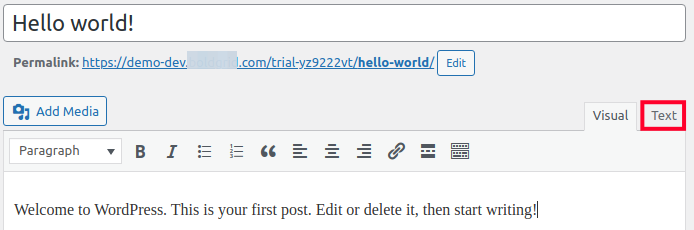
- Add your HTML as needed.
Congratulations, now you know how to add HTML to a WordPress Page or Post! Looking for more guides? Check out our WordPress How To Articles!
Get our Free Step-by-Step Guide to Creating a WordPress Website
Learn the ins and outs of creating a winning WordPress site step-by-step, from start to finish.
