
If your domain’s Domain Name System (DNS) zone has accumulated duplicate or broken entries, you can reset the DNS zone to cPanel defaults in a few clicks using Zone Editor. This guide walks you through the reset so your domain resolves correctly again.
Warning: Resetting the DNS zone erases the custom changes you made to your records, including any manually added A, MX, or CNAME records. cPanel attempts to preserve TXT records, but that is not guaranteed, so record all of your custom records before you continue and re-add anything that is missing after the reset. The reset only takes effect if your domain’s nameservers point to InMotion Hosting.
Reset DNS Zone in cPanel
- Log in to cPanel.
- In the Domains section, click Zone Editor.

- Click Manage next to the domain whose zone you want to reset.

- Click the Actions dropdown and select Reset DNS Zone. A confirmation pop-up appears, warning that the zone will be restored to its default state.
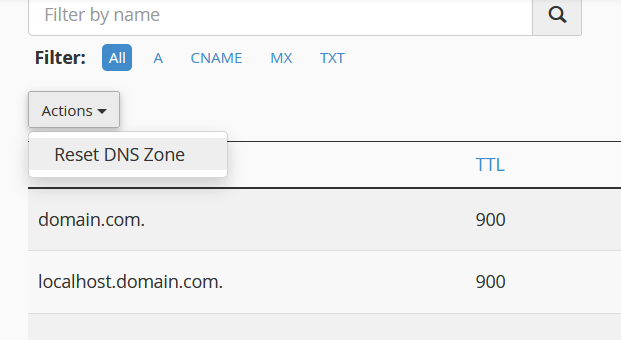
- Click Continue to confirm the reset.
- Allow 4 to 24 hours for DNS propagation to complete across the internet.
Once propagation finishes, re-add any custom DNS records you removed. If you use InMotion Hosting Professional Email, verify your MX and TXT records match the required values. See How to Reset cPanel Page Settings if you also need to restore other cPanel configurations.
Troubleshooting
The zone reset has no effect on the live site
The reset only applies when your domain’s nameservers point to InMotion Hosting. If your domain uses third-party nameservers, the DNS zone in cPanel is not authoritative, and changes will not propagate. Update your nameservers at your domain registrar first, then repeat the reset. For the steps, see How to Change Your Domain Nameservers in AMP.
Site or email is still not working after propagation
If the full propagation window has passed and the site or email still does not resolve, open Zone Editor and confirm the expected records are present. A reset adds the cPanel defaults but does not restore custom records you added previously. Re-add any missing A, MX, CNAME, or TXT records manually.
Conclusion
Your domain’s DNS zone is now reset to cPanel defaults. After propagation completes, test your site and email to confirm everything resolves correctly, then restore any custom records your setup requires.