
If your domain resolves to a server default page showing your server hostname and IP address instead of your website, the domain is pointing to the wrong IP address. Find the correct IP in cPanel, WHM, or AMP, then update your Domain Name System (DNS) A record to fix it.
Step 1: Find the Correct IP Address
The server default page appears when your domain’s A record points to an IP address that does not match your hosting account. Before you update anything, locate the IP address your account is actually assigned to. Choose the method that matches the tools you have access to.
Find the IP in cPanel
- Log in to cPanel. See How to Log in to cPanel if you need help.
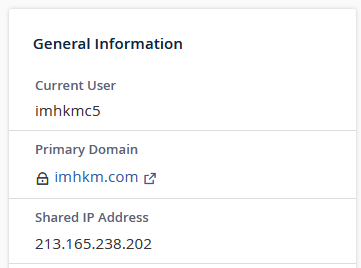
- On the main dashboard, locate the General Information panel on the right side of the screen.
- Your account’s IP address appears next to Shared IP Address or Dedicated IP Address, depending on your hosting plan.
Find the IP in WHM
If you have a reseller or VPS account with WHM access, you can look up the IP assigned to any cPanel account under your server.
- Log in to WHM.
- In the left menu, under the Account Information section, click List Accounts.
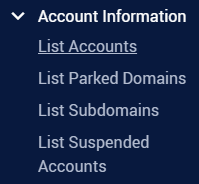
- Find the account in the list and read the value in the IP Address column.

Find the IP in AMP
- Log in to AMP.
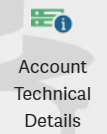
- Select the hosting account, then click Account Technical Details.
- Copy the value next to IP Address.
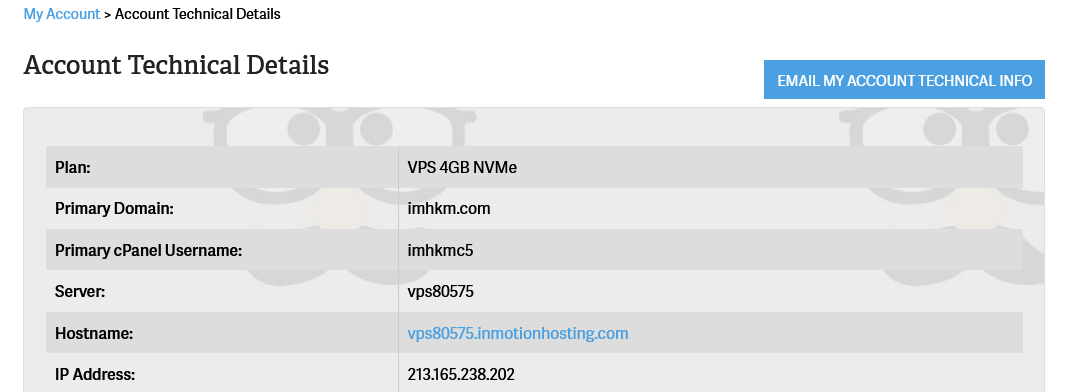
Important: On Reseller, VPS, and Dedicated servers, individual cPanel accounts can be assigned a unique IP address that differs from the main account IP shown in AMP. If you are on a reseller or VPS plan, verify the IP in cPanel or WHM instead of relying on AMP’s Technical Details screen.
Step 2: Update the DNS A Record
Now that you have the correct IP address, point your domain’s A record to it. Where you make this change depends on where your domain’s nameservers are currently pointed.
If your domain uses InMotion Hosting nameservers, update the A record in the Zone Editor inside cPanel. See Using the Zone Editor in cPanel for step-by-step instructions.
If your domain’s nameservers point to an external provider (such as your domain registrar), log in to that provider’s DNS management panel and update the A record there. See DNS and Nameserver Changes for background on where nameserver changes are made.
Note: DNS changes can take up to 24 to 48 hours to propagate across the internet. During that time, some visitors may still see the old IP address. To check propagation status, use the Track DNS tool in cPanel. See How to Use the Track DNS Tool in cPanel.
Troubleshooting
Domain still shows the default page after 24 hours
If your domain still resolves to the server default page after DNS propagation should be complete, confirm that the A record you updated matches the IP address you found in Step 1 exactly. A single transposed digit will send traffic to the wrong server. Log in to cPanel and open the Zone Editor to review the current A record value.
A record matches the correct IP but the default page still appears
If the A record is already set to the correct IP but your domain still loads the server default page, the domain may not be added to the cPanel account, or the document root may be misconfigured. Contact InMotion Hosting technical support to confirm the domain is properly configured in the account.
Conclusion
Once the A record points to the correct IP address and DNS propagation completes, your domain will load your website instead of the server default page. If the problem persists after 24 to 48 hours, contact InMotion Hosting technical support to confirm no other DNS conflict is present. For help uploading files before your domain finishes propagating, see Upload files to server without domain name pointing there.