In this guide, we will show you how to connect WHMCS to your WHM. This allows them to communicate for easy login from WHMCS, automatic cPanel creation, synchronizing packages, among other options.
Connecting WHM to WHMCS
- Log into WHMCS.
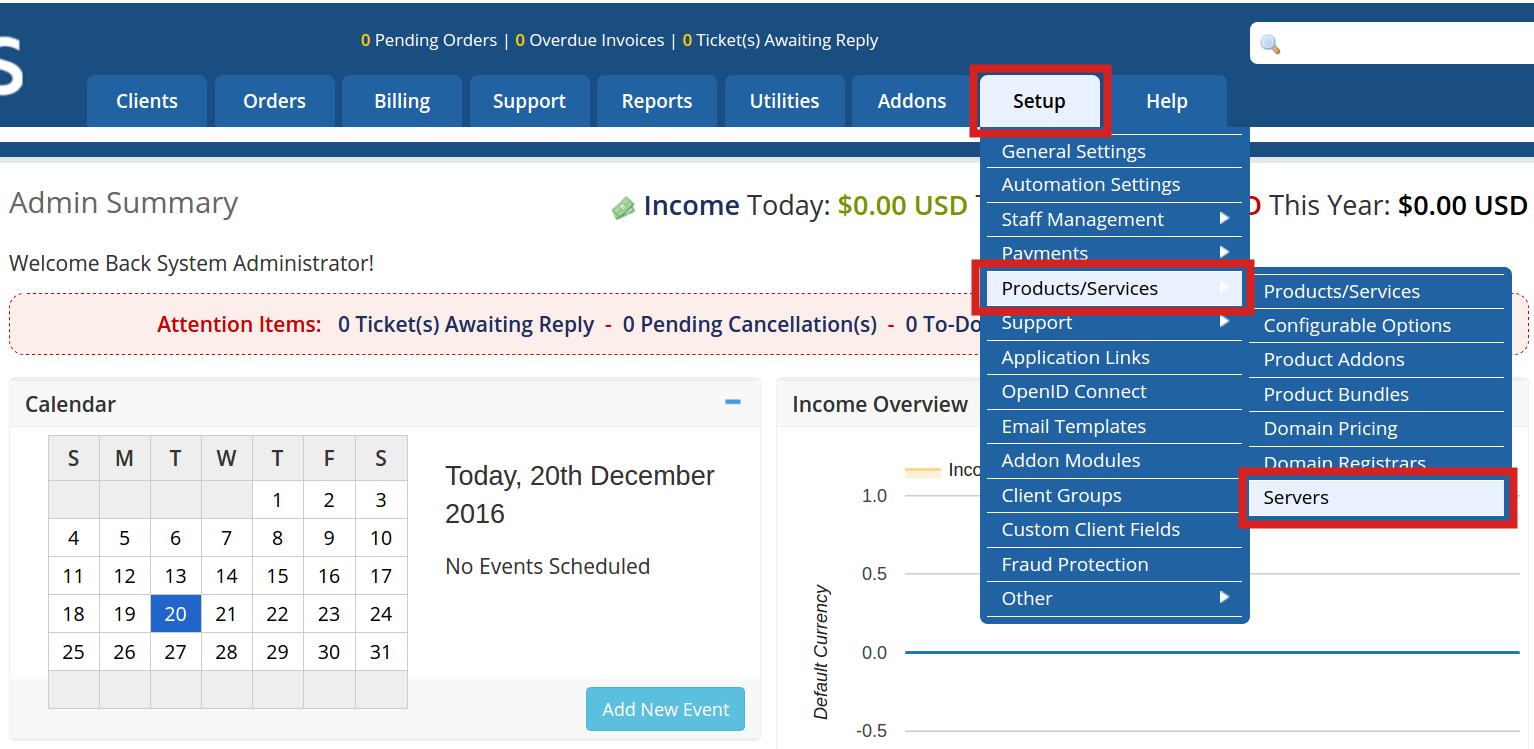
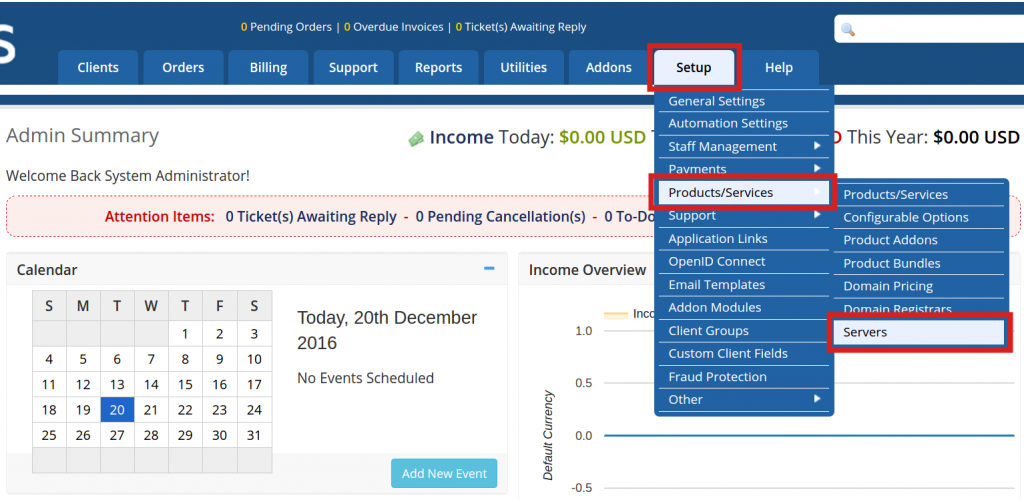 Roll your mouse over Setup, then Products/Services, and click Servers.
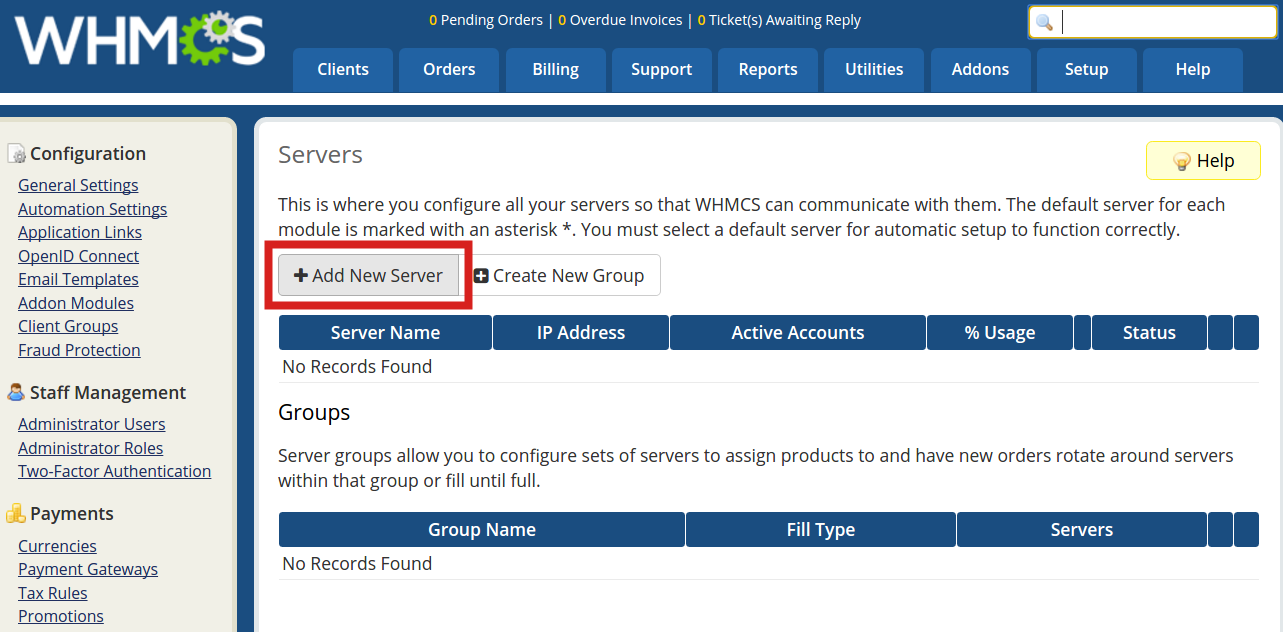 Click the Add New Server button.
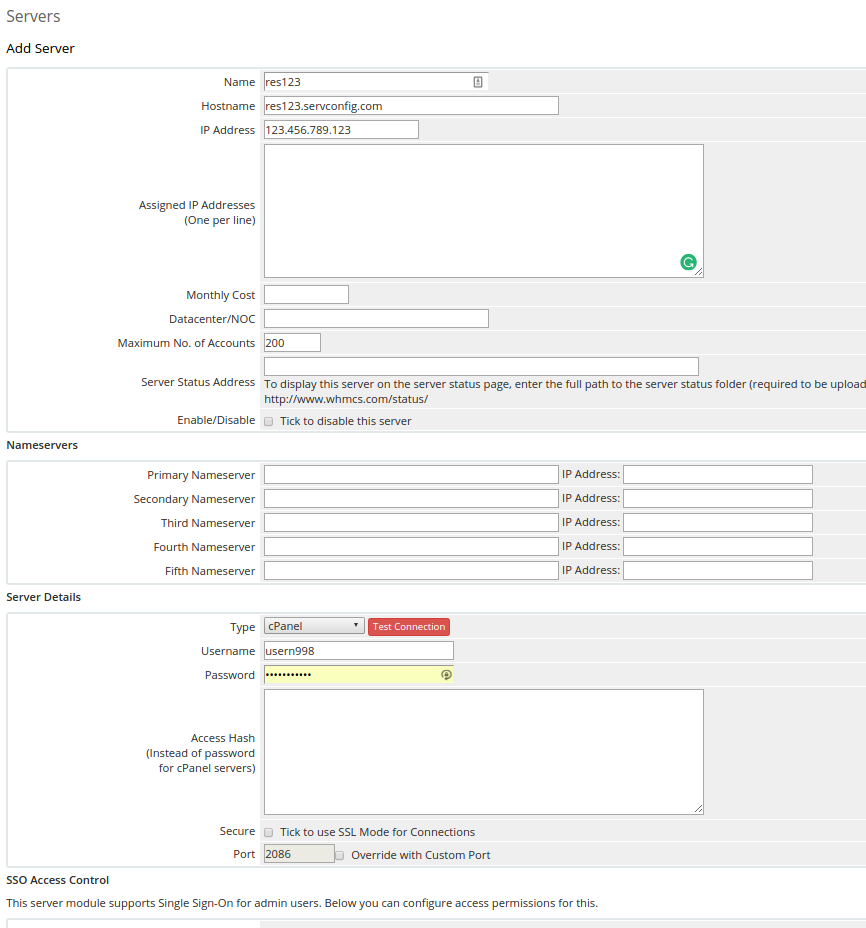 You will then be on the Servers page, fill in the fields as needed. The only required fields are Name, Hostname, IP Address, Type, and WHM username/password. Most can be found in AMP on your Account Technical Information.
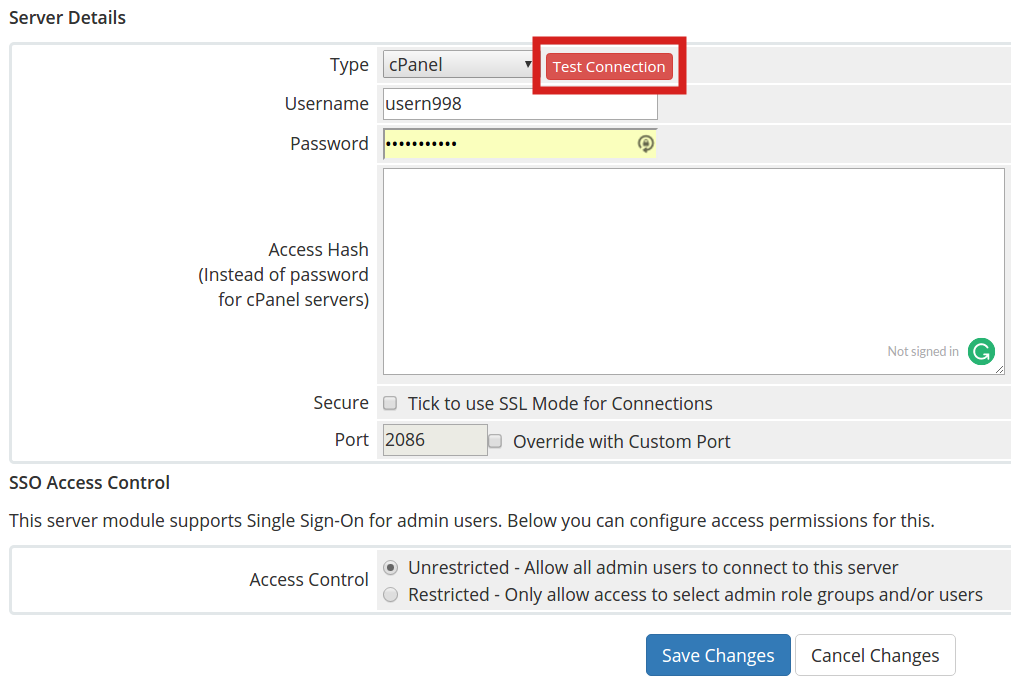 You can click the Test Connection button to verify your settings are correct.
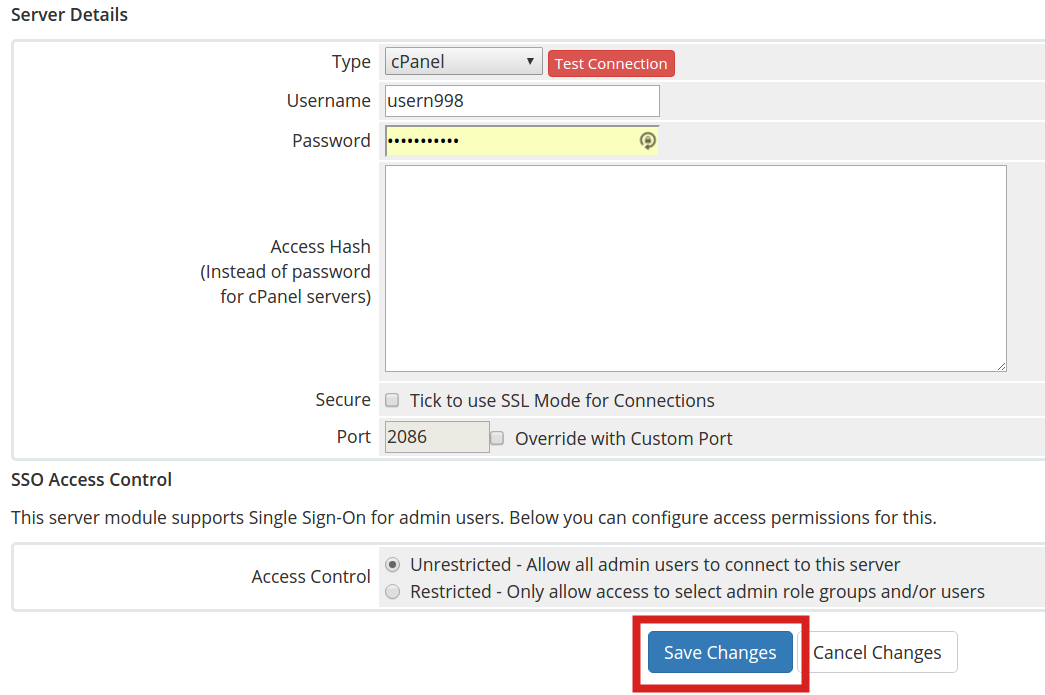 Click the Save Changes button.




Congratulations, now you know how to connect your WHM to WHMCS!