Site security is an important topic for everyone. Often, you will need to react to an abusive visitor to your sites. One common response is to block an IP address from accessing the site. This will prevent anyone from that IP address from using the site and disrupting its normal flow. Below is quick guide on how to block and unblock IP addresses from accessing your Drupal 8 site.
Speed your website up immediately with our Managed Drupal Hosting.
In this tutorial:
How to block/unblock IP addresses in Drupal 8
Enabling the Ban Module
Unlike Drupal 7, the ability to block IP addresses is not enabled by default. This ability has been moved from the System module into its own Ban module.
- Log into your Drupal 8 admin interface.

From the top menu bar, click on the menu tab and then the Extend tab from the second menu bar.
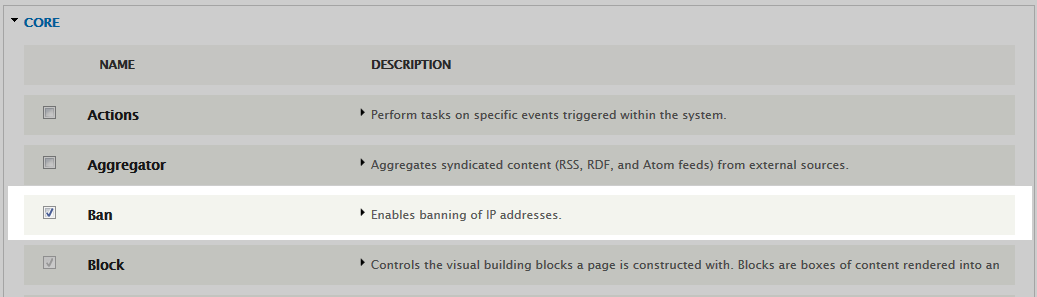
You are now on the modules list page. The Ban module is listed under the Core category. To enable it, simply click on the checkbox to the left of the module.
- Once selected, scroll to the bottom and click on the Save Configuration button to enable the module. Now that you have the Ban module enabled, you can now block IP addresses.


How to block an IP address

If your site is being abused by spammers or other online miscreants you may decide to block their IP address. You can do so by first logging into the Drupal 8 admin interface. From there, use the top menu bar and click Menu >> Configuration.
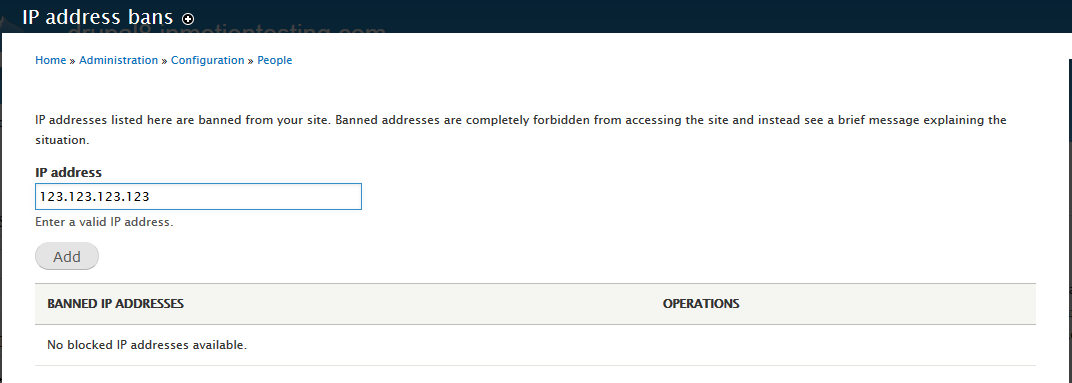
Once on the Configuration page, look under the People category and click on the IP Address Bans link. This brings you to a page named IP Address Bans. Enter the offending IP address in the IP Address field and then click on the Add button.
How to unblock an IP
If you discover that a blocked IP address is no longer valid or the person blocked has apologized and reformed their bad behavior, you can remove the IP address from the list. Simply visit the list using the same method as above.
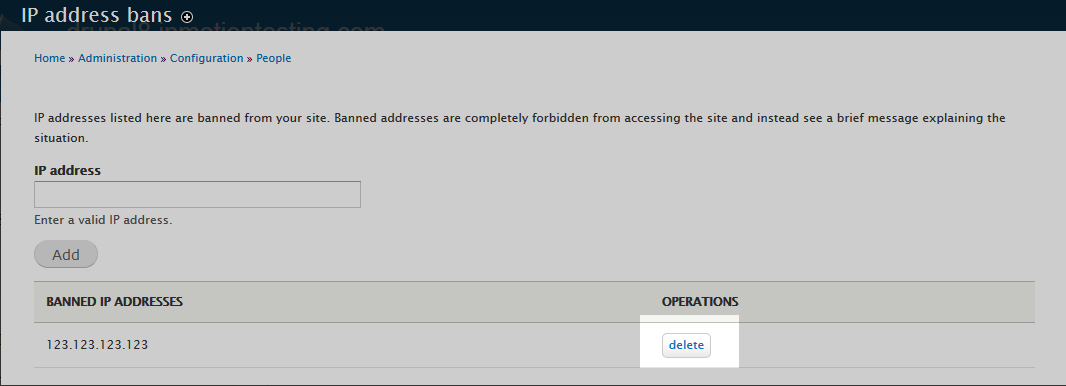
Once you get to the IP Address Bans page, find the specific IP address on the list and click the Delete button on the left side of the row. Simply click Delete once more on the confirmation popup and you are done!