
Within your Account Management Panel (AMP), you can see and print invoices or receipts for your account. In this guide we will show you how to View and Print your payment history in AMP.
Add Tax ID or VAT Before Payment
- Log into AMP.
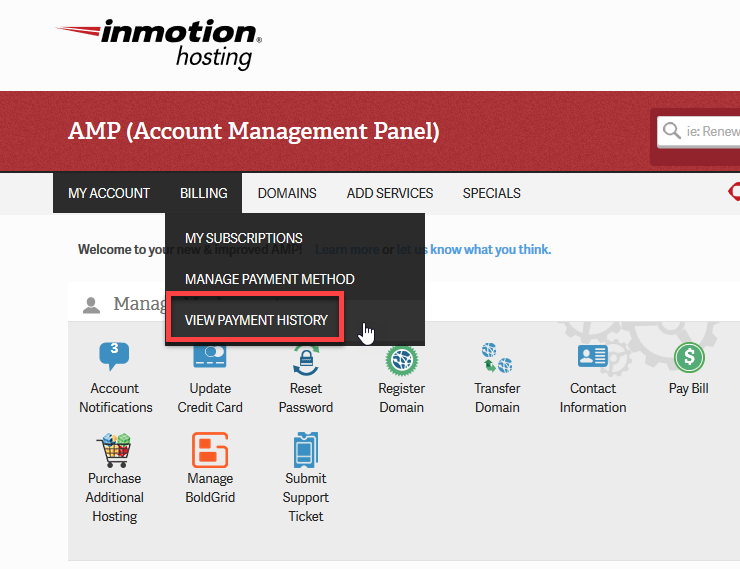
- Select Billing from the top.
- Click on Payment History.
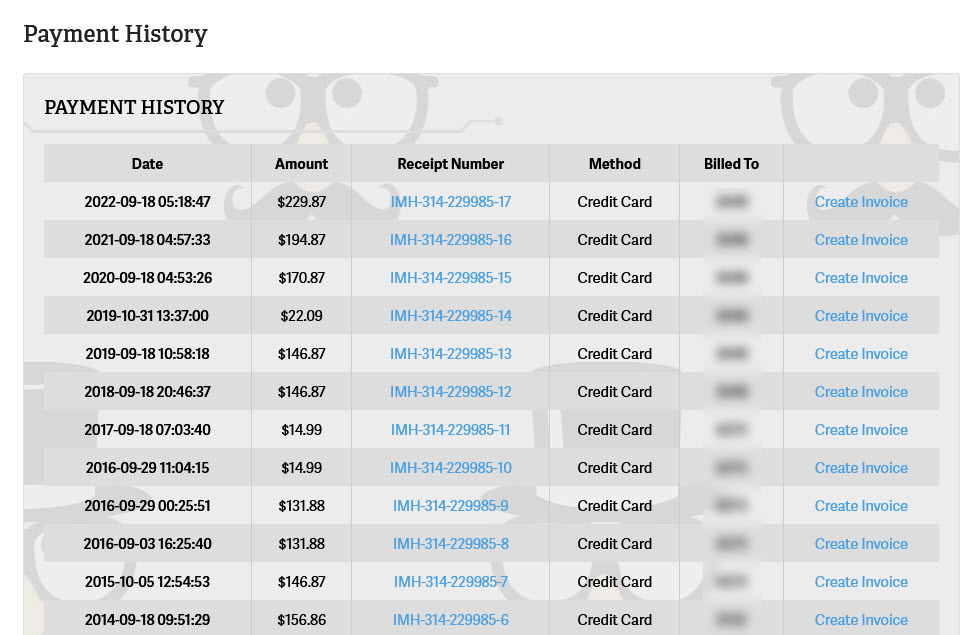
- You will see the payment history. Find the receipt you wish to view, then click on Create Invoice in the right column.
- Check on the box or boxes for InMotion Hosting Tax ID and/or personal Tax/VAT number ID in the bottom right corner of the displayed invoice. The first box will generate the Tax ID from InMotion Hosting. The second option for Personal Tax or VAT ID will provide a place for you to type it in.
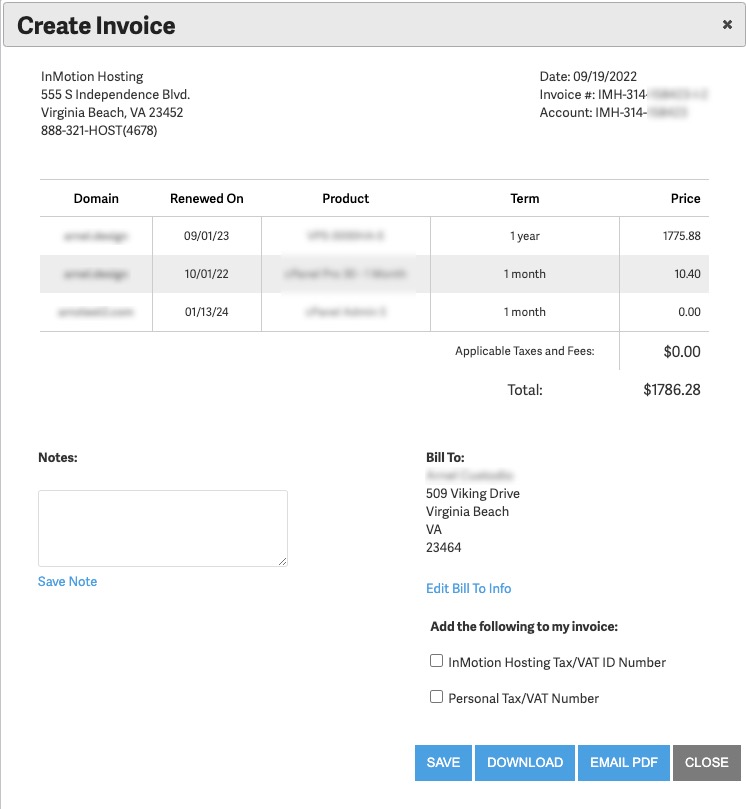
- Type in any necessary information, then click on the SAVE, DOWNLOAD, or EMAIL PDF button.
Viewing/Printing Payment History
In order to print an invoice for every transaction, use the steps below.
- Login to your AMP.
- In the main menu, move mouse over Billing, and click View Payment History
- You will see all of your previous payments, click the receipt number to view more information.
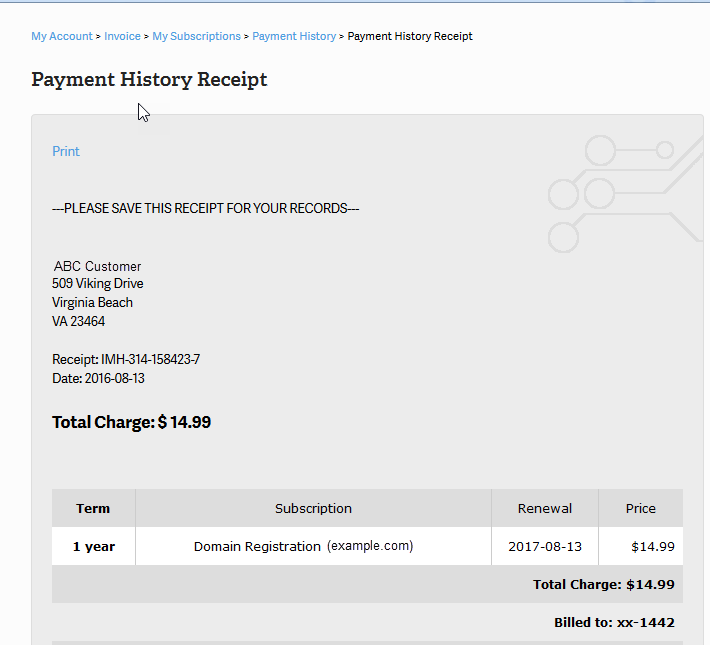
- A detailed receipt will be displayed. Click on Print to print it.
Print Invoice Before Renewals
A very common request for billing is to have a print out of their invoice before an account subscription renews. You can easily do this using the following steps and options within the Account Management Panel (AMP).
- Login to your AMP.
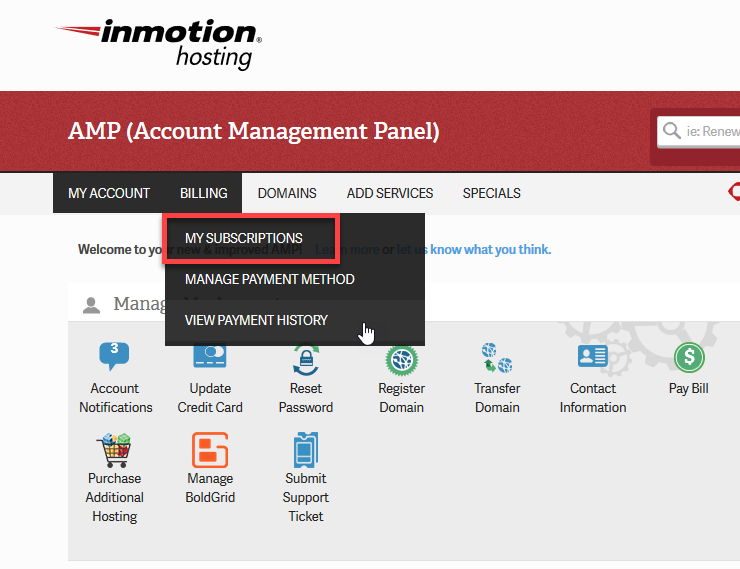
- Click on Billing in the menu at the top of the page.
- Click on My Subscriptions from the list that appears in the drop-down menu.
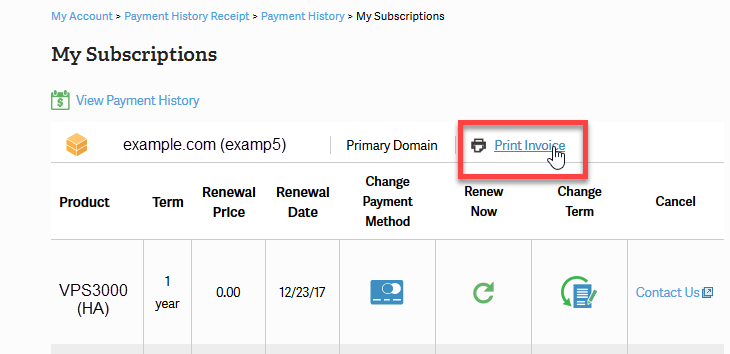
- You should next see a table listing all of the subscriptions on the account. Scroll down the list (if there is more than one subscription) and then select the subscription that you need to print out. To view the invoice for the current period, click on Print Invoice. Note that the table will sort by domain names and product types.
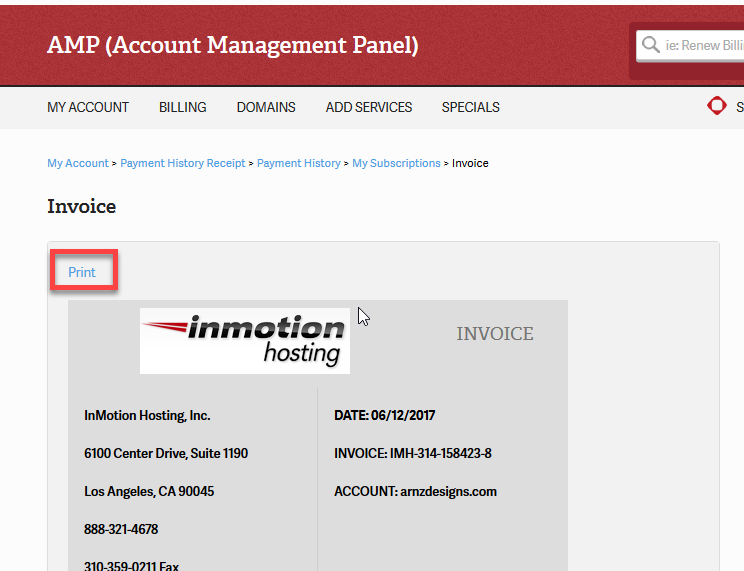
- To print the invoice for the current period, click on Print.
Now you know how to access and print your payment history from AMP.