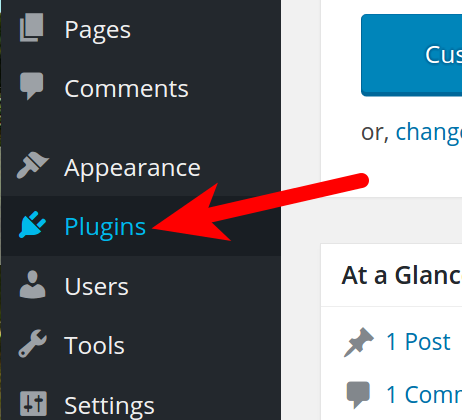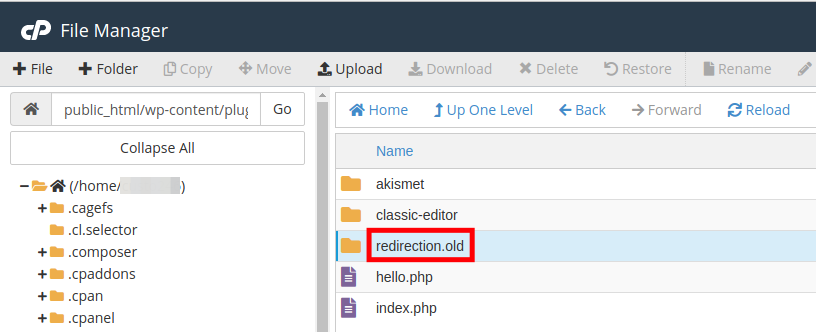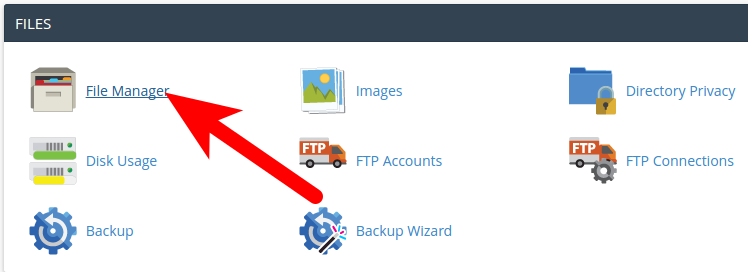
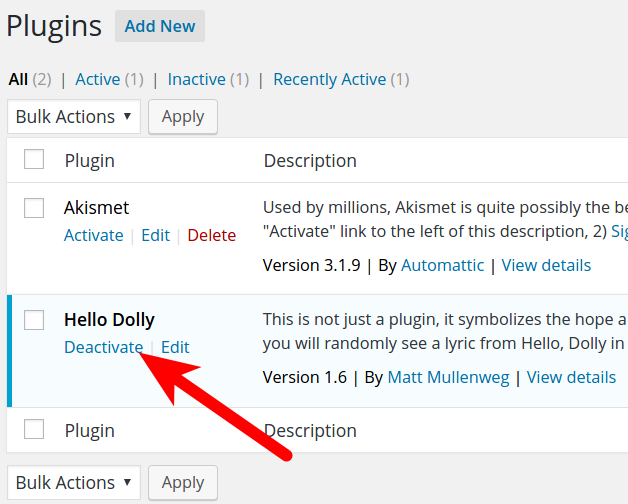
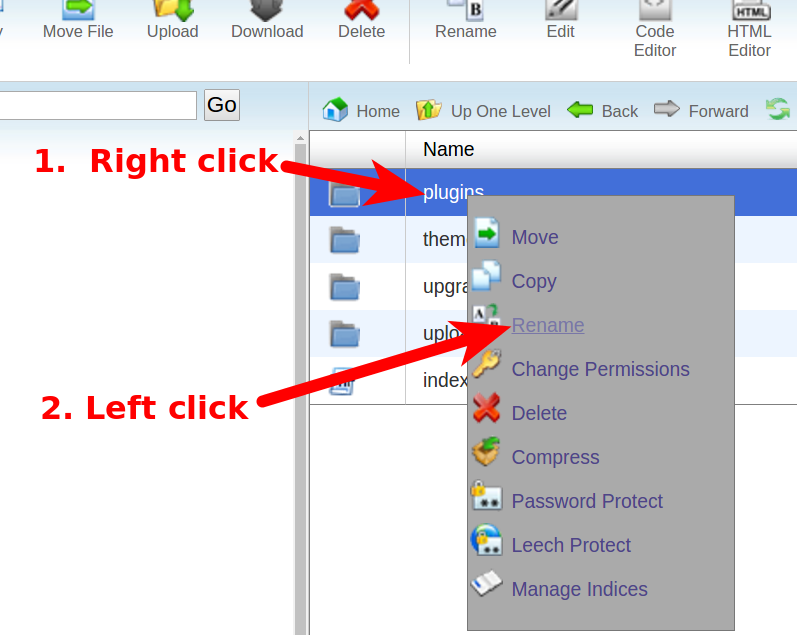
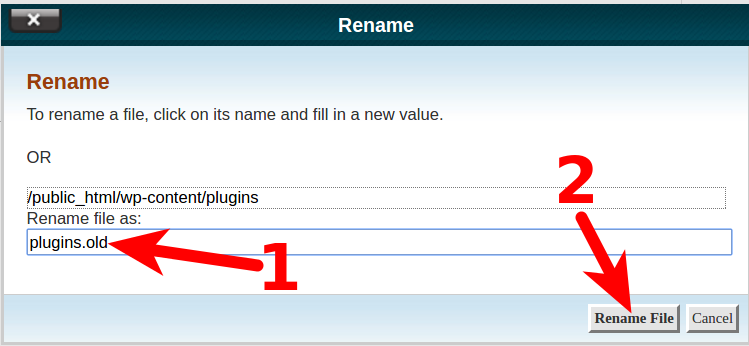
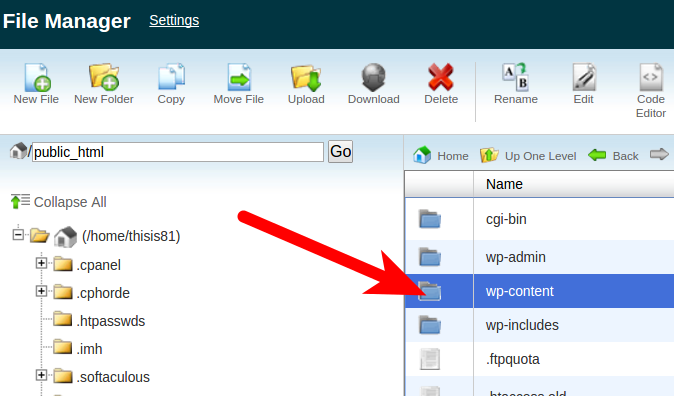
How to Disable WordPress Plugins Updated on August 10, 2021 by InMotion Hosting Contributor 1 Minutes, 51 Seconds to Read In this tutorial, we will show you how to disable WordPress plugins from the Dashboard, then how to disable a single plugin or all plugins by renaming the folder in cPanel File Manager. When troubleshooting a WordPress issue, it may be necessary to disable the plugins. You can easily disable (deactivate) plugins from the WordPress Dashboard, but this can be an arduous task if you have a large number of plugins, or do not have access to your Admin Dashboard. The quickest method for disabling all your plugins is to rename the entire plugins folder. But, this will disable all plugins and may not help narrow down the root cause of the problem. So, you may prefer to just rename a single plugin folder to disable only one plugin at a time. Disable WordPress Plugins in the DashboardDisable a Single WordPress Plugin in cPanelDisable All WordPress Plugins in cPanel Disable WordPress Plugins in the Dashboard Login to your WordPress Dashboard.Click Plugins in the navigation menu. Find the plugin you want to disable, and click the Deactivate link. You will then see a message stating “Plugin deactivated” and your plugin is now disabled. Disable a Single WordPress Plugin in cPanel Login to your cPanel. Click the File Manager link in the Files section.Navigate to the document_root of your website.Open the wp-content then plugins folder.You will see a folder for all the plugins you have installed. Rename the folder for the plugin you want to disable. For example, I’m going to rename the “redirection” folder to “redirection.old”.Once your plugin folder has been renamed, the plugin is disabled. Disable All WordPress Plugins in cPanel Login to your cPanel.Click the File Manager in the Files section.Navigate to your WordPress installation folder, and open the wp-content folder.Right-click the plugins folder, then select Rename. Rename the plugins folder, for example “plugins.old” then click the Rename File button. All of your WordPress plugins are now disabled. Congratulations, now you know how to disable (deactivate) your WordPress plugins from the Dashboard, and cPanel! Check out our WordPress Education Channel for many helpful guides. Become a master of WordPress plugins! Protect, optimize, secure, and expand the functionality of your website easily with the help of WordPress plugins! Power Your Growth with Managed WordPress Unlock the full potential of your mission-critical WordPress site with scalable, purpose-built servers. Give your website the performance, security, and support it needs to succeed - so you can focus on growing your business. Scalable Cloud Servers Advanced Security Managed Updates Expert Support Managed WordPress Hosting Share this Article IC InMotion Hosting Contributor Content Writer InMotion Hosting contributors are highly knowledgeable individuals who create relevant content on new trends and troubleshooting techniques to help you achieve your online goals! More Articles by InMotion Hosting Related Articles How to Install WordPress using Softaculous The Ultimate Guide to Optimizing WordPress Performance Complete Guide to WordPress Widgets: How to Add, Customize, and Manage The Ultimate Guide for Migrating WordPress Websites W3 Total Cache – Guide to WordPress Caching Cleaning Up Old Post Metadata in WordPress How to Log into Your WordPress Dashboard Getting Started Guide: WordPress How to Enable or Disable Automatic WordPress Updates How to Optimize your WordPress Database with WP-Optimize Settings

Error establishing a database connection Is disturbing my website that i have not been able to do anything for the past 24hrs, thats all i am seeing
I just want to send you a big Thank You for some advice I found on your website! Long story short, I updated a plugin on my WordPress site and the whole thing crashed. Everything disappeared into white – the dashboard, the site itself, everything. I suspected the fault was the plugin but could not, of course, access it through the dashboard to disable it. Thanks to Google I came across your support site with instructions on how to disable a plugin through cPanel. They were so clear, straightforward and well-illustrated even I could follow them. Most importantly, you gave me the confidence to try. And it worked! My sanity is saved and life continues. It may seem a small thing to you guys but to me it was a huge help. So please pass on my enormous thanks to whoever was responsible for the support page(s). You’re a great company.
I have a fatal error occuring when I tried to update plug in and wordpress new OS version. Error states: Fatal error: Allowed memory size of 67108864 bytes exhausted (tried to allocate 88 bytes) in /home/heidishangups/public_html/wp-includes/class-wp-hook.php on line 300 I’m not a tech person so step by step instructions would be ideal. Thank you Heidi
If the error is triggered by that particular plugin then the best thing to do is contact the plugin developer for suggestions and leave the plugin disabled in the meantime.
Hello Simon, If you disabled them by renaming the folder, you’ll have re-name the folder BACK to what it was before. Then you need to login to the WordPress Admin and go to the plugins section. Then you can activate each plugin that was previously disabled. If you have any further questions, please let us know. Kindest regards, Arnel C.
Hi Amel, I turned off the plugins but still can’t login into the wp-admin, because one of them is redirecting my whole site to its site. Any suggestions on how to solve? Thanks, Dan
Hi Dan – sorry to hear that you’re still having problems logging into the WordPress Administrator. I know this is a headache. Make sure that your browser cache has been cleared, as it can cause problems to repeat if it’s got old site information cached. You can also find the official WordPress.org’s troubleshooting list here: https://wordpress.org/support/article/login-trouble/. I was going to recommend that you reset your theme to a default one as well. There are unfortunately many possible causes to the WordPress admin login issue. If you were using a security plugin, make sure to check the documentation as it may have changed your login URL as well. I hope this helps!